Email Domain Setup
This guide outlines the steps to verify a domain for sending newsletter emails or for sending a large volume of no-reply emails via Ashby (over 1,000 emails a day). The setup process involves updating DNS records on a domain owned by your organization, so you’ll likely want to provide these instructions to your IT team or to someone who can configure DNS records for your organization’s domains.
Please note that verifying a domain for sending newsletter or no-reply emails can only be configured on the Enterprise plan.
Foundations | Legacy Plus | Plus | Enterprise |
|---|---|---|---|
❌ | ❌ | ❌ | ✅ |
Overview
To send newsletters using Ashby's Newsletter feature, you'll need to configure at least one domain for email sending. Configuring a domain is also beneficial if you send a high volume of no-reply emails and would prefer to use an email branded to your company, rather than using the default Ashby no-reply email address.
Configuring a domain is necessary because email providers like Google and Microsoft restrict the use of their platforms for bulk emailing and sending newsletters. Google and Microsoft email accounts have daily sending limits, so you can't directly send newsletters or large numbers of emails from these accounts. To work around this restriction, you'll need to grant Ashby permission to send emails from one of your organization's domains on your behalf.
To do this, you’ll set a few DNS records on one of your organization’s domains so that Ashby can verify that you own the domain and so that Ashby has permission to send emails from this domain on your behalf.
Prerequisites
To follow the steps below, you’ll need to be able to update DNS records associated with the domain you want to use for sending newsletters or no-reply emails. To access the Email domains admin page, you’ll need to be an Ashby organization admin.
Video Walkthrough
A video walkthrough of the email domain setup process is available below.
Note: In the walkthrough, the page is named Newsletters, but it’s since been renamed to Email Domains. The functionality is unchanged.
- Log into your Ashby account and navigate to Admin in the top nav bar.
- Search for ‘Email Domains’ or visit the page directly at this link.
Steps to Configure a Domain

- Click on Add Domain in the top right-hand corner of the page. Provide the domain you’d like to use for sending emails and click Add.
- Once you click Add, you’ll have 72 hours to update your domain’s DNS records before your domain setup is considered Failed. Once your domain’s setup status is Failed, you’ll need to remove the domain in Ashby and re-add it in order to start the setup process again. For that reason, we recommend waiting to add the domain in Ashby until you’re ready to update the domain’s DNS records.

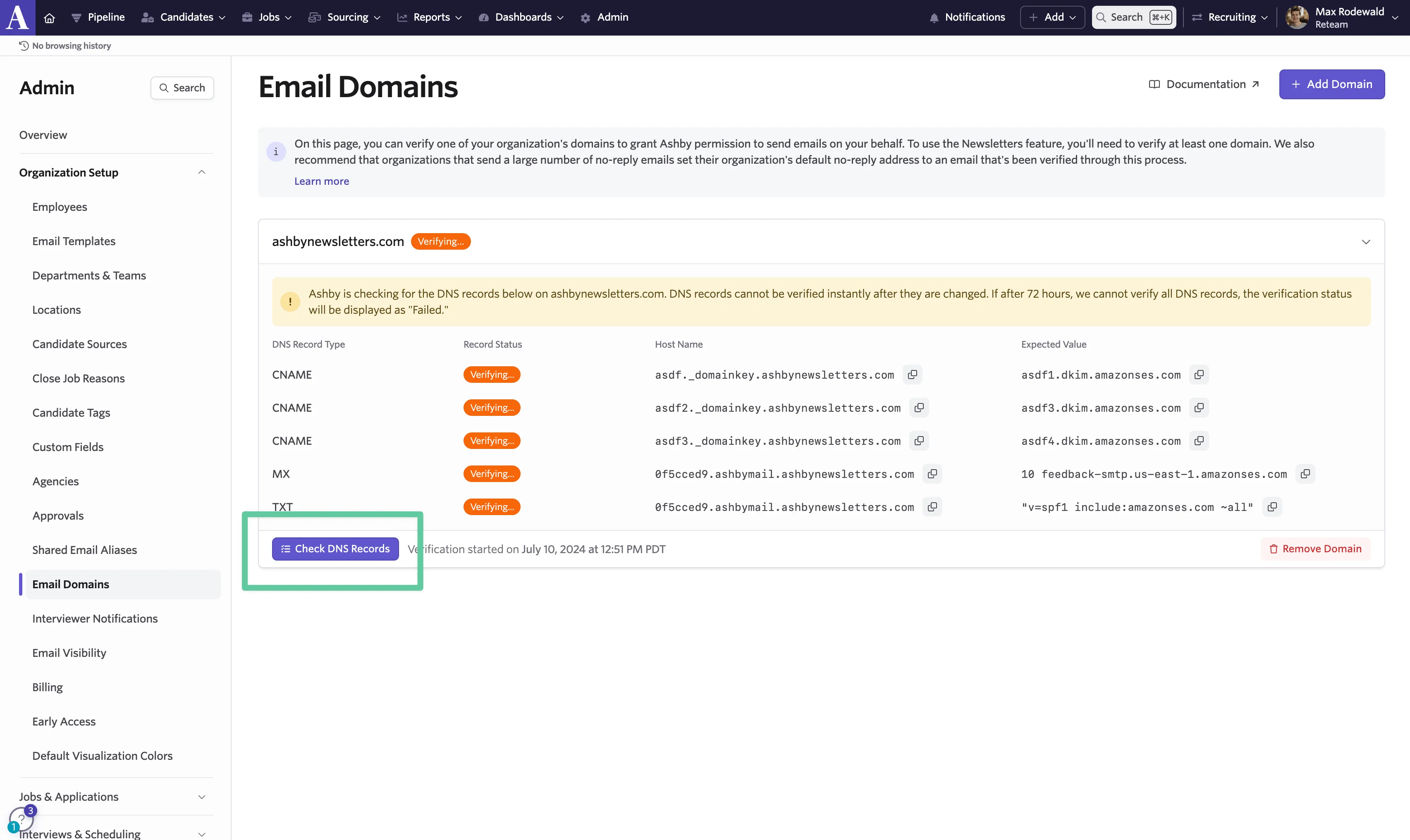
- After clicking Add, you’ll see a list of three CNAME records, one MX record, and one TXT record. You’ll need to set these DNS records on your domain.

- Depending on where your domain is managed, the instructions for updating your DNS records will vary slightly. Below you can find links to documentation for updating DNS records from a few common providers.
Cloudflare See Cloudflare’s guide to managing DNS Records here
Route 53 See Route 53’s guide to managing DNS records here
GoDaddy See GoDaddy’s guide to managing DNS records here
Other Providers If your provider isn’t listed above, you can generally find documentation on updating DNS records by Googling ‘manage {domain name provider} DNS records’
A Note on the MX record Depending on your domain registrar, you may need to provide the priority, which is at the start of the MX record's expected value, in a separate input. This refers to the '10' at the beginning of the record. In most cases, you can leave it formatted as it is in Ashby. However, some providers may require you to put the '10' in a separate input or on a different line.
- Once you’ve configured the DNS records, head back to the Email Domains page in Admin and click on Check DNS Records in the bottom left of the domain’s configuration window. This will run a check to see if the DNS records have been found on your domain. It may take up to 72 hours for the records to be published and for the statuses to update to Verified.
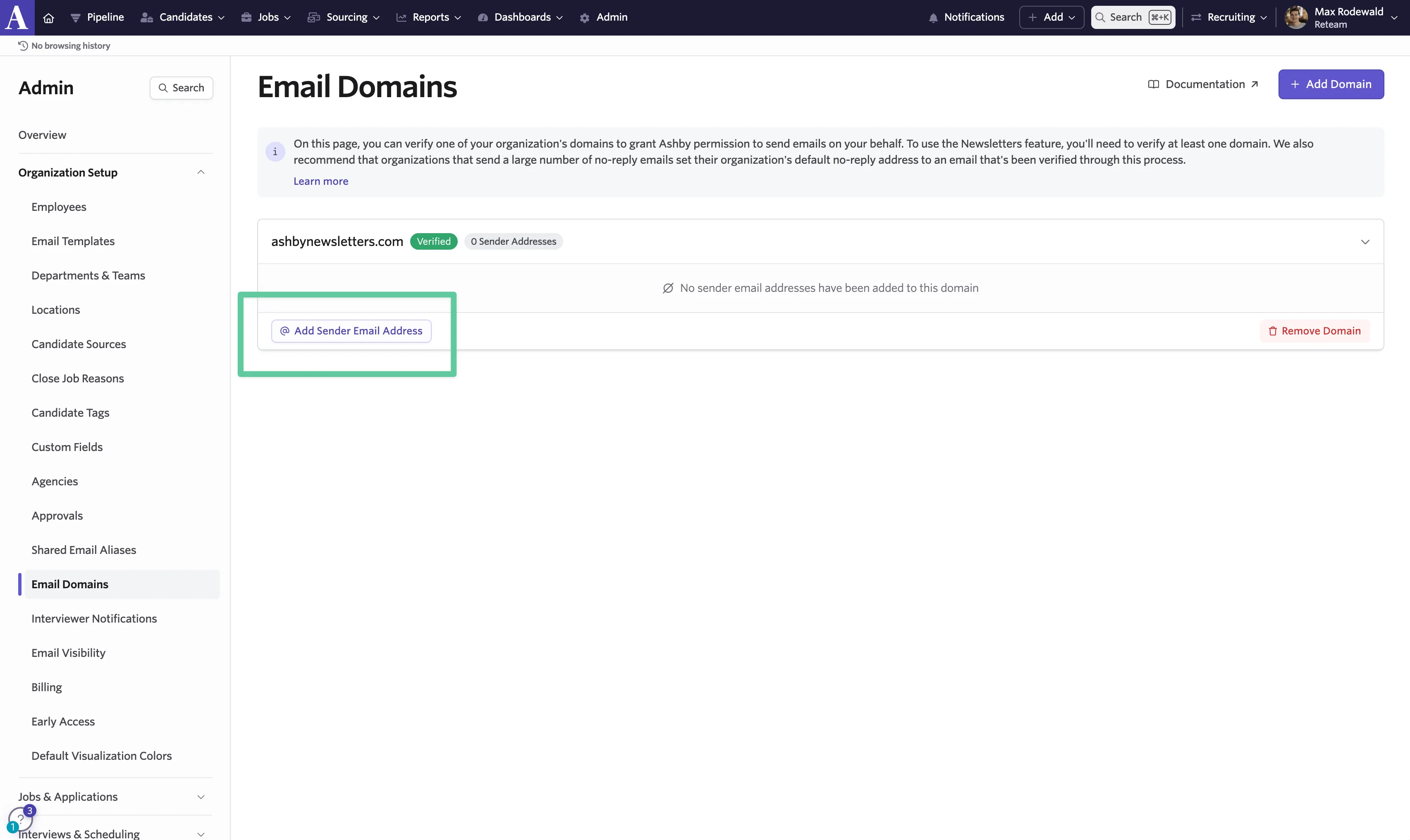
- Once your DNS records have all been verified, you can specify the email addresses you want to use. To add an email address, click Add Sender Email Address in the bottom lefthand corner.
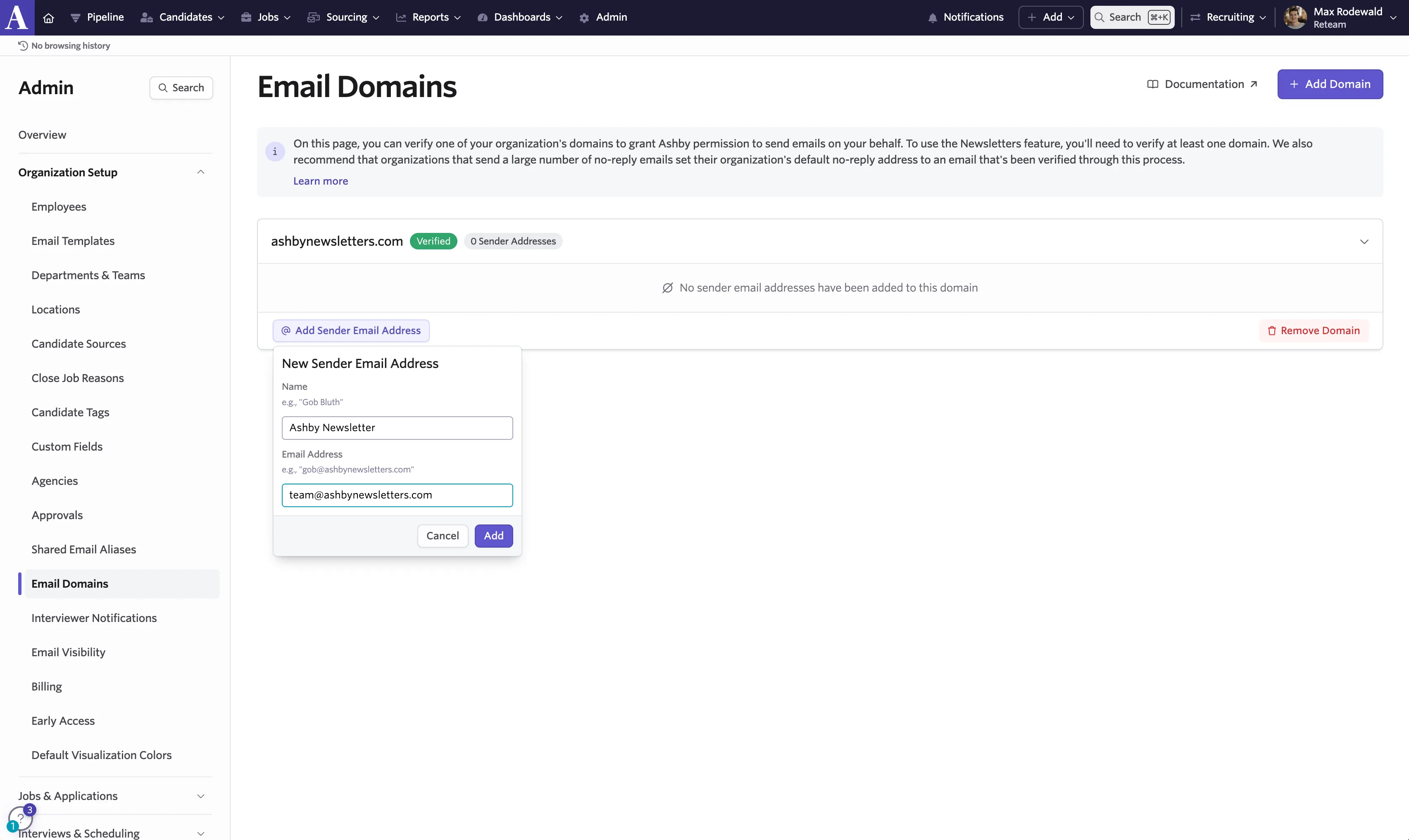
- In the Name field, provide the name you want email recipients to see when they receive emails from this address. In the Email Address field, provide the email address you want to use for sending emails. The email must be a part of the domain you configured. For example, if you configured ‘acmecorp.com’ as your domain, you could provide an email here that ends with ‘@acmecorp.com’. Once both fields are filled out, click Add to add the email address.
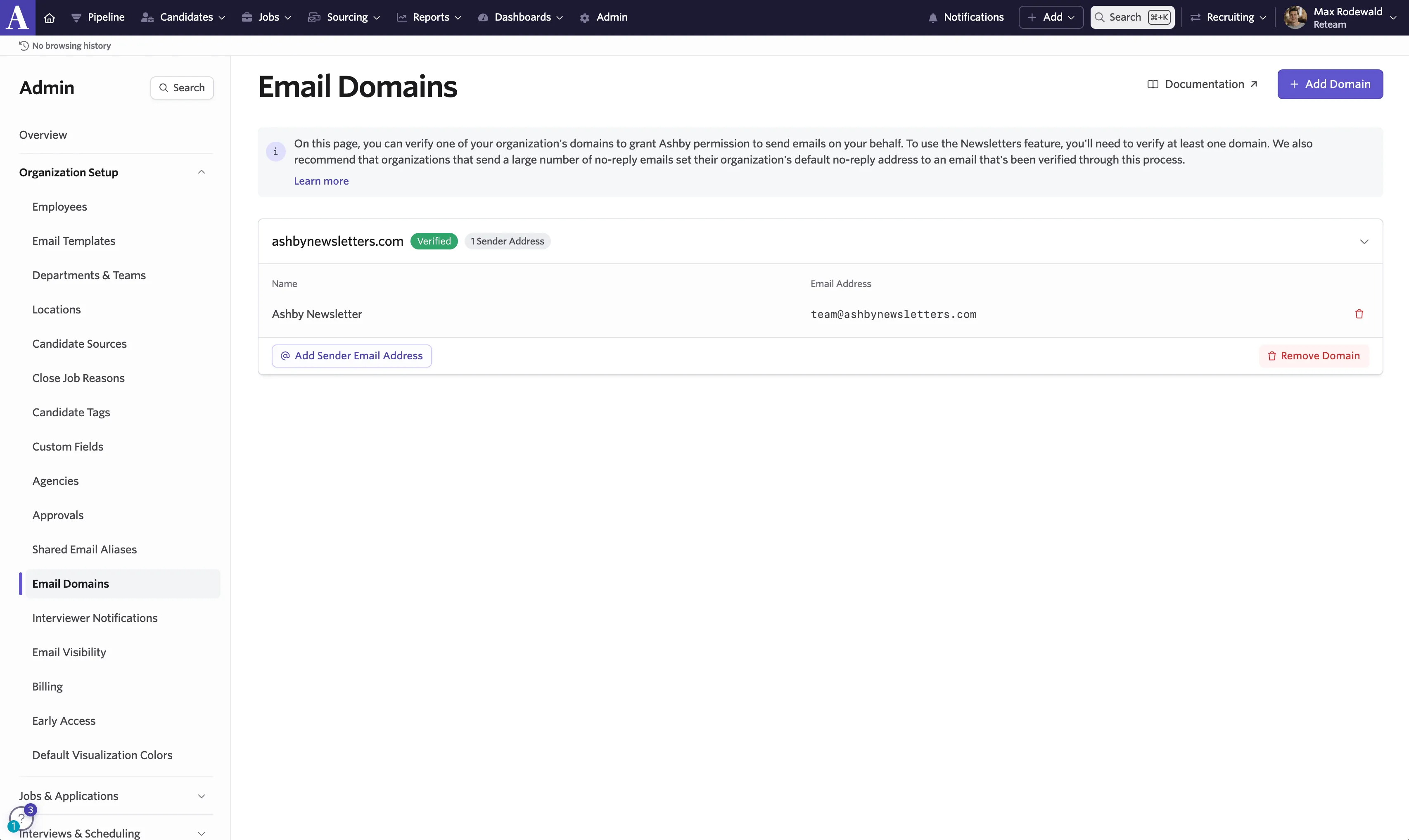
- Once an address is added, it will appear beneath the domain, as in the example below. To remove an address, click on the trash icon on the far right. To add more email addresses, click Add Sender Email Address in the bottom left corner and repeat the same steps. You can add as many addresses as you want.
Using Addresses in Newsletters
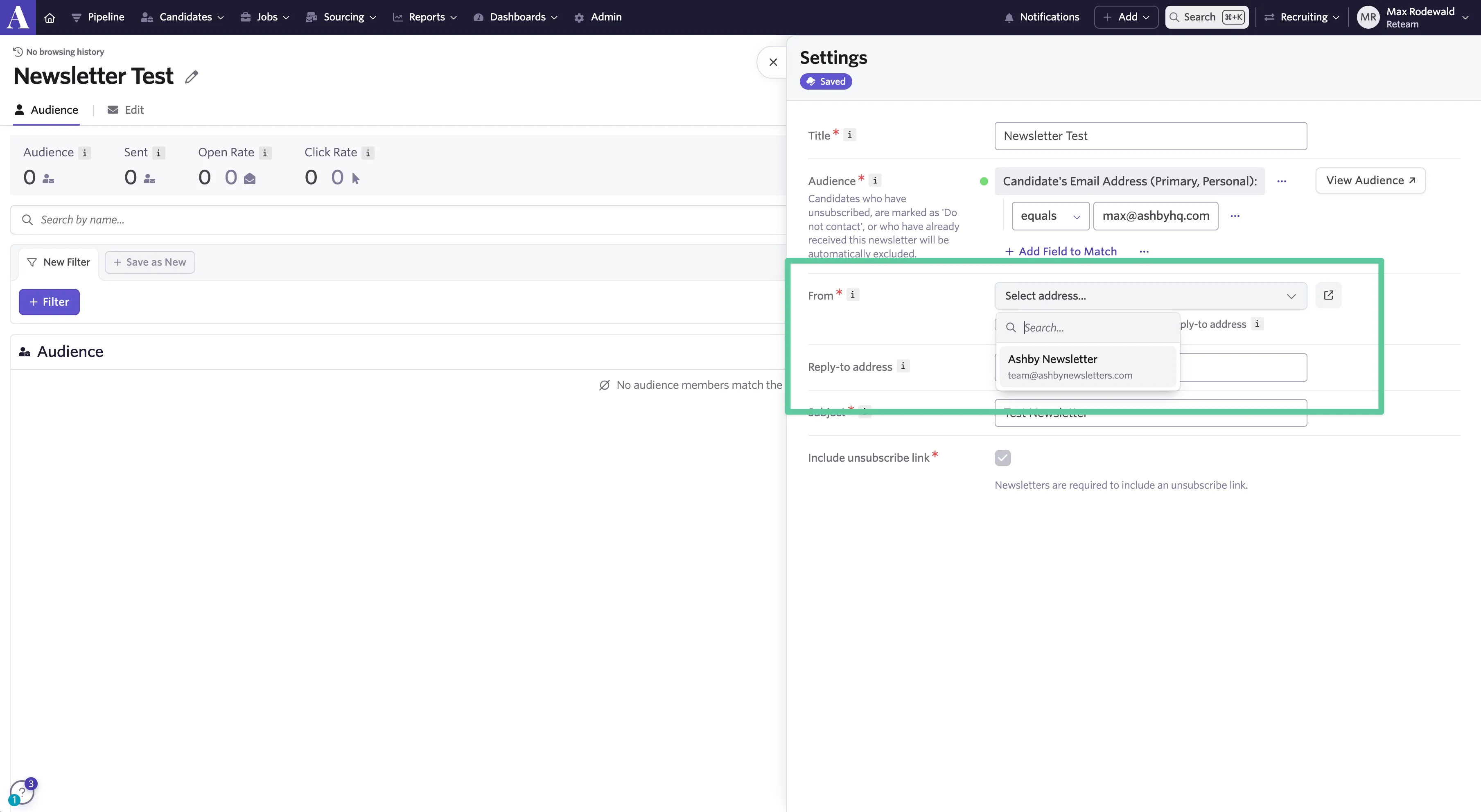
To use the email addresses you’ve configured to send Newsletters, open or create a newsletter and click on Settings on the top right of the page. In the settings menu, you’ll see a ‘From’ field (highlighted below). In this field, you can select the from address you want your newsletter to be sent from. The dropdown here will include all the addresses you’ve configured by following the steps above.
Switching your default no-reply address after setting up your new sender address
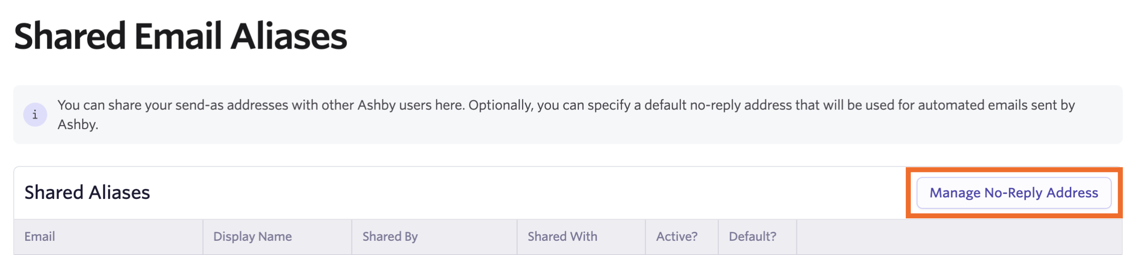
Once you’ve added your new sender address on the Email Domains page, navigate to Admin > Organization Setup > Shared Email Aliases. Click Manage No-Reply Address.
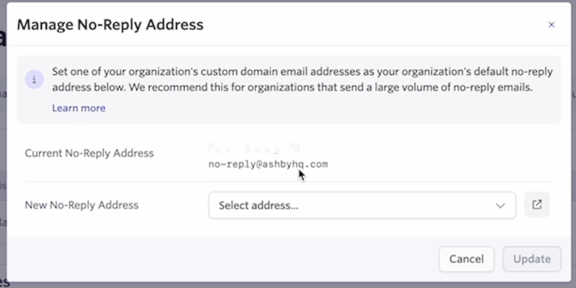
From here, you’ll be able to view your current no-reply address and select your newly configured sender address from the New No-Reply Address dropdown. Once you’ve selected your new no-reply address, click Update to confirm. This email address will now be used for all default no-reply emails.
If you’d like to return to the default Ashby no-reply email for future no-reply emails, click Unshare beside the configured no-reply address.
Please note that if your default no-reply address is not configured to sync emails to Ashby, replies that go to this email address will not appear in Ashby.