Criteria
This guide will walk you through integrating your Criteria Corp account with Ashby, allowing you to use Criteria assessments in your interview plans and retrieve the results all from within the Ashby platform.
Integration Overview
Criteria is a talent success company that helps organizations make more objective, evidence-based talent decisions that both reduce bias and drive outcomes. This integration enables you to send Criteria assessments in your interview plans and review the results in Ashby.
Enabling the Integration
Create an API key in Ashby
Sign in to Ashby and click Admin in the top navigation bar. Next, click Integrations on the left panel of the screen. Select Criteria Corp and click Enable Criteria Corp.
Select Ashby API Key and create a new API key. Copy the value provided and send it to your Criteria CSM. This is the only time the Key is displayed. You could also save the key somewhere secure for future reference.
Retrieve API Key from Criteria
Reach out to your Criteria CSM, who will provide you with an API key from Criteria. Please note that this key is different from the API key you generated in Ashby.
Enable the Criteria Integration in Ashby
In Ashby, go to Admin > Integrations, search for Criteria and click on the Criteria Corp listing.
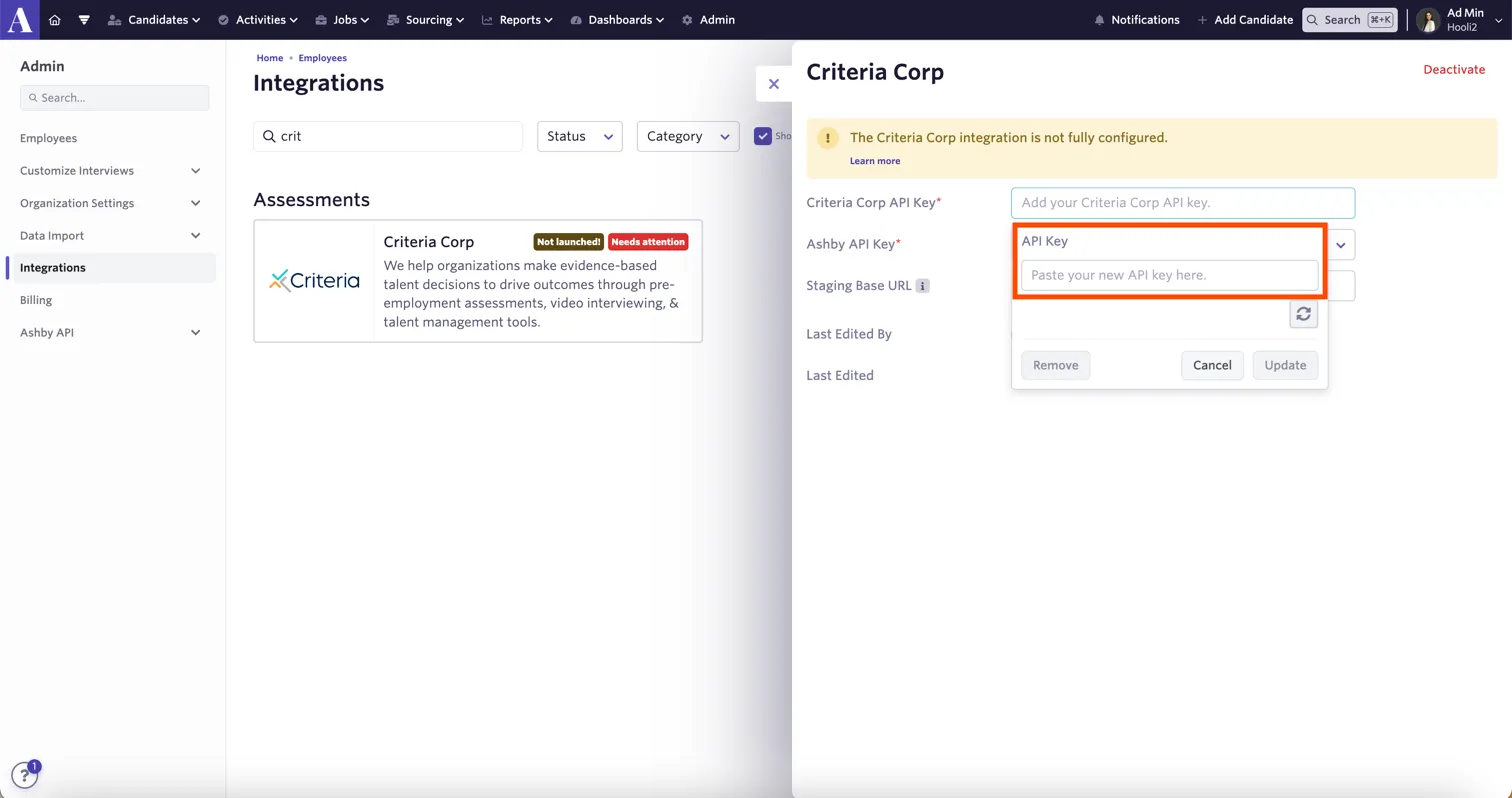
Click on the Criteria Corp API Key field and paste in the API Key that Criteria provided to you.
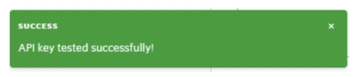
Click the circular arrows icon to validate the API Key and check you see a green popup on the screen that says it was tested successfully. Then click Update.
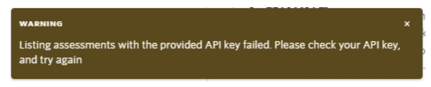
The message in brown will appear if the API key is invalid and was not successfully verified. Contact Criteria if you receive this message.
If you have any questions, reach out to your Criteria CSM.
Using the integration
Adding a Criteria assessment to your interview plan
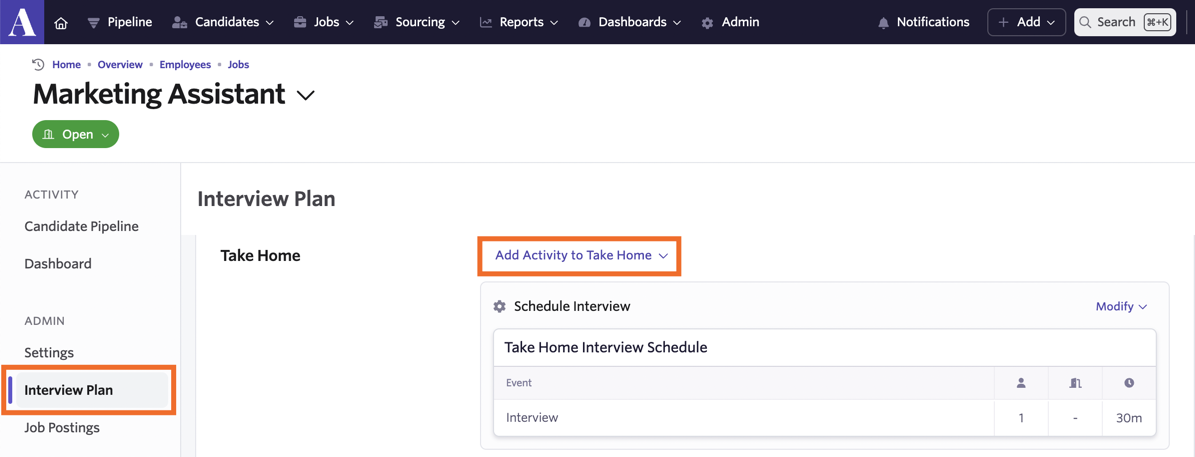
Head into your chosen job and click Interview Plan, then head to the stage that you’d like to add the Criteria assessment activity to.
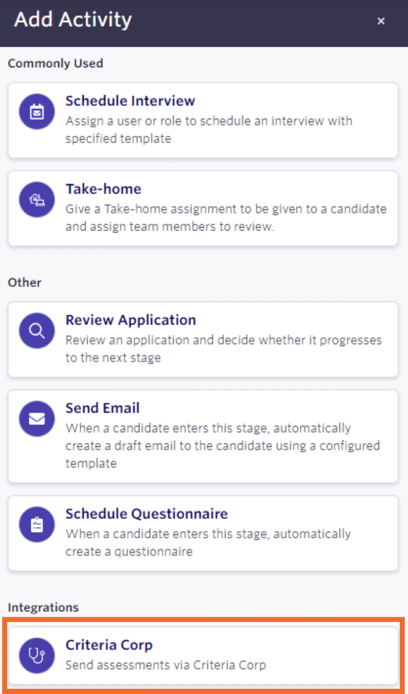
Click + Activity, then select Criteria Corp within the Integrations section of the pop-up.
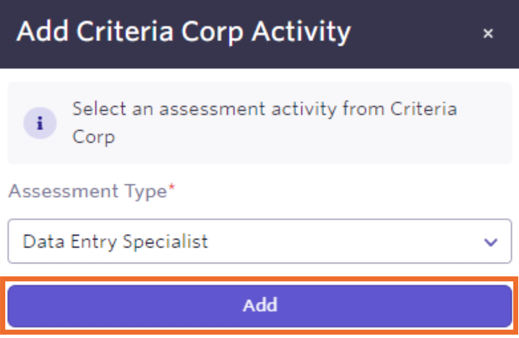
Choose the appropriate Criteria package from the Assessment Type dropdown, then click Add to confirm.
Criteria Corp Assessment will be shown as an activity in the chosen Stage in the Interview Plan.
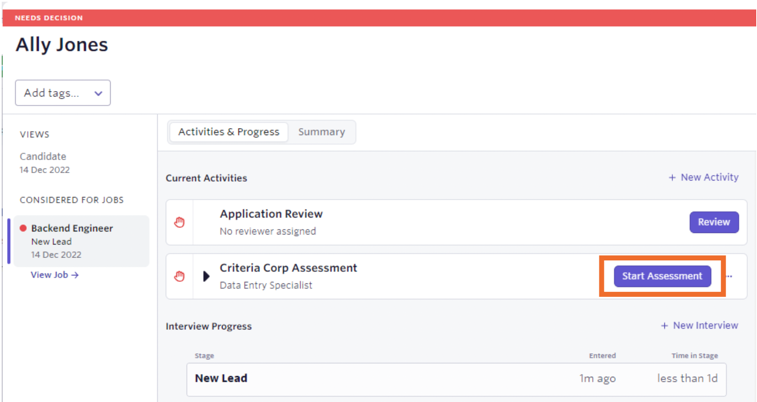
Triggering the test for candidates.
Once a candidate reaches the stage of the Interview Plan associated with Criteria testing, an activity for the Criteria test will populate automatically.
Click the Start Assessment button and Criteria will be notified to order the testing.
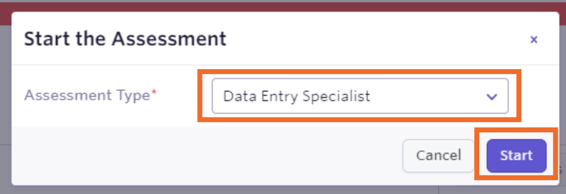
A popup will appear with the pre-selected criteria package selected, keep the package the same or change it if this candidate is to complete a different package.
Then, click Start. A pop-up will appear to indicate the assessment request has been successfully sent to Criteria.

Criteria will send the candidate an invitation email. If an expiry date has been configured in the Criteria package, Criteria will send a reminder email to the candidate 24 hours before the expiry date.
Status Updates and Results
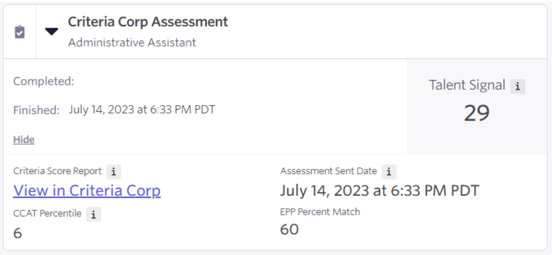
Once a candidate has completed their assessments, the results will be available in Ashby immediately.
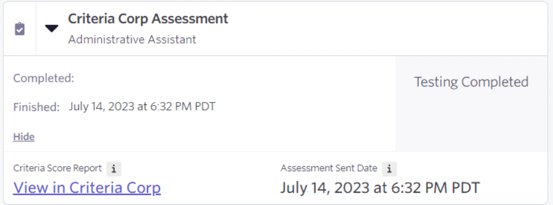
If you have opted to not receive scores in Ashby, the display will just include the report link and a Testing Completed message.
Video Interview Status Updates
Once a candidate has completed the Video Interview, a status update will be sent to Ashby to advise you.
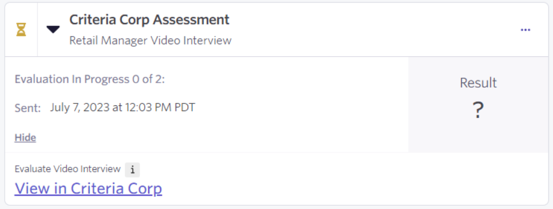
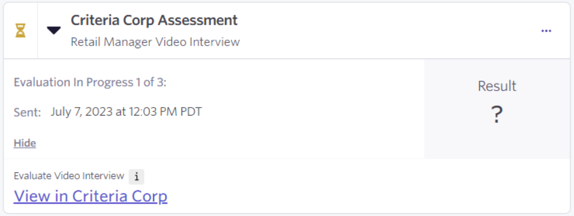
The status will show Evaluation in Progress while the evaluators are completing their evaluations.
If multiple evaluations are required, progress updates will be provided via Ashby 'Evaluation in Progress - 1 of 3 Completed’.
The evaluator can select the View in Criteria Corp link to be taken to the Criteria Platform to complete the evaluation.
Cancel a Test
You can cancel Criteria testing from within Ashby. This might be done if the candidate email address was incorrect, the wrong assessment package was selected, or the candidate withdraws their application.
To cancel the assessment, click the three dots on the assessment activity on the candidate’s profile, then click Cancel Assessment.

When you cancel the testing from Ashby, the candidate will be deleted from Criteria. Criteria will not notify the candidate that their testing has been cancelled. The candidate will see an on-screen error about their event ID being invalid if they attempt to use the link in their invitation email once it has been cancelled.
If you need to re-issue the test, select Start Assessment again on the activity in Ashby. The invitation email will be sent to the candidate again from Criteria again if the test is re-issued.
Setting up video interviewing
Your Criteria account will need to include Video Interviewing capabilities for you to configure Jobs in Criteria with Video Interview.
Your integration will also need to be enabled for Video Interviewing to allow you to access Criteria Video Interview Jobs/Packages in Ashby. Contact Criteria to have this set up.
Configure the Criteria Job with Video Interview (rather than a Test Battery) in the Incoming stage. If you have multiple video interview templates, you have a few setup options:
- Basic separate Criteria Job/Package for each Video Interview Template / configuration. Each candidate in the Job will complete the same interview template and the videos will be reviewed by the same evaluators.
- Advanced single Criteria Job/Package for multiple Video Interview Templates /configurations. Configure the Criteria Job with the default configuration, then activate the 'Configure Video Interview Configuration per ATS Requisition' and add the requisition ID values from Ashby to have Criteria apply a different video interview template and evaluators per role.
- When a candidate is invited, the requisition ID from Ashby will be used to determine the appropriate configuration to use for that candidate. If a match is not made, the default video settings from the Criteria Job will be used.
An example of Advanced Configuration setup in the Criteria platform:
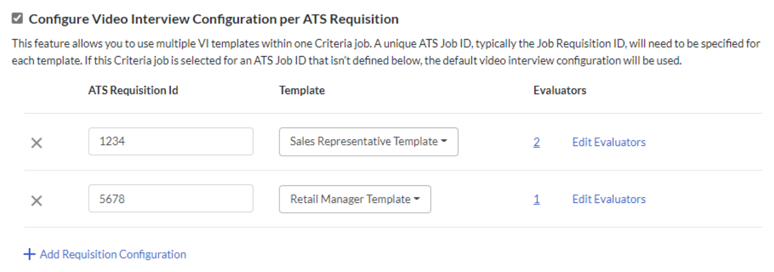
If you are using the advanced option, you'll need to add the Requisition ID for each Ashby Job that you wish to use a custom Template and/or evaluators for.
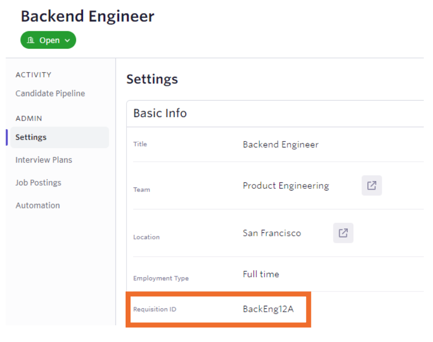
In Ashby, get the Requisition ID for the Job you wish to set up custom configuration. Copy this value into the configuration in Criteria.
Deactivating the Integration
If you do not wish to use the Criteria integration anymore, you can deactivate the integration from within Ashby. Please also reach out to Criteria so the integration can be disabled on your Criteria account too.
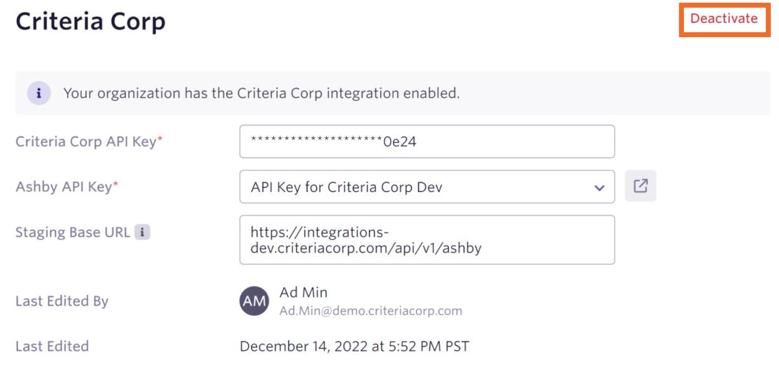
In Ashby, navigate to Admin > Integrations, search for Criteria and click on the Criteria Corp listing. Click Deactivate on the following pop-up. Confirm the de-activation. This process will also deactivate the API key that was used by the Criteria Corp integration.
You cannot disable the integration until you update all your Job workflows to no longer include Criteria packages.
If you do attempt do disable the integration while Criteria is still associated, an error will appear to indicate which jobs need to be edited before you can proceed with the Criteria disable process.
