Creating & Opening Jobs
Jobs are the central records for roles within Ashby. This guide explains how to build your hiring foundation by creating and configuring jobs, distinguishing between jobs, openings, and postings, and using the job wizard to build new roles.
Prerequisites & Permissions
- You must configure departments and locations before creating jobs. See Set up Departments & LocationsSet up Departments & Locations to configure them.
- An interview plan is not required to create a job draft, but you must assign one before opening a job. See Interview PlansInterview Plans for full details on the various ways to set these up.
- Only those with Elevated Access - Admin, Elevated Access - Admin Private, and Organization Admin access can create or edit jobs.
Understanding jobs, job postings, and openings
To manage your hiring effectively, it is important to understand how Ashby categorizes these three distinct entities:
- Job: A job is the central record for a role. Creating a job and setting it to Open allows you to add candidates to your pipeline and begin the interview process.
- Job Posting: A job posting is the public or internal advertisement for a job. You use postings to collect applications through your Ashby job board or third-party sites like LinkedIn.
A job posting isn't required to open a job, but you can add as many job postings to a job as you like. Job postings are hosted on your organization's Ashby job board and can be configured to automatically post to third-party job boards like LinkedIn Job PostingLinkedIn Job Posting and IndeedIndeed. Learn more in our Job PostingsJob Postings article.
- Opening: An opening represents a specific headcount for a job. If you are hiring three candidates for the same job, you create one job with three openings rather than three separate jobs.
Openings are not available on Foundations plans. For more information on openings, see Openings ManagementOpenings Management.
How to navigate the job admin view
Navigate to Jobs > Jobs in the top menu bar to create and manage jobs and job templates. You can also access your organization's job board from the job admin view.
Jobs page
The Jobs page gives a quick overview of every job that you have access to. You can search this view or filter it by team, location, and/or job status. Click a job to visit the Candidate Pipeline for that particular role.
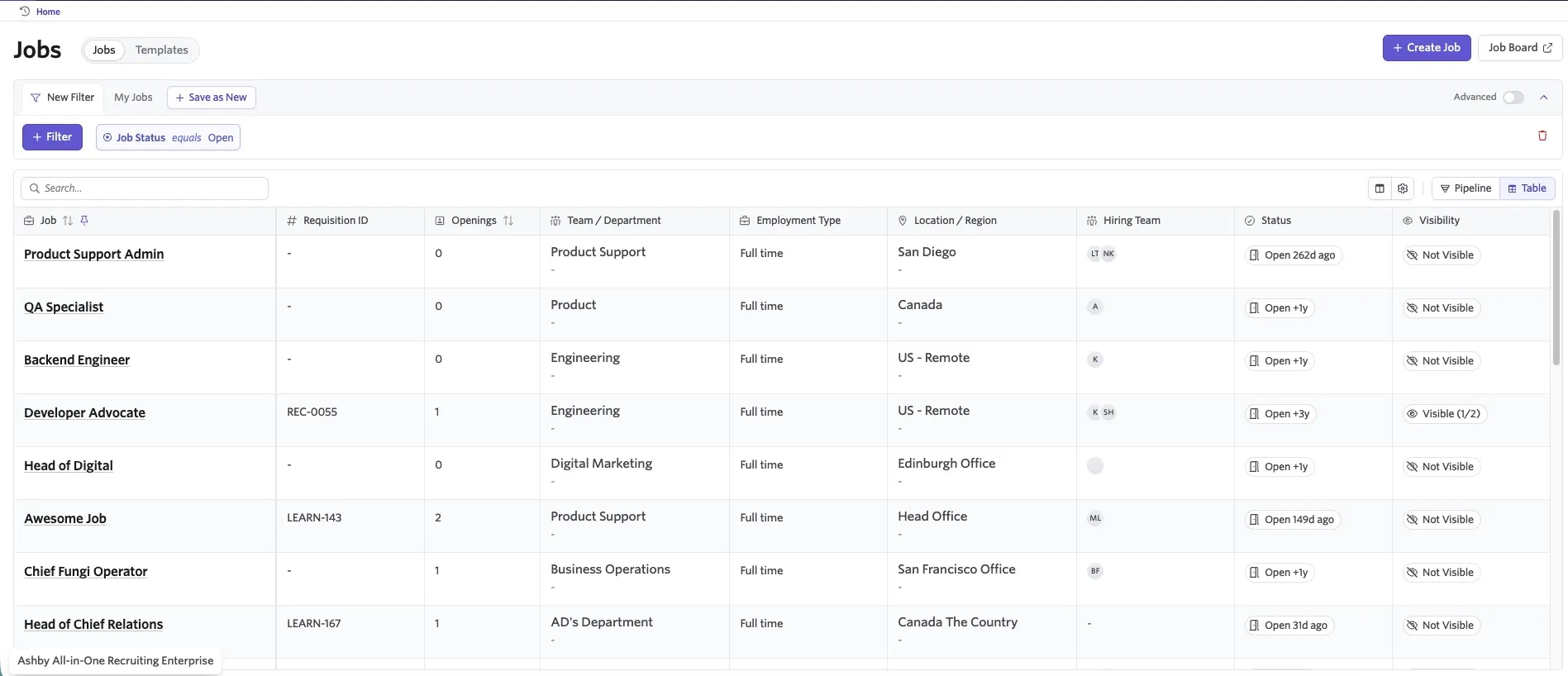
Tips on getting the most out of the Jobs page
- The Search field on the left side above the job list allows you to search for a job by title.
- Use + Filter above the search bar to apply filters that scope the number of results down to, for example, a department or a source. Pick one or more options to view results matching all the selected values. Filter criteria appear next to the search bar. To remove criteria from your filter, hover over them and click the X.
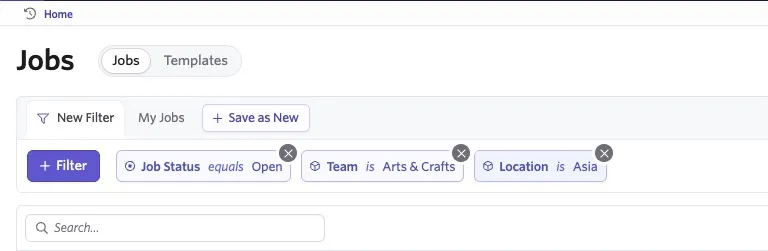
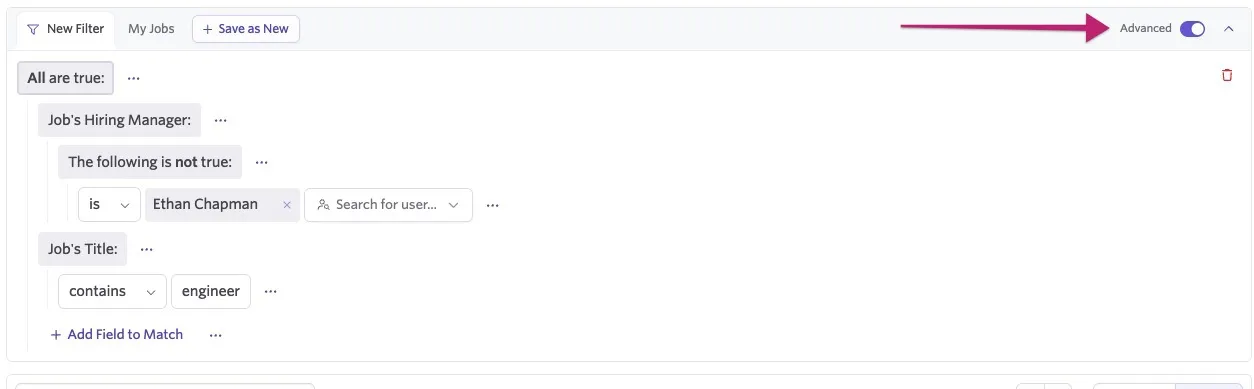
- Activate the Advanced Filters toggle on the right to define more complex filtering criteria with the AND, OR, and NOT operators.
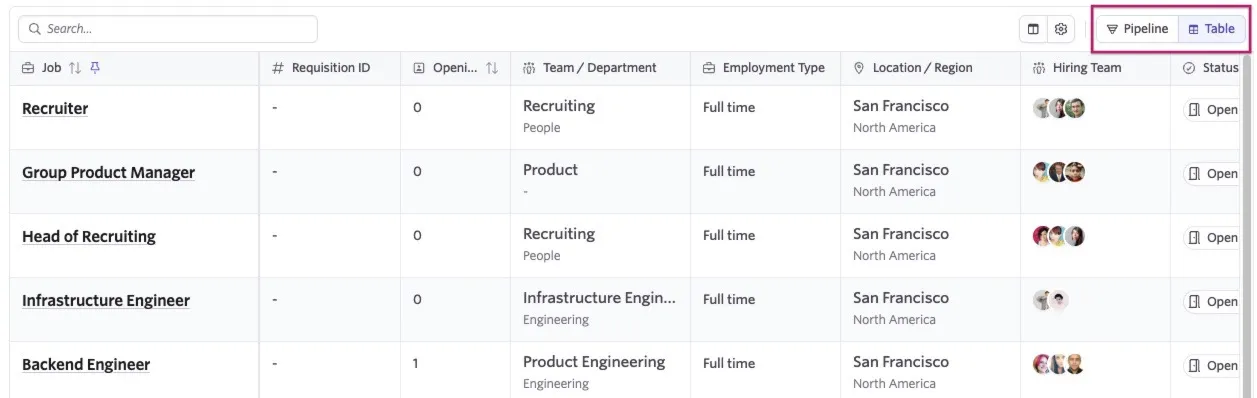
- You can view the list of jobs matching your criteria in Table or Pipeline view by toggling the options. You can view key details about jobs including the number of active candidates, team/department, location/region, linked interview plan, status, and job posting status.
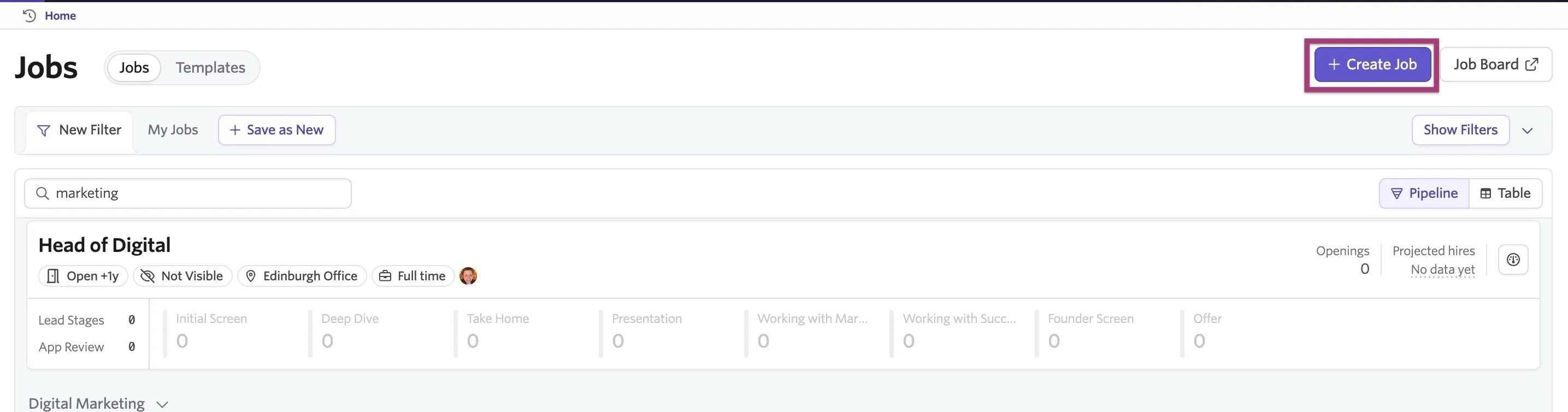
- In the upper right, click + Create Job to create a new job, or click Job Board to open your Ashby job board.
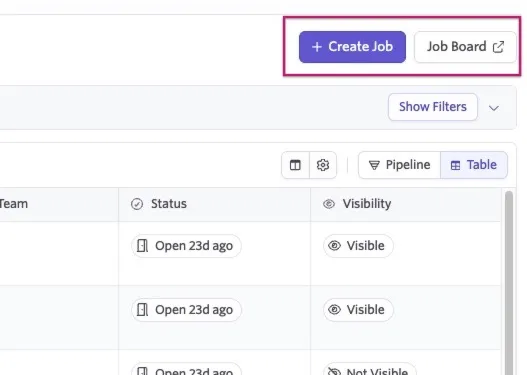
How to create a job
You can create a job with just a title, location, department, and interview plan. You can create jobs from scratch or from an existing job template. Follow the steps below to create a job.
Creating a job with the job creation wizard
To create a job, navigate to Jobs > Jobs in the top menu bar, then click + Create Job. This opens the job wizard.
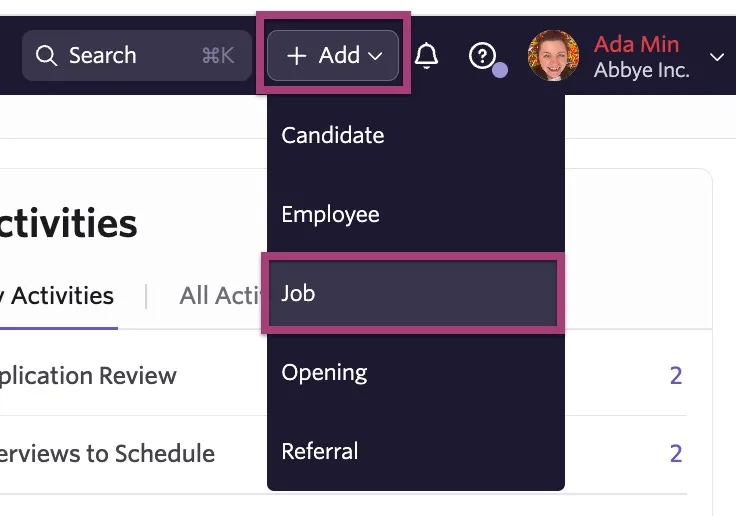
You can also create a job by hovering over the + Add button in the top right of the navigation bar and clicking Job.
When you create a job via the job wizard, you specify the job details through the following steps:
Step one: Define job information
First, fill in basic job information. See the field descriptions below.
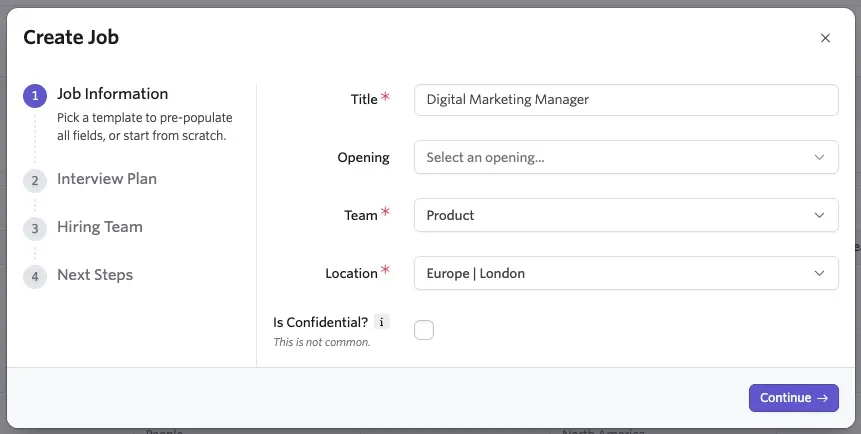
- Templates: Optionally, you can select a job template to create your job from. For more information, see Job TemplatesJob Templates.
- Title: The job title.
- Openings: If your job should be connected to an opening, you can link your opening here. For more information, see Openings ManagementOpenings Management.
- Team: Assign a department to your job. You can create a new team inline by clicking the Create button within the Select Team... dropdown.
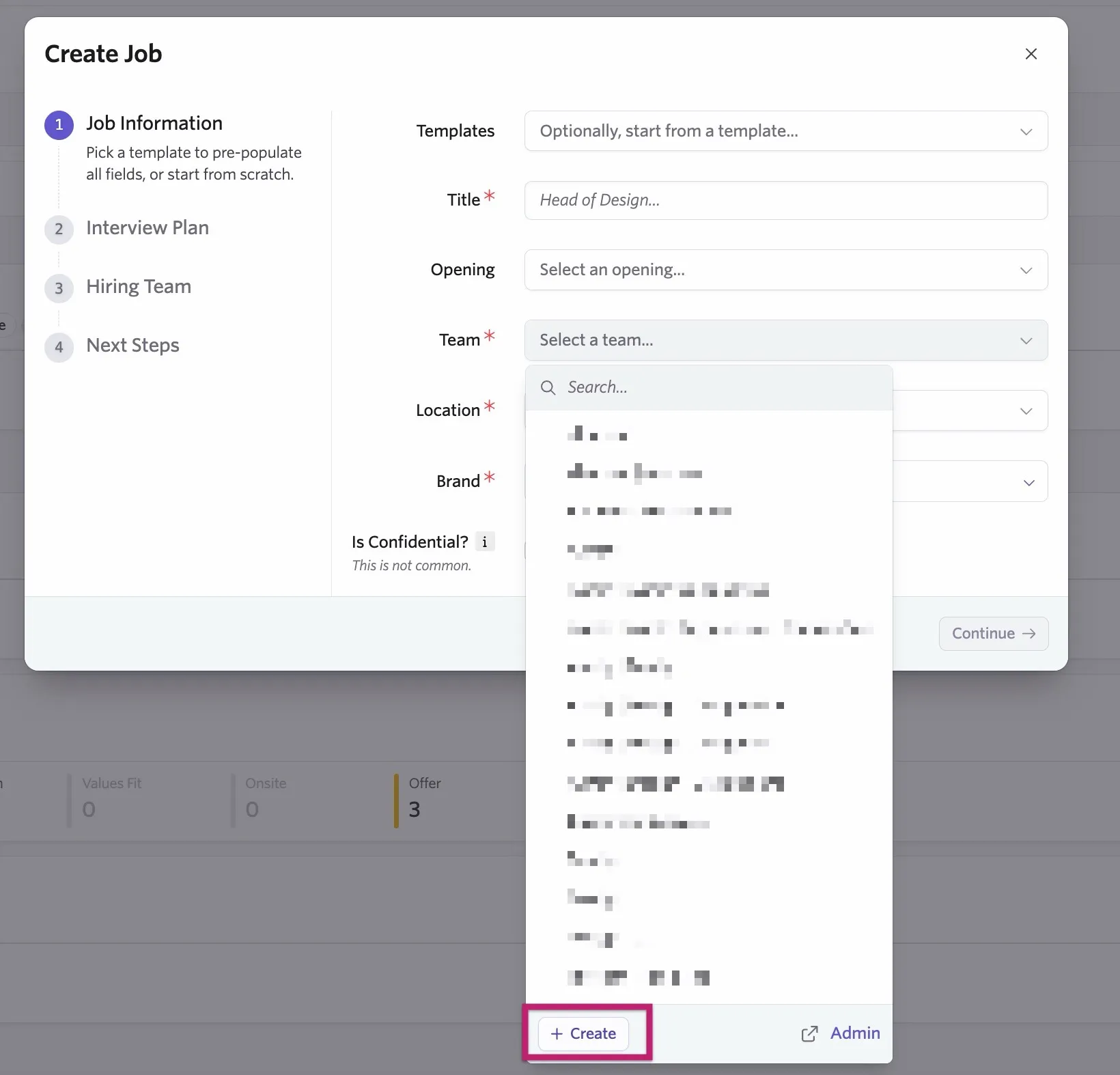
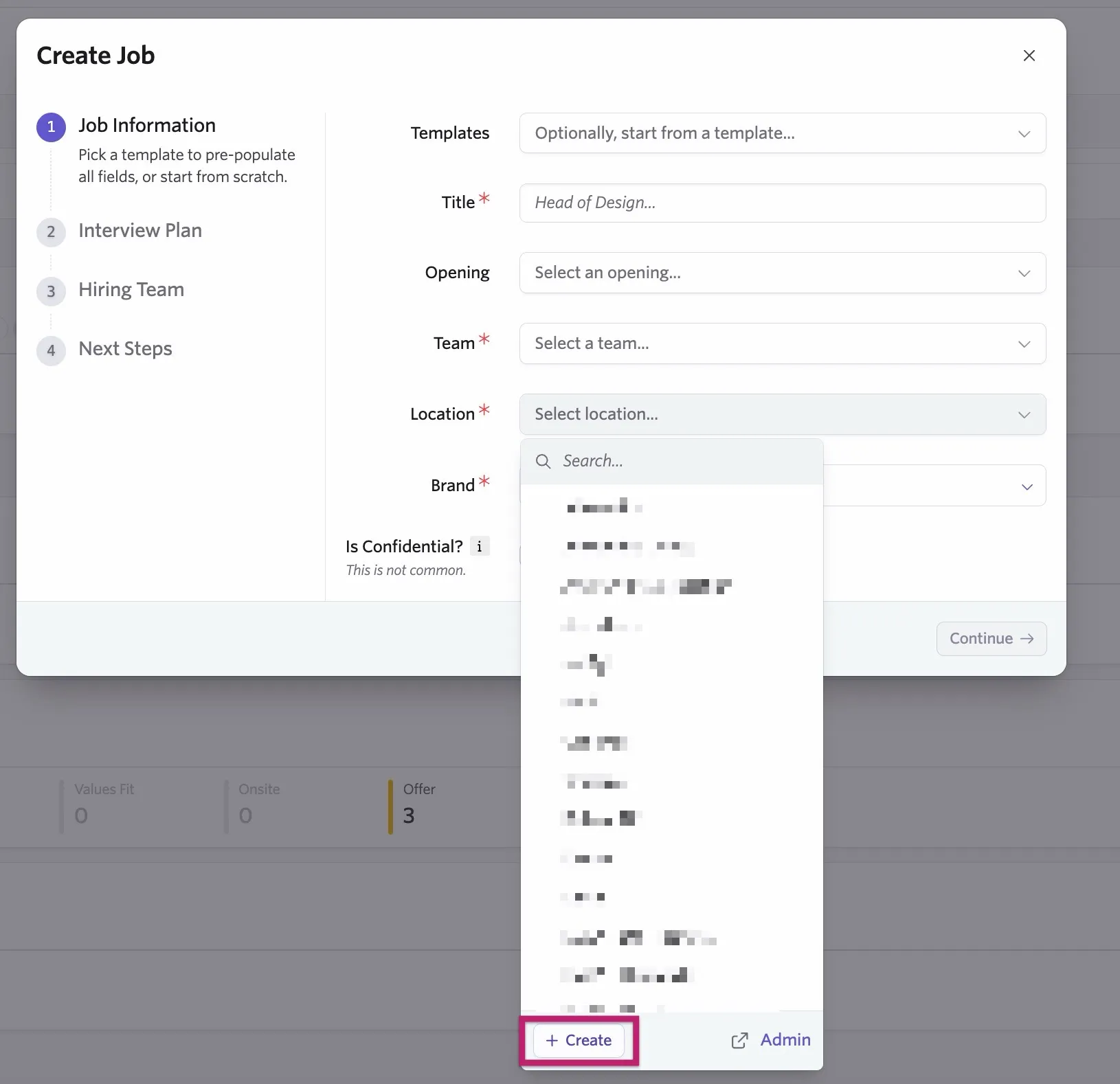
- Location: Assign a location to your job. You can create a new location inline by clicking the Create button within the Select Location... dropdown.
- Is Confidential? Setting a job as confidential means only the user creating the job and users who are given specific access to the job can access it. This isn't commonly used. For more information, see What are confidential jobs?
- Brand: If you have Multiple BrandsMultiple Brands enabled, you can assign a brand to your job here.
Step two: Assign an interview plan
Here you can specify the interview plan that your job uses. The interview plan you select determines the stages in the candidate pipeline. You can skip this step by clicking the Skip button.
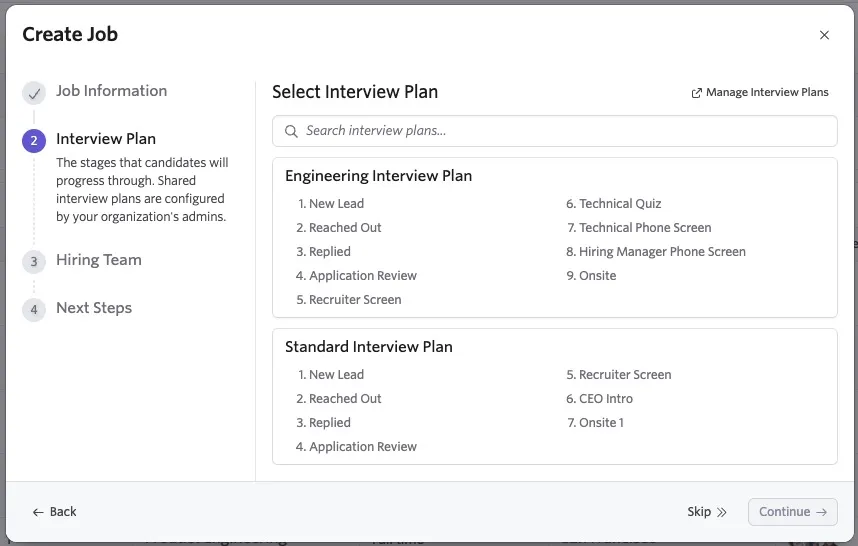
For more on setting up interview plans, see Interview PlansInterview Plans.
Step three: Specify the hiring team
In the Hiring Team section, you can select hiring team members from existing Ashby users and assign them roles.
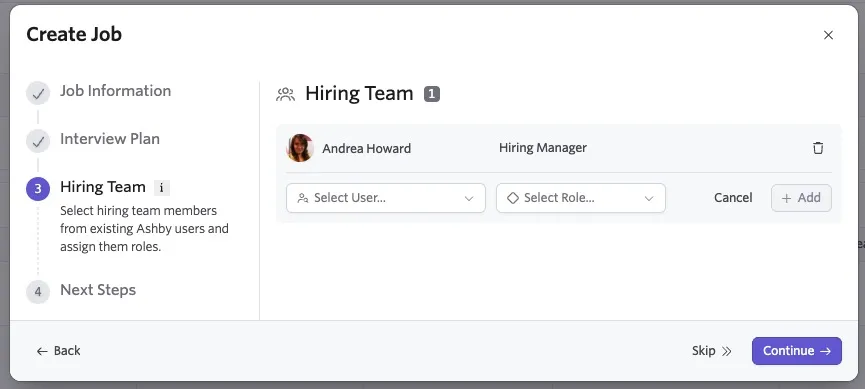
These roles are separate from User Permissionsother access roles and serve to describe the person's relationship to the job for reporting and notification purposes.
Roles include Hiring Manager, Recruiter, Recruiting Coordinator, and Sourcer. You can add more than one user to the same hiring team role.
Scheduling notifications only go to the Meeting Organizer set on an interview (or the user scheduling the interview if a Meeting Organizer is not set). For more information, see What is a Meeting Organizer?What is a Meeting Organizer?
Next steps
Now that you have the basics of your draft in place, you can continue the job setup with the following options:
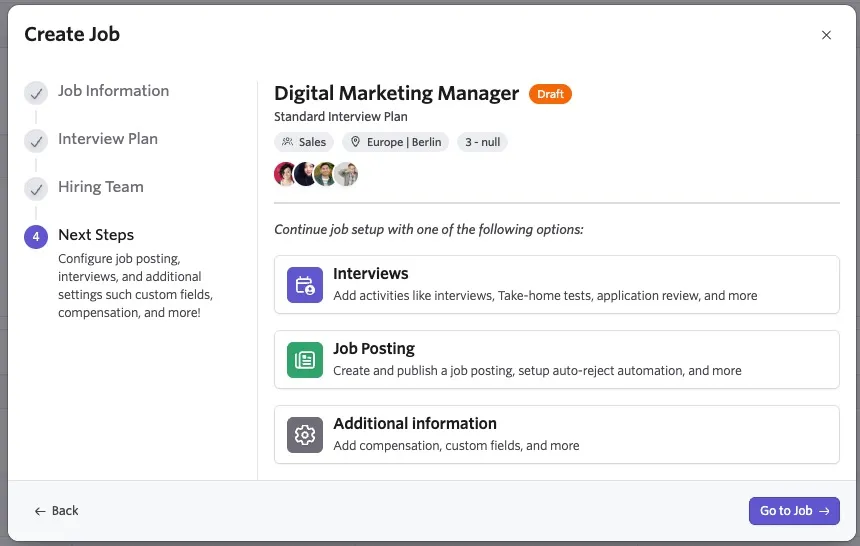
- Interviews: Add activities to your interview plan like interviews, take-home assignments, email prompts, and more. For more information, see ActivitiesActivities.
- Job Posting: Create and publish a job posting to add the role to your Ashby job board, specify the application form applicants should complete, and configure auto-reject rules. For more information, see Job PostingsJob Postings.
- Additional Information: Add compensation information to the role, fill out job-specific custom fields, and complete other fields within the job's Settings page.
Continue reading below to learn about the job's settings.
Configuring job settings
You have the option to configure your jobs in great detail. The more details you add up front, the more time you save in the hiring process for the job.
Navigate to the Settings tab of the job from the menu on the left side of your job to begin configuring the settings. Descriptions of each field on the Settings tab are below.
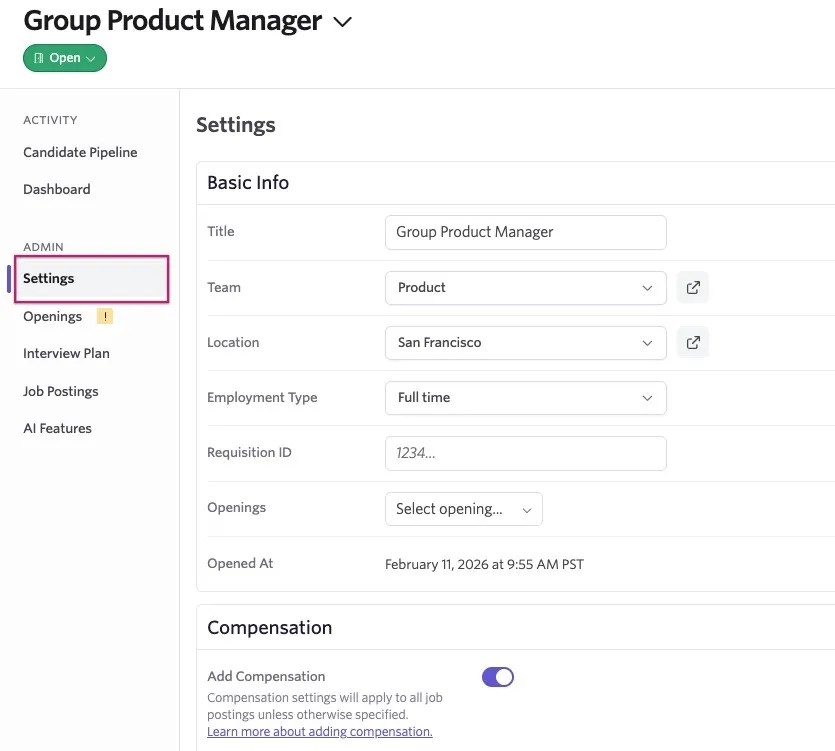
- Basic Info: In this section, you can edit the job's title, team or department, location, and employment type by clicking on the fields and making any adjustments.
- Custom Fields: This section only appears if you have custom fields configured that apply to the job. For more information, see Custom FieldsCustom Fields.
- Compensation: Enable and amend job compensation settings for this role here. For more information, see CompensationCompensation.
- Hiring Team: You can select hiring team members from existing Ashby users and assign them roles. These roles are separate from User Permissionsother access roles and serve to describe the person's relationship to the job for reporting and notifications. Scheduling notifications only go to the Meeting Organizer set on an interview (or the user scheduling the interview if a Meeting Organizer is not set). Roles include Hiring Manager, Recruiter, Recruiting Coordinator, and Sourcer. See more in the section below.
- Upload Candidates via Email: Ashby generates an email address here when you open the job. Sending an email to this address with attached resumes creates candidates and adds them to this specific job in one step. You may attach up to 10 resumes per email.
Quickly editing job details from the job pipeline
You can also view and update key job details directly from the Jobs Pipeline page.
To view the jobs pipeline, navigate to Jobs > Jobs and select the Pipeline view on the right side.
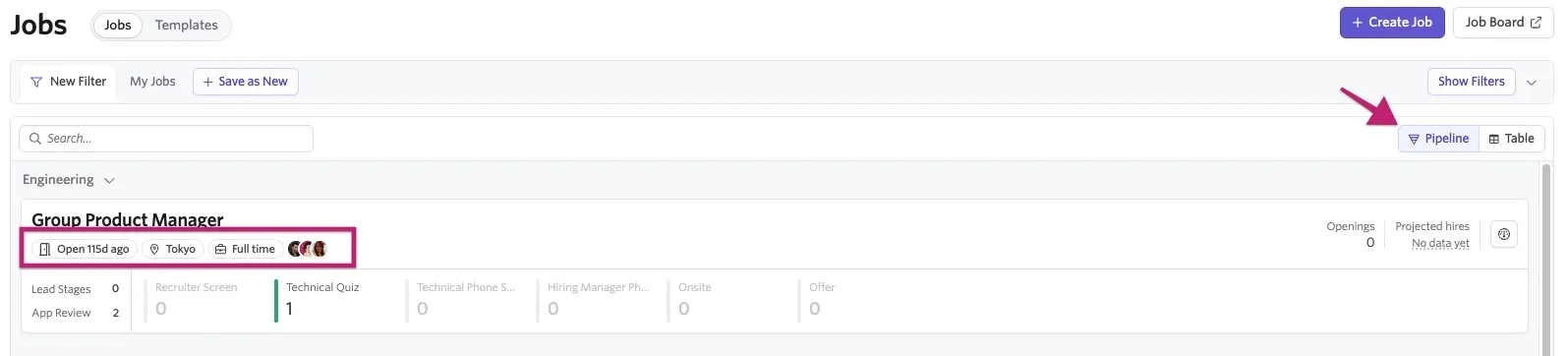
Click any of the following pills on a job card to edit that field:
- Hiring Team avatars — opens the Edit Hiring Team sidebar (available to users with edit access to the job)
- Location — navigates directly to the relevant section of Job Settings
- Employment Type — navigates directly to the relevant section of Job Settings
- Department — navigates directly to the relevant section of Job Settings
In table view, you can also click the same fields to quickly edit these settings. In addition, the Opening cell in table view takes you directly to the job's Opening tab.
The Department, Location, and Employment Type pills are not clickable for analytics-only organizations.
Job controls
Within each job, you find the job status indicator just below the job title on the left, and a More button in the top right that contains management options:
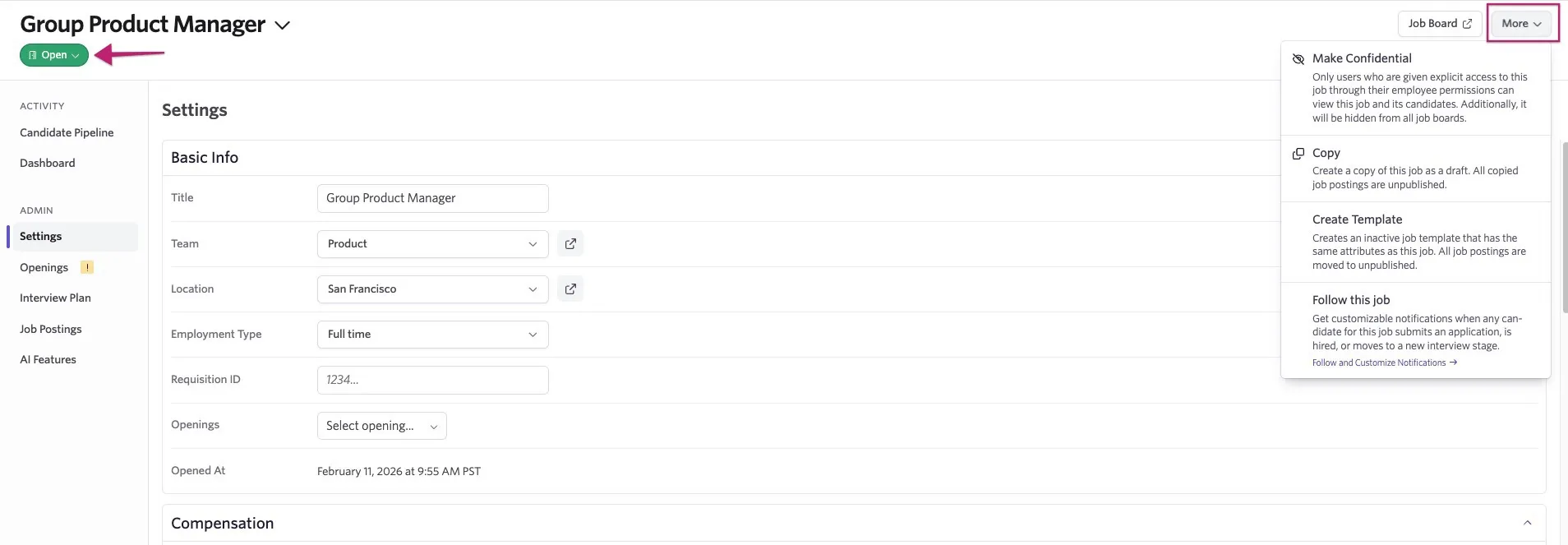
- Job Status: This setting controls whether candidates can be considered for the role and if it appears on the Job Dashboard. It does not control job postings. Use this dropdown to set your draft job to open (to accept candidates), close out an open job, or set a closed job as a draft again if needed.
More button options
- Make Confidential: Allows you to set the job so only you can access it, if you are the job's author. You can also allow other users access to the role via their permissions.
- Copy: Creates a copy of this job as a draft. All copied job postings are unpublished.
- Create Template: Creates an inactive job template that has the same attributes as this job. All job postings are moved to unpublished.
- Follow this job: Get customizable notifications when any candidate for this job submits an application, is hired, or moves to a new interview stage.
You've successfully created and configured your job settings! Now you may want to revisit setting up the job's Interview PlansInterview Plans, ActivitiesActivities, and CompensationCompensation sections before opening the job.
Learn more:
- Set up rules to Auto-Reject ApplicationsAuto-Reject Applications.
- Configure Automated ActivitiesAutomated Activities within your interviews.
- See our Job Board Integrations.
How to open a job
Once you've configured all details of your job, you can open the job, which is the next step toward collecting applications from candidates!
The steps required to open a job depend on your Ashby plan level and admin settings.
Those with Legacy Plus, Plus, and Enterprise plans may need to associate an Opening to the job before you can open it. To learn more about openings, see Openings ManagementOpenings Management.
Moving from "Draft" to "Open"
When ready to open the job, click into the job and locate the job status indicator beneath the job title. The status should say "Draft" for a newly created job. Click it to reveal options. If you are missing required information within your job details, the Open option is grayed out with a message indicating what is missing.
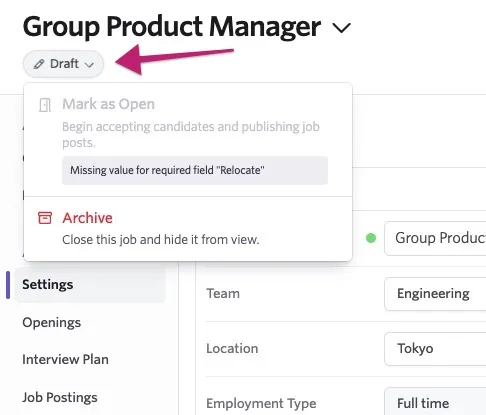
Once you've filled in all required information, the Open option becomes active. Select it, and your job status indicator turns green to indicate the job is now open.
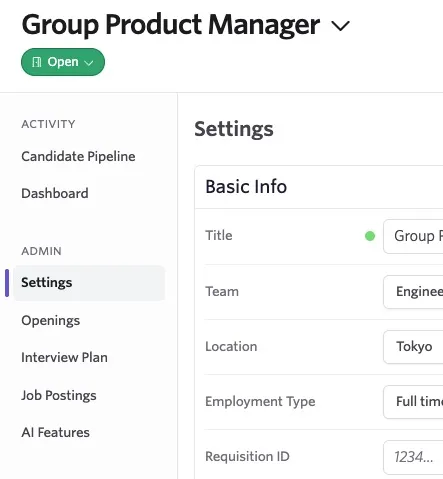
Congrats! You've created and opened a job! To start collecting applications, you must post the job. See Job PostingsJob Postings to create a job posting.
You also may be wondering about closing or archiving filled or canceled jobs. See When and how do I close out a job?When and how do I close out a job? for more information.
Looking for more information? See the Creating and Managing Jobs course in Ashby Academy!
FAQs
Can I set an application deadline?
Yes! You set up the application deadline within the job posting. See Job PostingsJob Postings for more information.
Can I filter my jobs or job reports by job posting listing status?
You can build a job postings report that shows listed, unlisted, or unpublished postings. To filter for jobs based on their listing status on your external job board, select the External Job Board Visibility field under Filters when building a job posting report.
For jobs that are listed, unlisted, or not posted on your internal job board, select the Internal Job Board Visibility job field. You can then select from the same options on the filter's dropdown menu.
For more detailed information, see Reporting on Job PostingsReporting on Job Postings.
What does the My Jobs filter do on the Jobs > Jobs page?
You can click My Jobs on the Jobs > Jobs page to view only the jobs that you are directly involved in. Ashby considers you involved in a job if you are assigned to the hiring team for that role or are following the job.
Can I open a job without it being listed on my Ashby job board?
Yes. Once you mark a job as Open, it only appears on your Ashby job board if you have job postings that are published and set as listed. For more information, see Job PostingsJob Postings.
Can I add notes to a job?
You can't add notes to a job, but you can create job-specific custom fields to house specific job information. For more information, see Custom FieldsCustom Fields.
My organization requires openings for jobs — can I open a job without having an opening linked to it?
If your organization has Require Opening for Jobs enabled within Admin > Jobs & Applications > Openings, you must have an opening attached to your job to be able to open it. If you do not see the option to skip adding an opening, reach out to an Organization Admin to adjust the opening settings for you (if you are not an Organization Admin), or create an opening and link it to your job.
Can I delete a job?
If you want to remove a job from active use, Ashby doesn’t support deleting a job in-app. We recommend closing the job and then archiving it instead.
To do this, go to Jobs → Jobs, open the job, select the Open status dropdown, and choose Mark as Closed. After closing it, select the Closed status dropdown and choose Archive. Archiving removes the job from the Jobs view, and it can be restored as a draft later. See When and how do I close out a job? for more information.
If you need the job permanently deleted, contact Ashby Support.
Can I set up a process where a job needs to be reviewed by other team members prior to it being opened?
Yes, you can set up approval processes for jobs if they need to be reviewed before opening. For more information, see Creating and Editing Approval ProcessesApprovals.
Can I bulk edit the hiring team on specific job considerations?
Yes, see How to Bulk Update the Hiring Team on a JobHow to Bulk Update the Hiring Team on a Job.
Can I add myself to the hiring team on a job or job consideration?
Yes. As long as you have Elevated Access - Admin access or higher to the role, department, or location, you can add yourself to the hiring team on a job or job consideration.
Adding yourself to the hiring team does not impact your access to the role or your overall permissions. It only determines whether you receive notifications about the role and job considerations. To edit your permissions, reach out to an Organization Admin on the account (even if you yourself are an Organization Admin).
Are calendar invites set to private by default on the Communications tab for confidential roles?
Yes. If you create new interviews or new interview activities on the interview plan for a confidential role, Ashby sets the calendar invites to private by default in the Communications tab. This means non-attendees cannot see interview details, and only see a busy event on interviewer calendars.
If you do not want interview events to be set to private, or want to check the privacy status, navigate to the Communications tab of your scheduled interview activity. You can adjust the privacy using the Is Private? option.
How do Ashby's confidential jobs work with reporting? Who can see confidential job data in reports?
Only users with access to the confidential job can see the confidential job data in reports. Users can only see the job data that they have access to when building and reviewing reports in Ashby.
Ashby generates an alert's report data on behalf of the user who creates the alert, so all of the creator's account permissions apply.
If you send the Entire List from an alert to a specified user rather than a User involved as recipient (Alertsmore about this in Alerts), the user receiving the report can see all of the report data in the alert email. As part of your alert setup process, be sure to add filters to remove any jobs (including confidential jobs) or specific data that you don't want alert recipients to see.
Can a job have more than one Hiring Manager on the hiring team?
Yes. A job can have more than one Hiring Manager on its hiring team. Ashby does not limit a job to one Hiring Manager.
To add another Hiring Manager:
- Navigate to the job’s Settings section.
- Scroll to Hiring Team and click Edit.
- Click + Add Member.
- Select Hiring Manager as the role, choose the user, and submit the update.
If the job has job considerations, choose which job considerations the updated hiring team applies to. For more information, see How to Bulk Update the Hiring Team on a Job.