CodeSignal
This article walks you through integrating your CodeSignal account with Ashby, so you can use CodeSignal Tests and Certifications as assessments in your interview plans. You can also configure the integration to attach CodeSignal Interviews to your Ashby interview calendar invites.
Prerequisites
Before you begin, make sure you can log in to CodeSignal and see the Webhooks and API Keys sections in the CodeSignal integrations settings panel on the left side of the page. If you don't see those options, email [email protected] to request access.
Setting up the integration
Setup moves back and forth between Ashby and CodeSignal, so open both in browser tabs before you start:
- Open a browser tab with the Ashby integrations marketplace at Admin > Integrations > Integrations.
- Open another browser tab with the CodeSignal API keys page.
Adding the integration in Ashby
- From Ashby's Integrations page, click the CodeSignal integration tile, then click Enable CodeSignal.
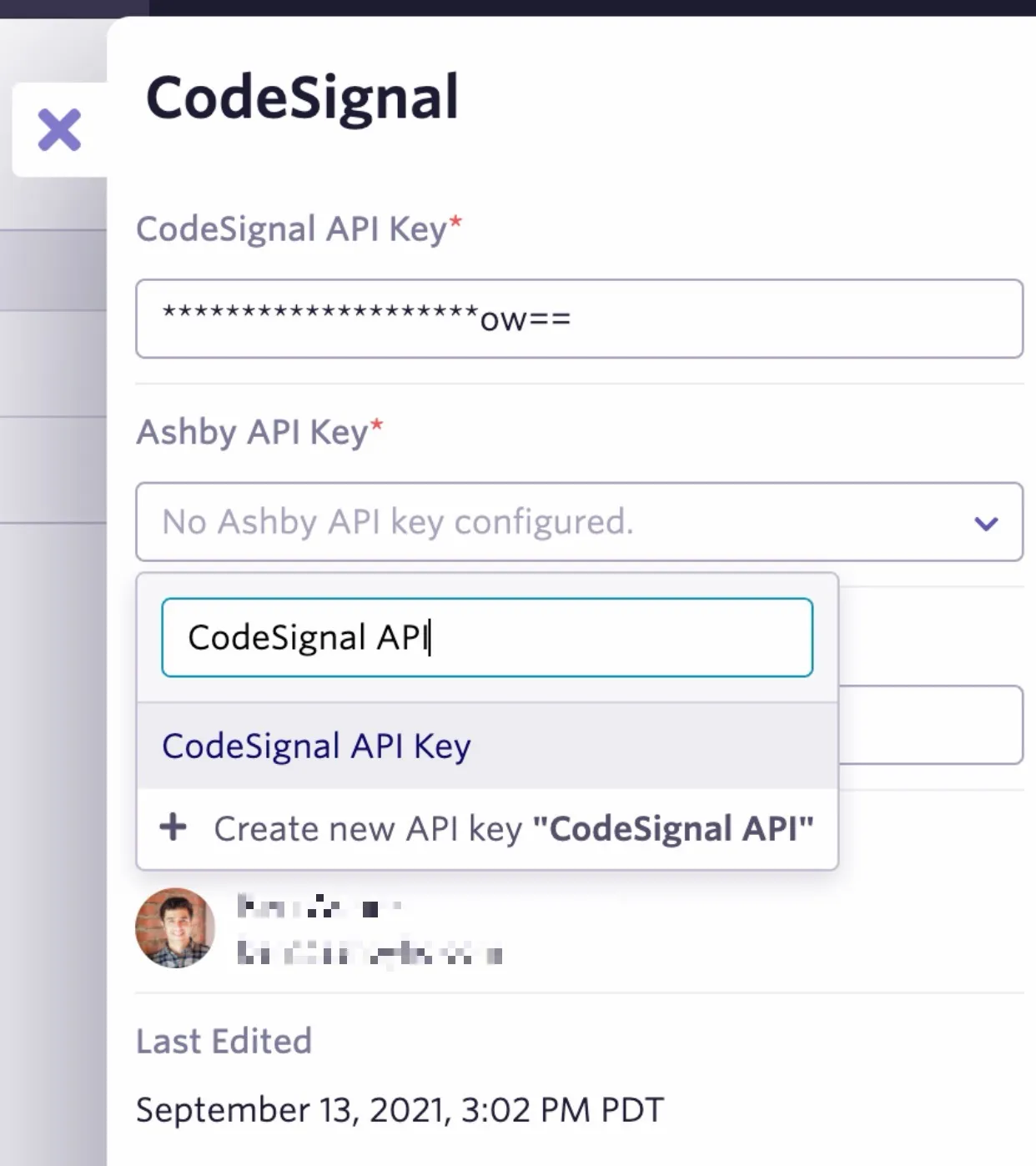
- Once that's done, you see a panel to configure keys for the integration. You return here to input your CodeSignal API key once you have it.
- Click the Ashby API Key drop-down to create or select an existing API key for this integration. If you're using an existing API key, ensure it has Write access to the Candidates set of endpoints. This set contains the assessment.update endpoint, which CodeSignal uses to send assessment data back to Ashby.
If you created a new API key, copy it and keep it in a safe place. You need it for the configuration on the CodeSignal side.
Getting the CodeSignal API key
Next, you need an API key from CodeSignal so that Ashby can interact with CodeSignal.
- Navigate to the CodeSignal API keys page.
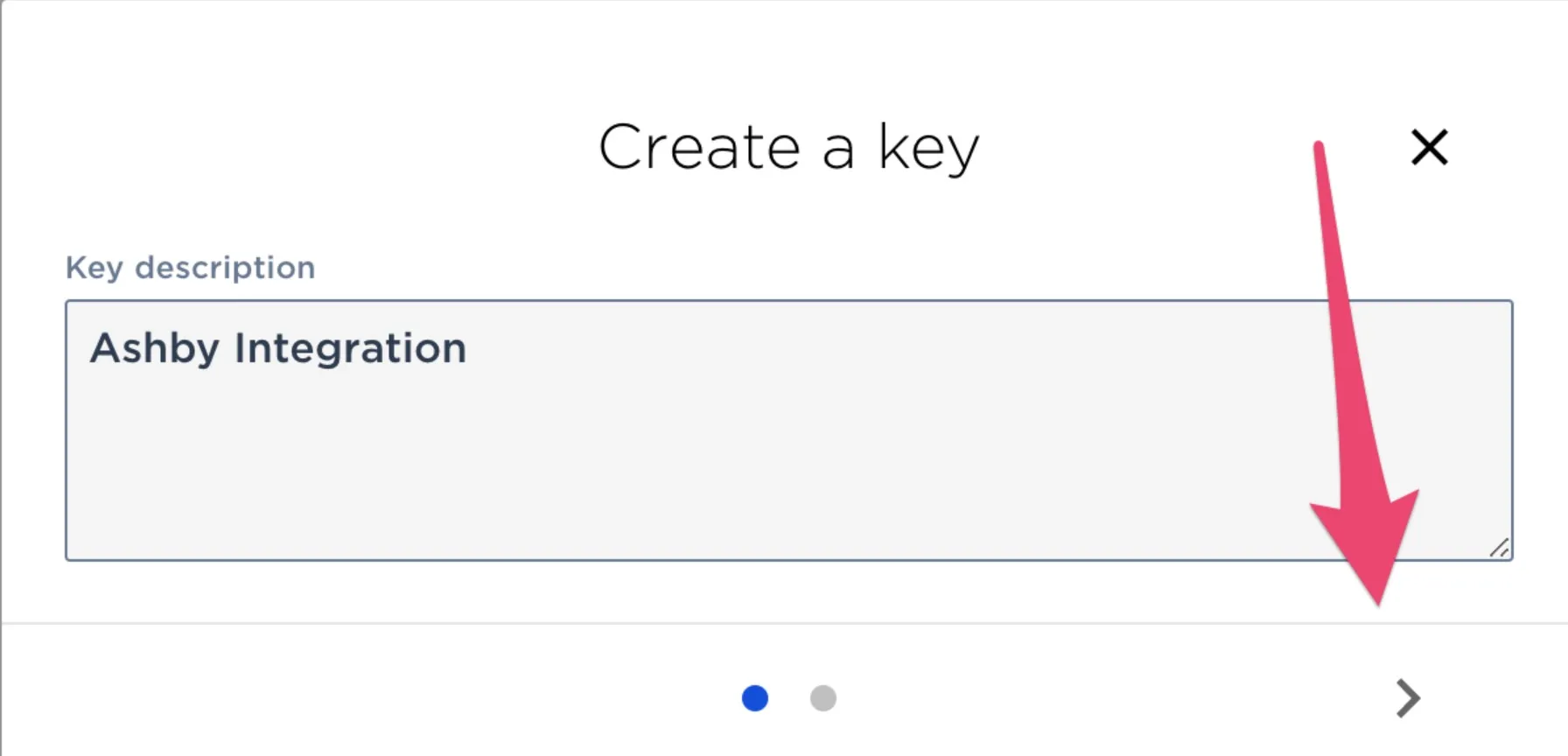
- Click Add a Key, and describe your key with a title like Ashby Integration in the pop-up that follows.
- Click the arrow in the bottom right, then enable the following permissions:
- companytest.company.read
- companyTestSession.company.write
- liveInterview.company.read (to use the live interviews option)
- liveinterview.company.write (to use the live interviews option)
- Click Save at the bottom. Your new API key appears in the list.
- Click your new key in the Key column to copy it somewhere temporarily, as you need it in a moment.
- Return to the Ashby integrations admin page and enter your new CodeSignal API key in the topmost box in the Ashby CodeSignal settings — the same place where you started with the Ashby API key setup.
To edit an existing key in CodeSignal to enable additional permissions, click the pencil icon next to the API key in question.
Connecting the CodeSignal webhook to Ashby
Next, set up the webhook so CodeSignal can notify Ashby about updates to assessments.
- Navigate to the CodeSignal webhooks page.
- Click Add a Webhook in the top right.
- In the screen that appears, configure the following settings:
Name | Value(s) |
|---|---|
Add event types | - companyTestSessionStarted - companyTestSessionFinished - preScreenResultShared - preScreenResultVerified - preScreenExpired - preScreenCandidateDeclined - preScreenResultNotVerified - preScreenResultVerificationPending |
Endpoint | https://app.ashbyhq.com/api/codesignal_webhook |
Secret Key | Paste the API key you just created from CodeSignal (don't click the refresh button) |
[email protected] (automatically notifies us if this webhook fails) | |
Custom headers | Add one and set the key as X-Ashby-Api-Key and the value as the API key you generated in Ashby |
- Click the test button. If all is well, you see a success message. If you run into issues, double-check your configuration and ensure you completed the final step from the CodeSignal API key setup, where you save the CodeSignal API key into Ashby.
- Click Create.
Your integration is now configured. You can start adding take-home tests and interviews via CodeSignal to your interview plans.
Adding take-home tests
Now that the integration is configured, you can start sending CodeSignal take-home assessments to candidates.
To add an interview assessment at the interview plan level, go to the interview plan you want to update and click + Activity on the stage you want to add a CodeSignal take-home assessment to.
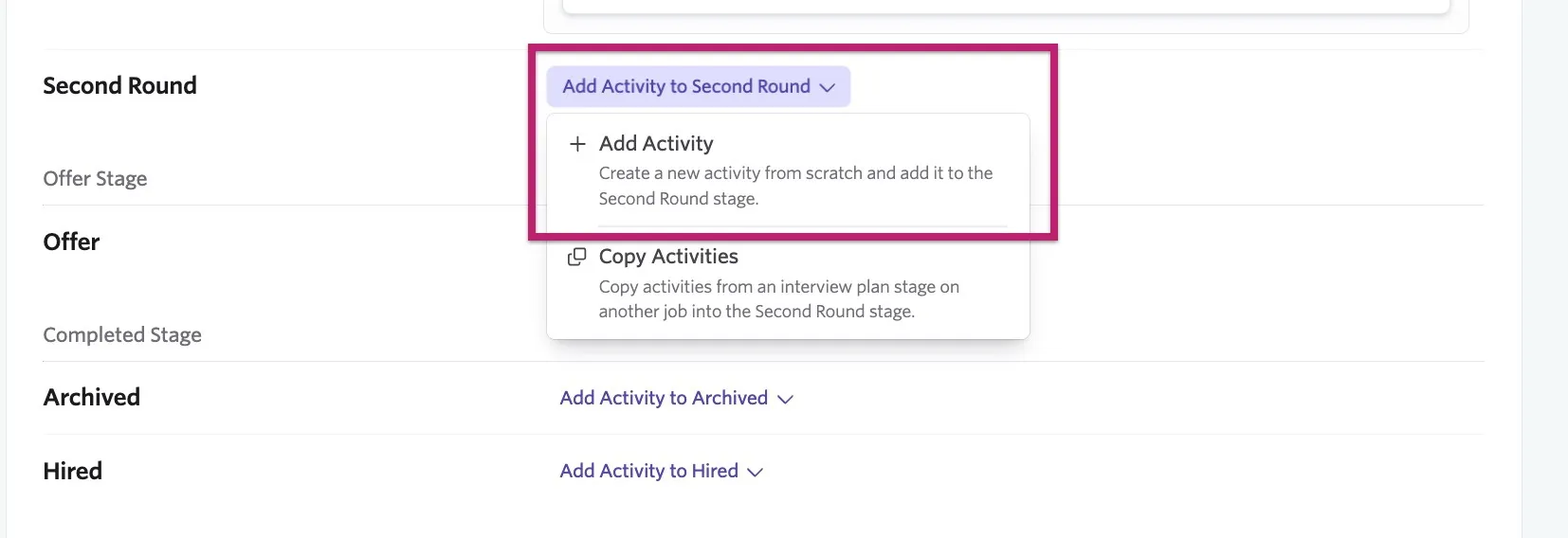
Click CodeSignal from the list of activities that opens on the right side of the page, then select the assessment you'd like candidates to complete at this interview stage.
When a candidate reaches the stage the take-home is assigned to, an activity shows up on their profile indicating that you should send them an assessment.
To send an assessment to a candidate, click Start Assessment on the activity on the candidate's profile. If you enable Automate on Stage Entry for the activity, Ashby triggers and sends the assessment automatically.
Ashby emails the candidate a link to the selected take-home assessment. Once they complete the assessment, Ashby updates its status. Assessment statuses can take up to four hours to reflect in Ashby.
Adding a CodeSignal Interview to Ashby interviews
Alternatively, Ashby can automatically attach live interview links to interview invitations when you schedule an interview or create a schedule interview activity.
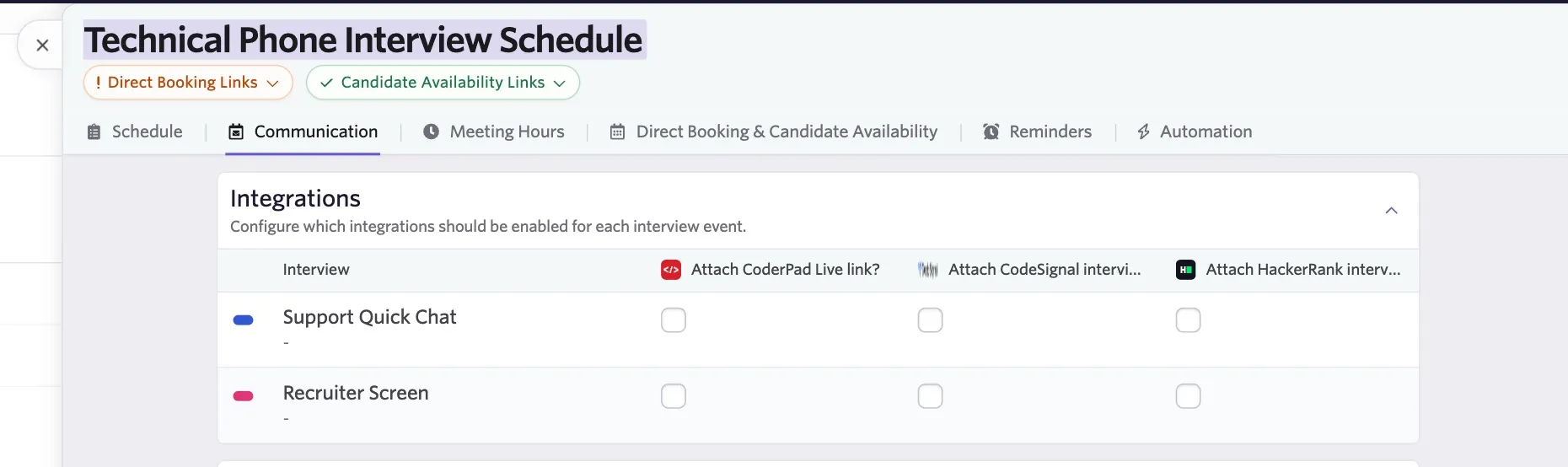
When scheduling an interview or configuring a schedule interview activity, check the Attach CodeSignal interview? checkbox. This option is under Communications for a schedule interview activity, or under Invite Settings when scheduling an interview manually. If you have an interview with multiple events, you can use checkboxes to specify the events that should have the integration enabled.
Ashby includes the interview link in both interviewer and candidate invitations.
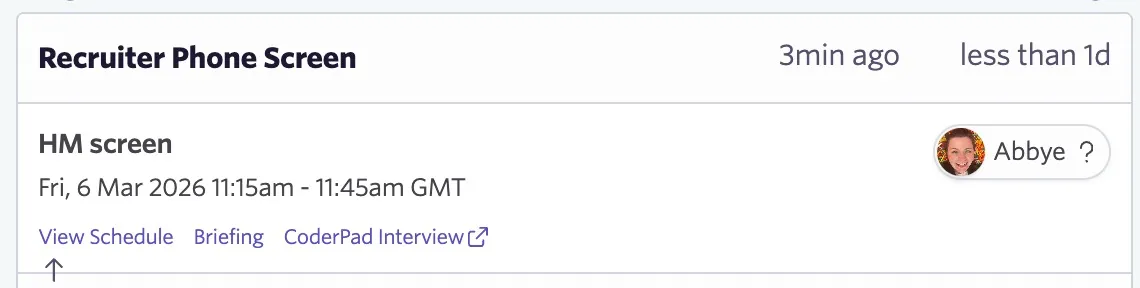
After you schedule the interview and Ashby sends the calendar invites, you can also access the live interview link via the record of the interview in the Interview Progress section of the candidate's job consideration.
FAQs
Does a user need specific permissions in CodeSignal to create an assessment or interview in Ashby?
Because the assessment generates via the API key, CodeSignal doesn't require specific user roles.