Candidate Pipeline
This guide covers the candidate pipeline view that can be found within the Pipeline section of Ashby or under Candidates > Candidate Pipeline.
Overview
Stage Groups
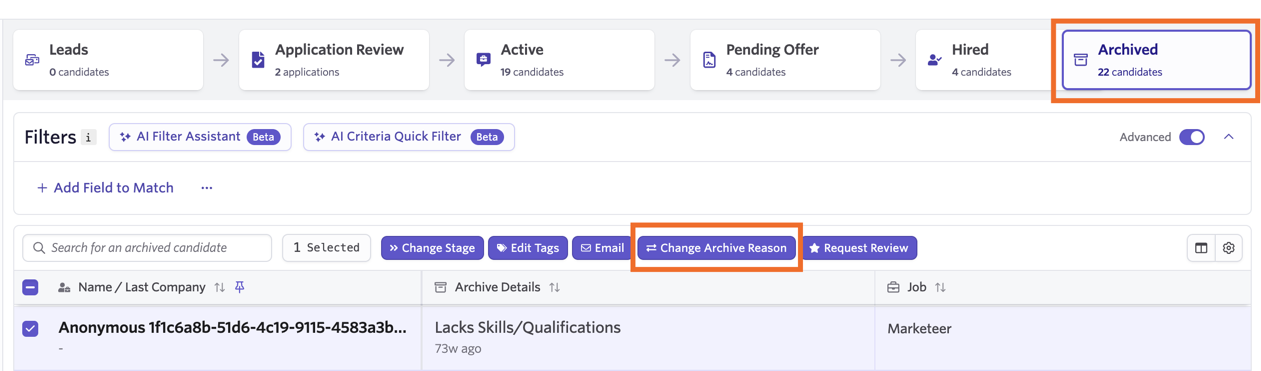
The Pipeline view displays all of the job considerations on the open jobs you have access to in Ashby. You can click between different stage categories to view candidates in each stage for every open job.

Leads: Candidates in the lead stages of your interview plan.
Application Review: Candidates in the Application Review stage. You can click on this option, then Review X Applications to access the bulk application review tool and access candidates across all of your open jobs.
Active: Candidates that are in the Active stages after Application Review, up to and including those candidates in the Offer stage.
Pending Offer: Candidates in the offer stage. Clicking this option will list all candidates in the offer stage, along with the offer status (Needs Offer, Waiting on Offer Approval, Waiting on Offer Acceptance).
Hired: Candidates who have been hired for a job.
Archived: Candidates who have been rejected for a job.
Viewing Candidates in the Pipeline
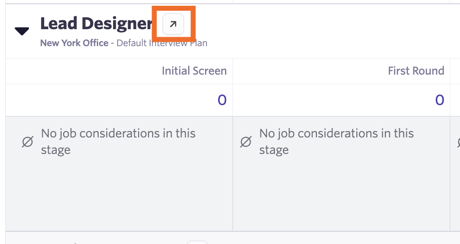
To view the candidates in each stage for a specific role, click the arrow to the left of the job title.

Candidates will be listed in the interview stage they’re in within this expanded view. Click on a candidate to be taken to their profile.

Taking Bulk Action on Candidates in the Pipeline
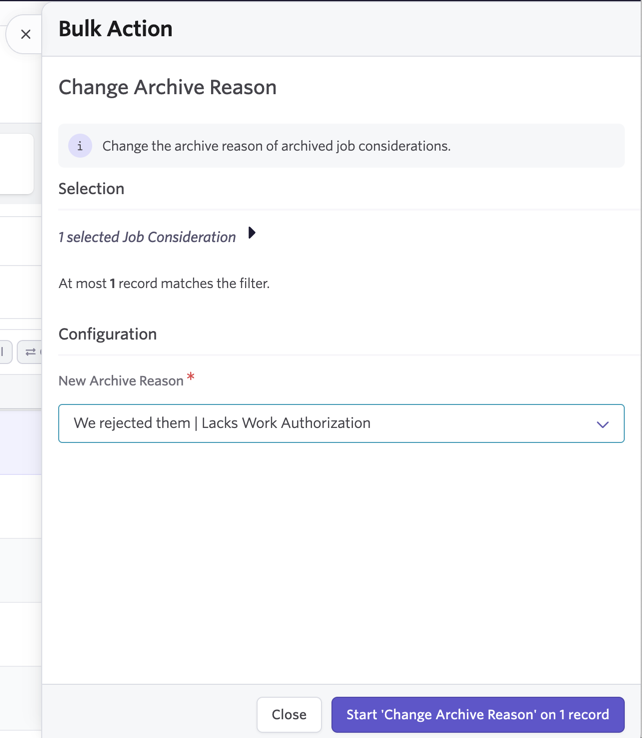
If you opt to view a role’s pipeline, you can click Select to then specify a group of candidates, then use the buttons to take bulk actions on your chosen candidates.

You can take the following bulk actions on selected candidates when selecting them within the job’s pipeline::
- Change Stage
- Archive
- Enroll in Sequence
- Transfer
- Consider for Job
- Set Tags
- Add to Project
- Start Assessment
- Update Hiring Team Role
- Send Data Consent Request

Once you have determined the candidate records and the action to be taken on them, you will then be taken to the bulk action wizard to confirm the bulk action.
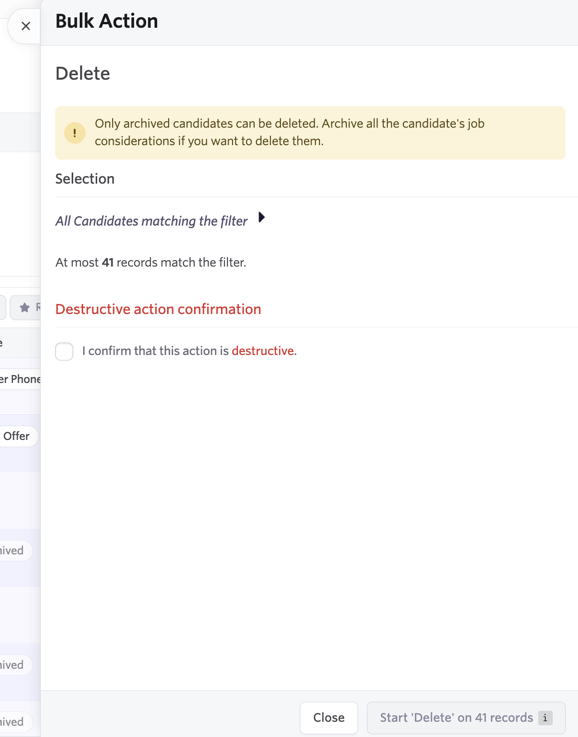
In the Selection section, you’ll be able to see the criteria you’ve set for this bulk action and the number of records that match this criteria. Be sure to take time to review this information.
If the action is destructive (for example, deleting candidates), you will be asked to confirm that you are aware the action is destructive by checking the I confirm that this action is destructive checkbox.
Once you’ve reviewed the bulk action and the records that the action will be taken on, click the Start X on X records button to continue.
If you are performing a bulk action on a small set of records, you will be asked to confirm the bulk action to be taken, along with the number of records the action is to be taken.
If the action is being taken on a large number of records, you will be prompted to type the action into the specified field before the action across the chosen records can be performed. The number of records impacted will also be listed in the prompt window.
Once you’ve typed the action into the field, click Perform to perform the bulk action across your specified records.
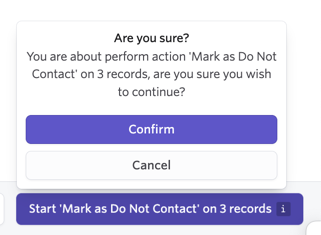
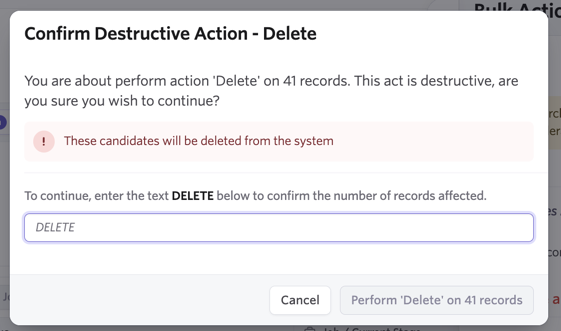
The bulk action type and the number of records included in the bulk action determines the number of confirmation prompts you’ll receive:
Deleting or Anonymizing Candidates Up to 24 candidates: Inline prompt. 24+ candidates: Confirmation window with typing prompt.
Archiving, Marking as Do Not Contact or Sending a Survey Up to 24 candidates: Inline prompt. 24+ candidates: Confirmation window with typing prompt.
With any other bulk actions, if you are taking the action on 24 candidates or more, you will see the inline prompt to confirm your bulk action before it is performed.
If you opt to close out the bulk action wizard window at the point where the bulk actions are being process, you will be able to see the progress in a minimized version of the wizard.
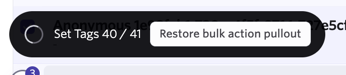
To open the wizard back up, click the Restore bulk action pullout button.
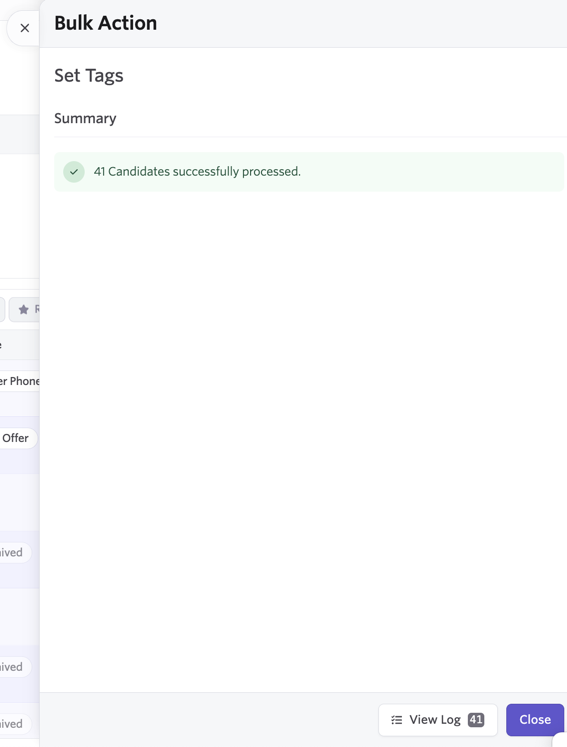
Once the bulk action has been performed, you will be able to view a log of all the changes on the confirmation page. Click Close to close out the bulk action wizard when you’re done.
Filters
Just like with candidate search, you can add filters to the pipeline report to only view jobs and candidates that meet your criteria.
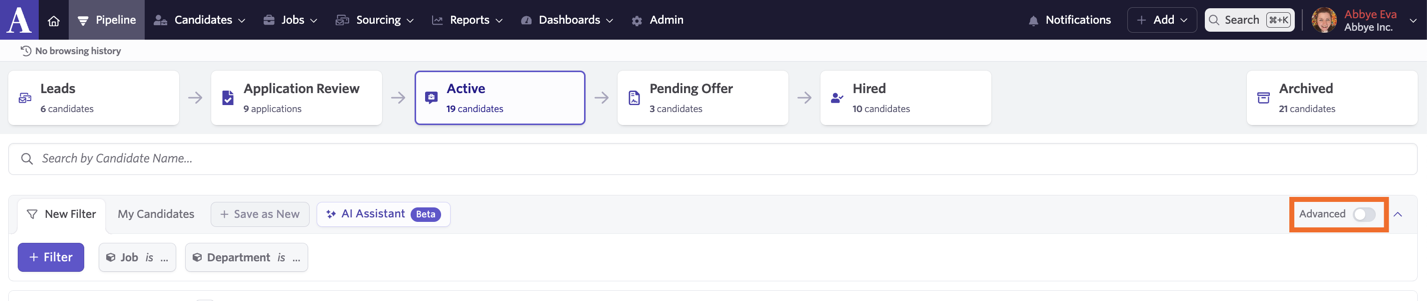
You can switch between adding basic and advanced filters using the Advanced toggle.
Basic Filters
When it comes to setting the criteria for your candidate search, Ashby has basic filters. These are the most commonly used filters. Basic filters are enabled when the Advanced toggle is switched off.
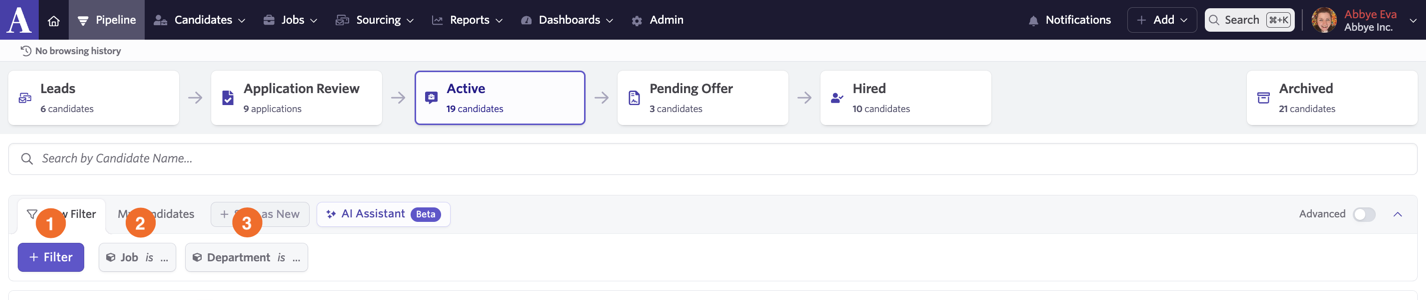
1: + Filter Click this to open up a list of commonly used filters. These include a full text search of the candidate’s resume, location, current interview stage, tags added to the candidate profile and projects they’ve been added to.
2: Job is… Click this to select a job to filter for.
3: Department is… Click this to select a department to filter jobs by.
Advanced Filters
You can switch on the Advanced toggle to search through a wider range of filters. When turning on this toggle, you will see an option to + Add Field to Match instead. Click this to search through the full range of filters available.
Save as ‘New’
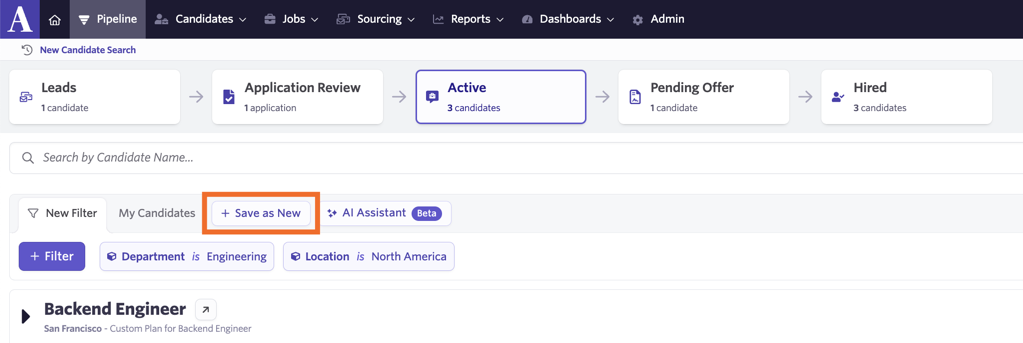
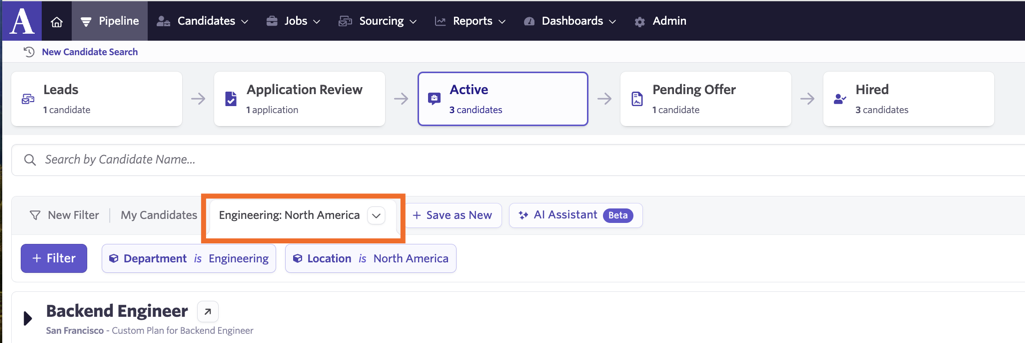
You can also save a specific set of filtering criteria as a filter tab on the Pipeline page. Once you’ve set up your filters, click the Save as ‘New’ tab option. You’ll be asked to name this filter. This can be particularly helpful when you’re looking to jump between multiple pipeline filters.
Once named, this will show as an additional filtering option beside the My Candidates tab.
My Candidates
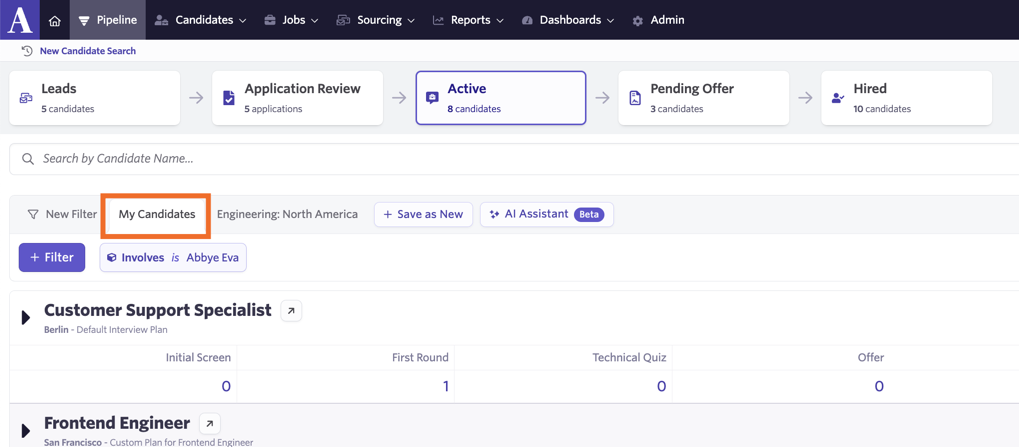
Along with the New Filter tab and saving new filters, you can also use the My Candidates tab to filter the candidate pipeline. This will pull all active job considerations for the open jobs and candidates that you are on the hiring team for or following.
AI Assistant Filter (Beta)
If you would like to opt-in for this feature, head to Admin >Organization Setup >Opt-In Features within Admin.
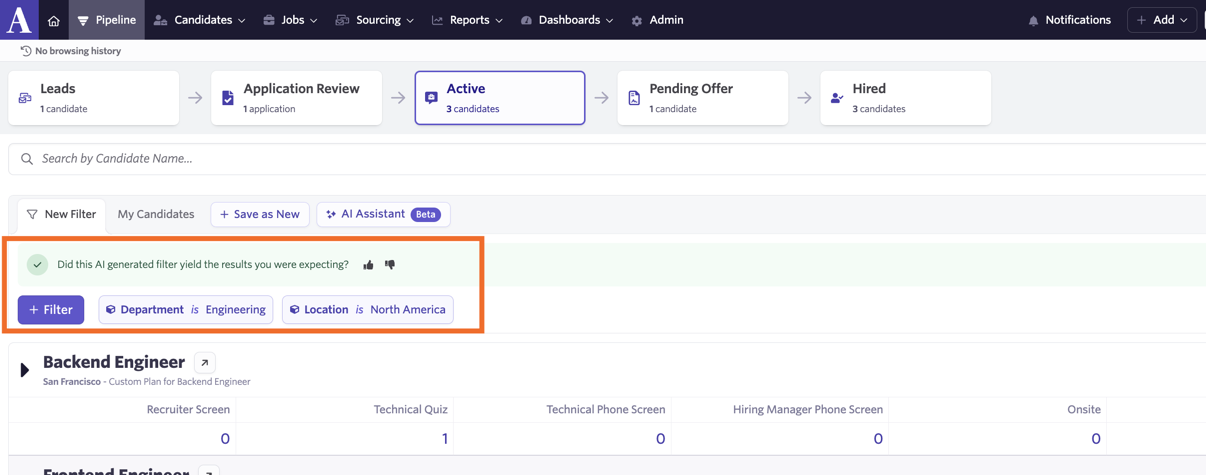
You can use the AI Assistant filter option to automatically generate a filter based on a prompt you provide.
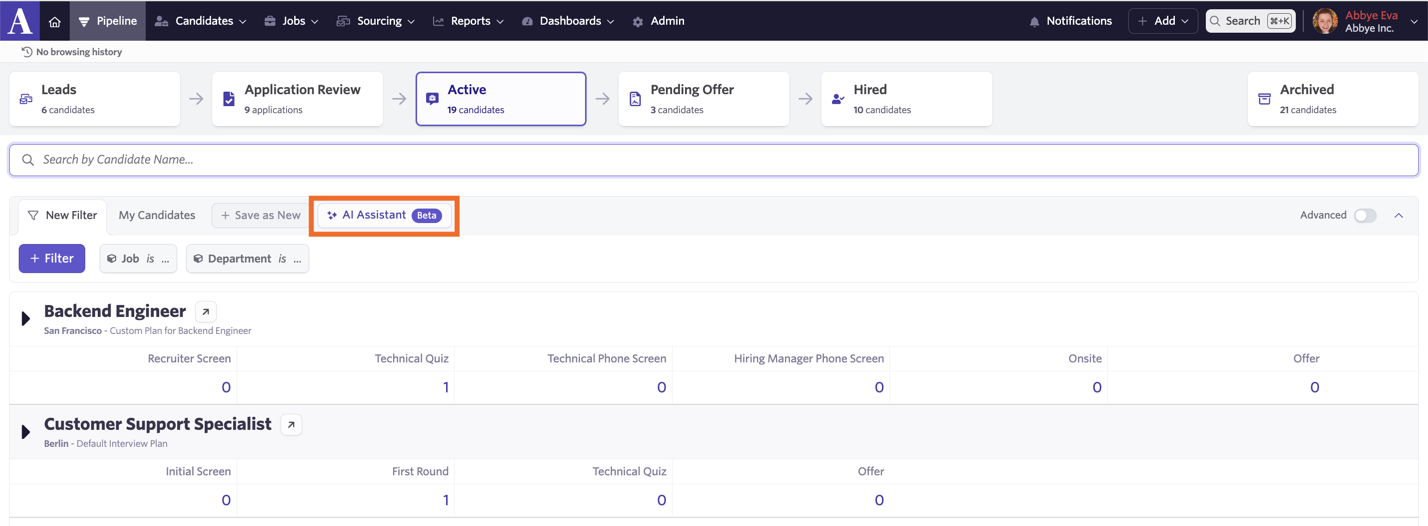
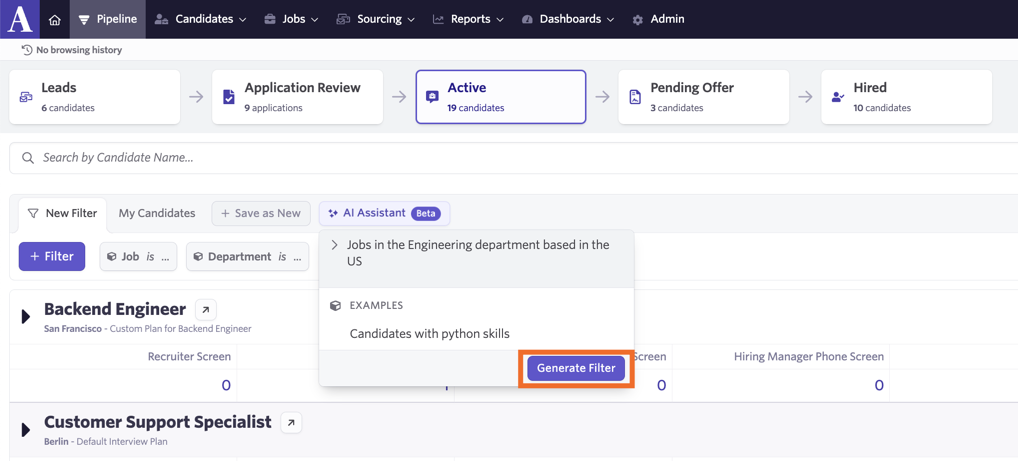
To get started, click on the AI Assistant option and start typing the filter you’re looking to set up. The assistant will then add filters to your report when you click Generate Filter.
If your filters look good, you can click the 👍 icon to provide your feedback. If the filters don’t match what you were expecting, you can leave feedback by hitting the 👎 icon.