Ashby Analytics: Key Reporting Concepts
Ashby is powerful and flexible, but you only need to understand a few key concepts to build your own reports. The sections below discuss these key concepts.
Fields
One of the powerful concepts in Ashby is the ability to search, filter, and group by any field on any object or subject. The better you understand the concept of fields, and which fields are available to you, the faster you are at building reports.
A field is an information point within the subject that can be used for filtering your report results, grouping your report results, or including them in your results if creating a custom report.
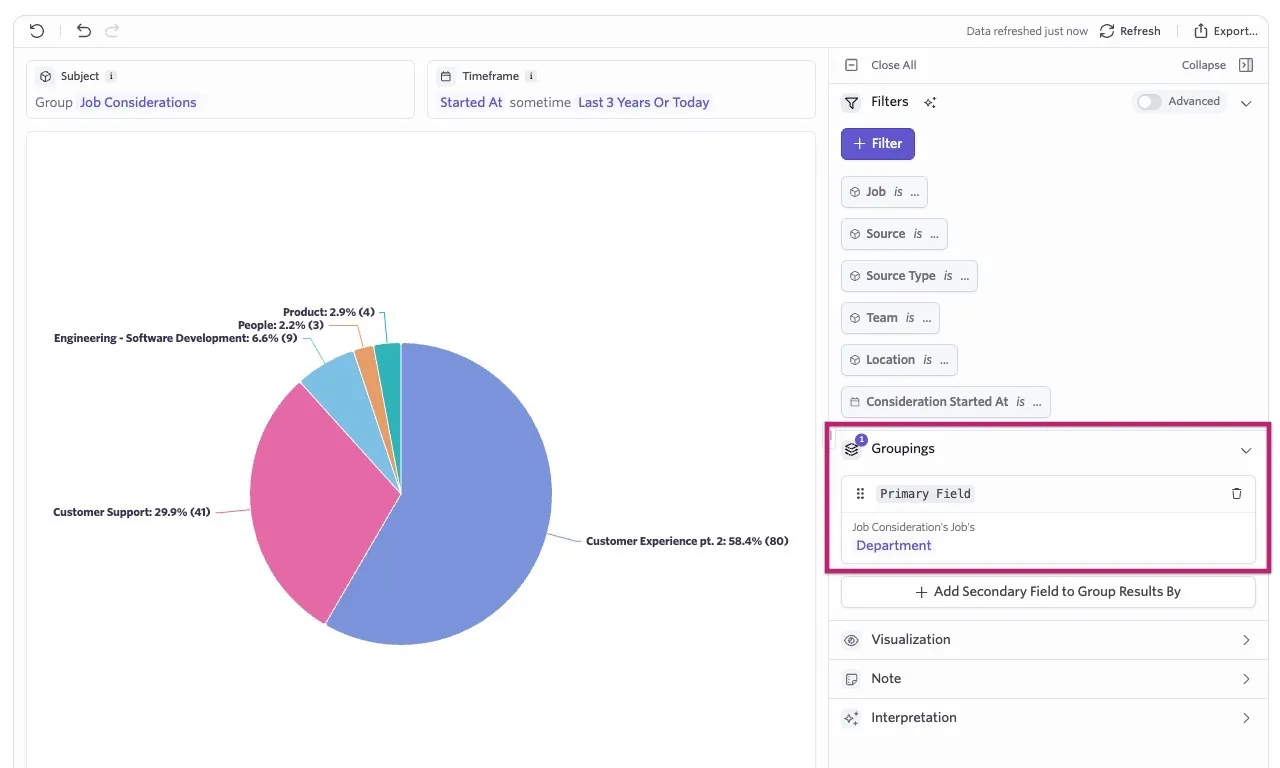
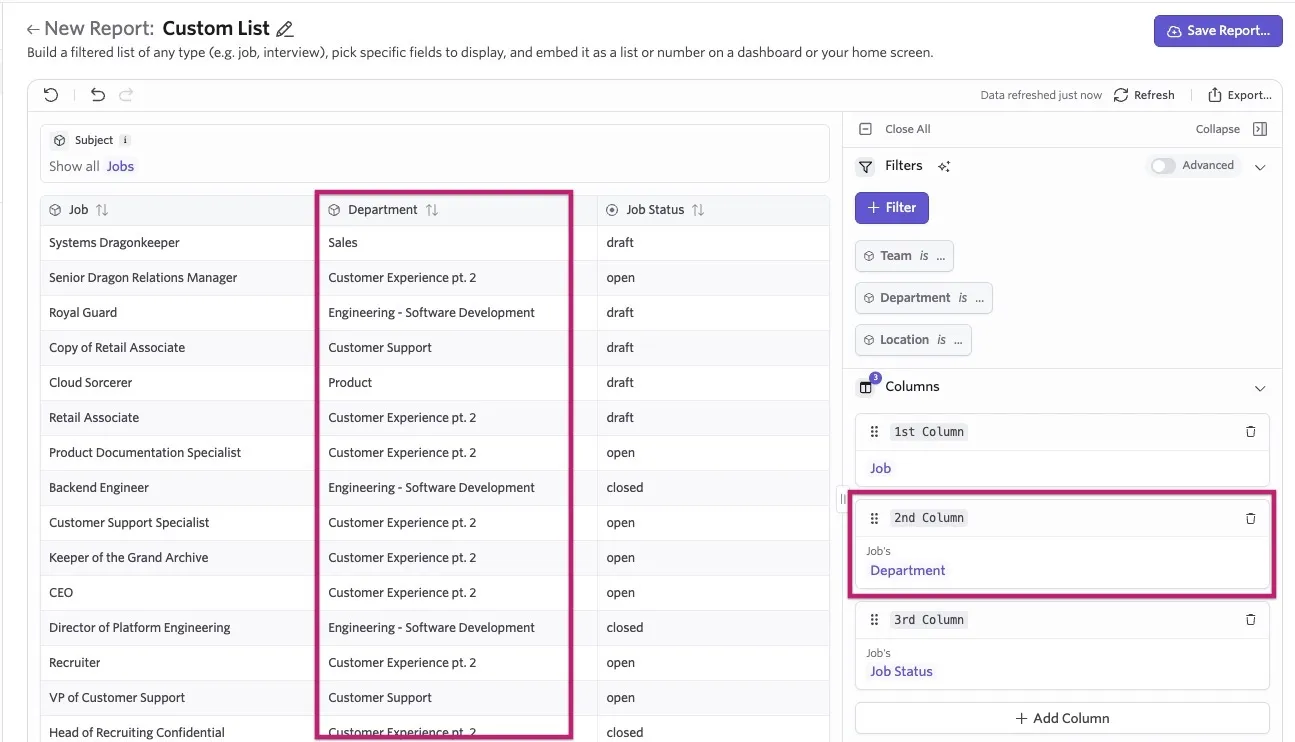
So, for example, a job's department is a field you can use to:
- Filter results to only show data for the jobs within that department.
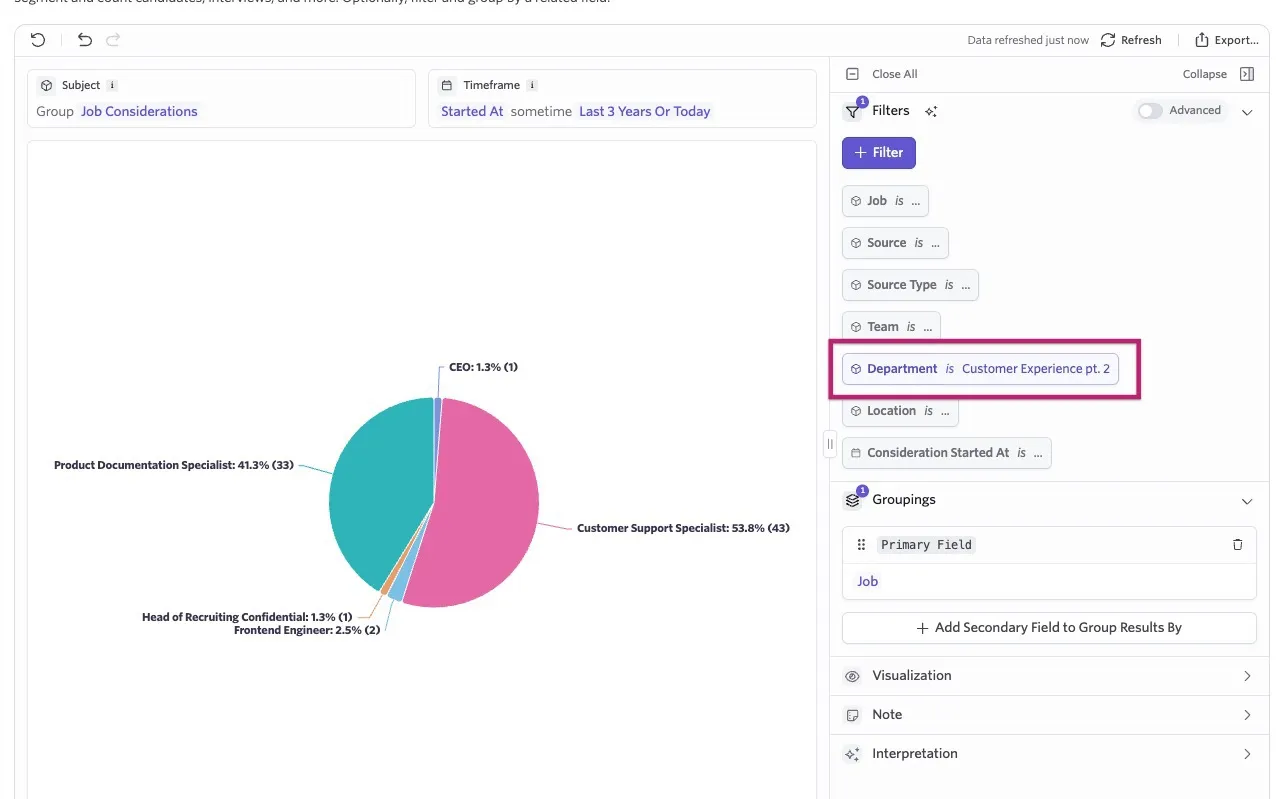
- Group results so data is displayed per department so comparisons can be drawn.
- Be shown on a custom list report, perhaps as part of an export of job data, or included as part of the report details within an alert.
For more information on specific subjects and fields seeAshby Subject & Field Definitions.
Filtering
Filtering is one of the most essential pieces in Ashby. Filters allow you to set specific limits to view the most relevant data.
Time range
Some reports (such as Count Over Time or Segmentation) require you to set a time range, which serves as a filter. You are prompted to select a timestamp for your subject (for example, Started At on a job consideration or application), then select a time range. Ashby displays any data that falls within the specified time range (based on the determined timestamp).
So, for example, if you set the time range to Started At within the last three months, all job considerations created within that period appear on the report, provided no further filters are added.

Filters
If you're looking for very specific information, you can use filters to set criteria. Only the data that matches your set criteria is then shown in your results.
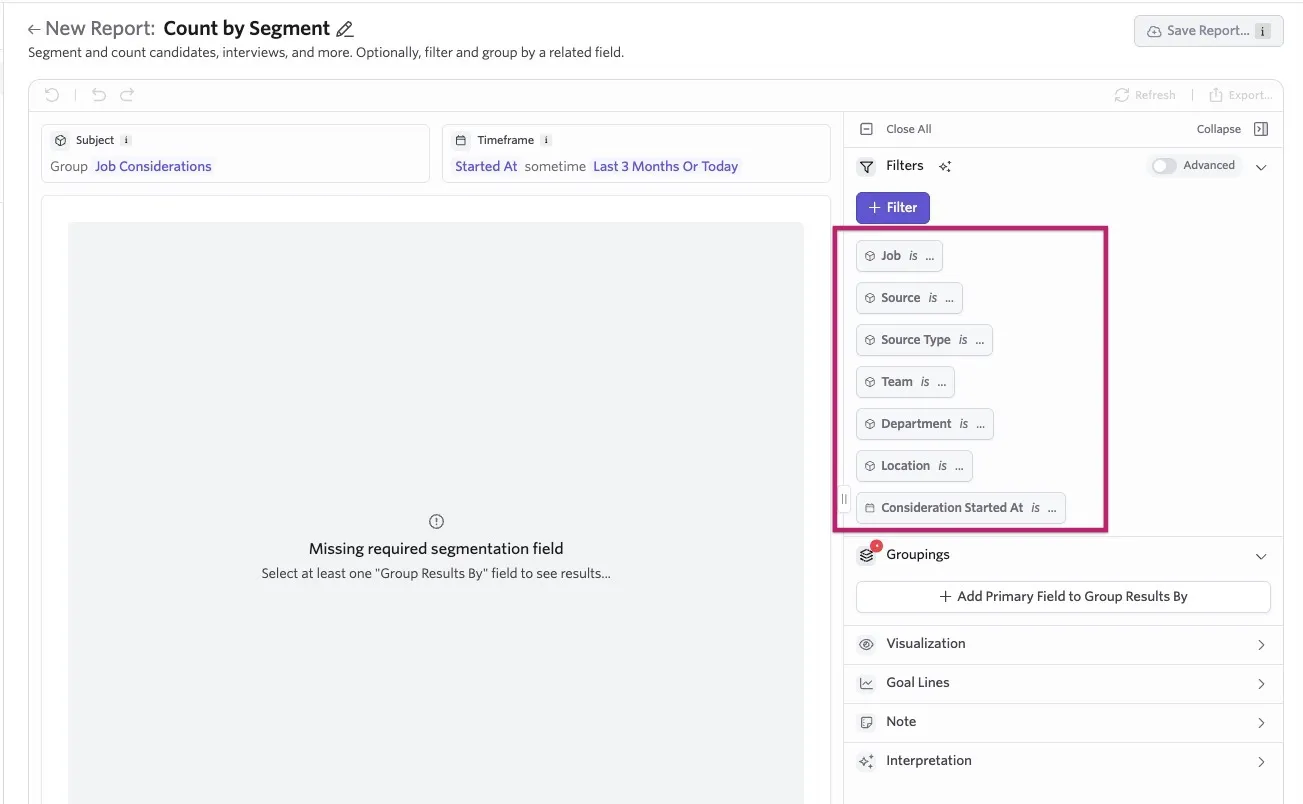
You can use filters to narrow data by department, source, location, job, and more. In Ashby, you can use basic or advanced filters to filter more specifically.
If the Advanced option is not enabled, you can quickly select a job, source, team, and/or location from the dropdowns to filter results by those fields.
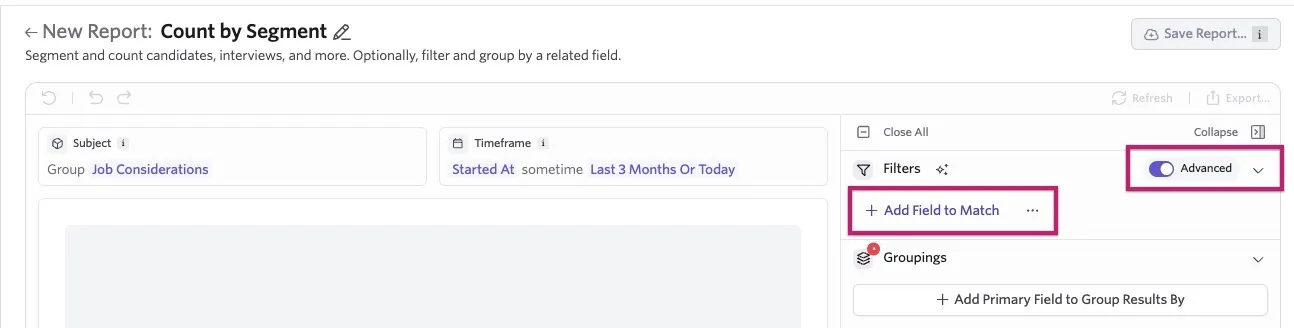
If the Advanced option is enabled, click + Add Field to Match to pick from a wide range of filter fields.
Grouping
The last important building block in Ashby is the concept of grouping values. You can group values to display your data in the most relevant way by creating subgroups. One common example is grouping your results per department or location.
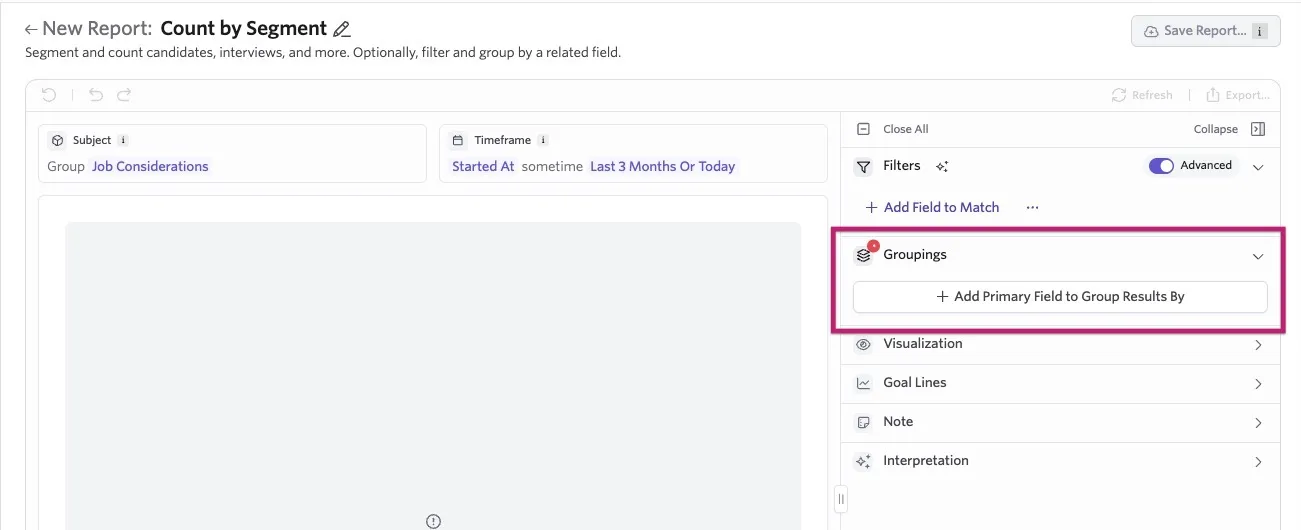
Click Add Primary Field to Group Results By to select your chosen field to group your results by. The available fields depend on the subject you select for the report.
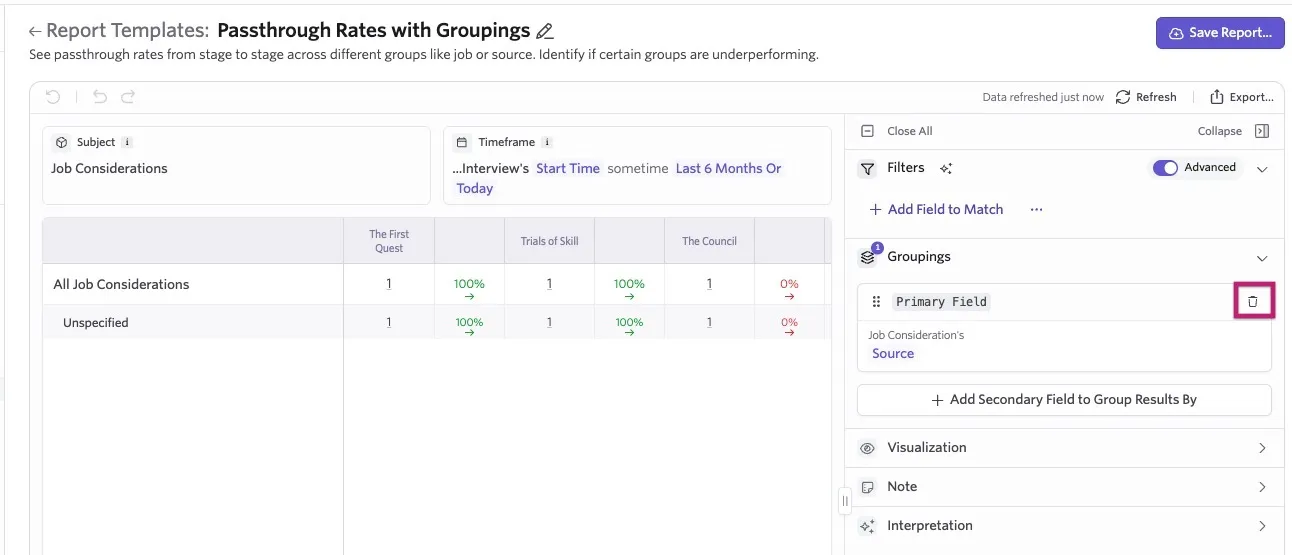
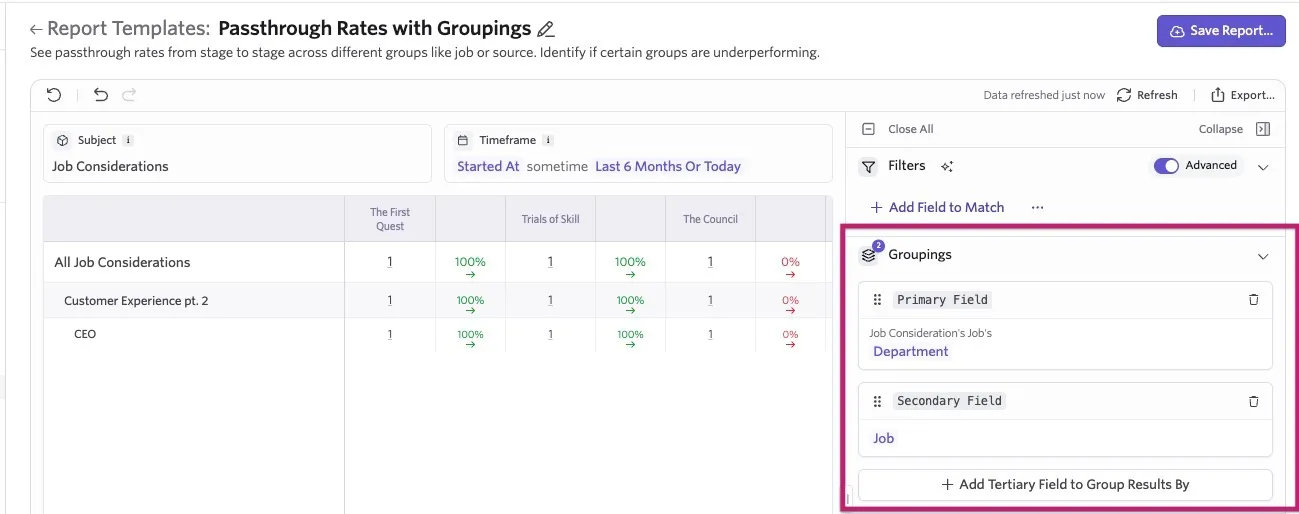
Some report templates already group by a specified field. The Passthrough Rates with Groupings report template automatically groups by the source of the application or job consideration. You can click the trash can icon to remove the field from the Group By section and then select an alternative field if needed.
You can also add multiple groupings to a report for more granular results. To adjust your groupings, click and drag the fields you are grouping by to re-order them.
For example, pictured here is a passthrough rate report grouped by department and by job. The department results are listed, then broken down further by each specific job.
Date ranges and best practices
Most reports cover specific timeframes, and some report on trends over time. When you build a report, you are prompted to select a time field and time range to determine which data appears in your report.
Timeframes
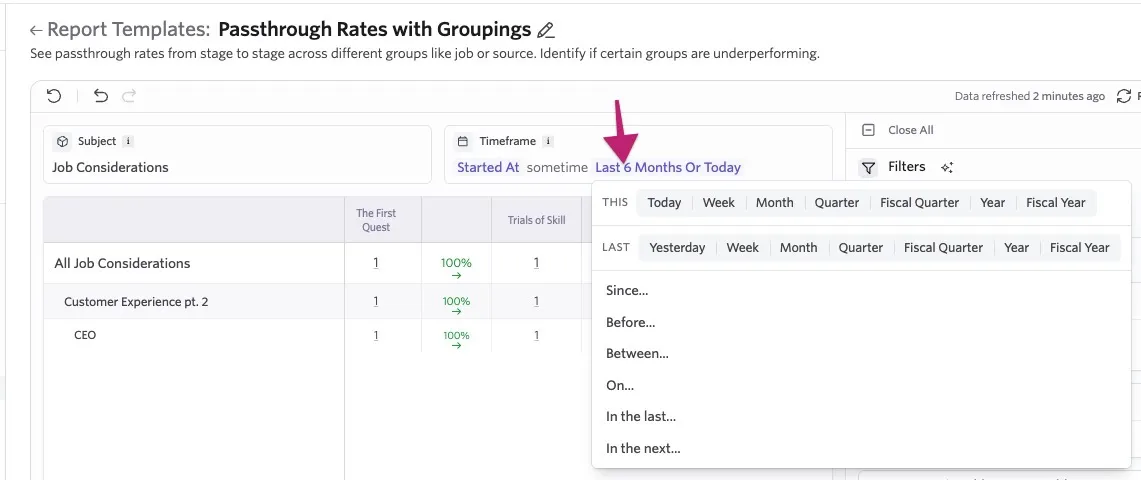
Once you've selected your time field, the To Show dropdown lets you choose your time range. Some options are dynamic, and some are static. The dynamic options update their results over time, whereas the static options remain fixed.
Intervals
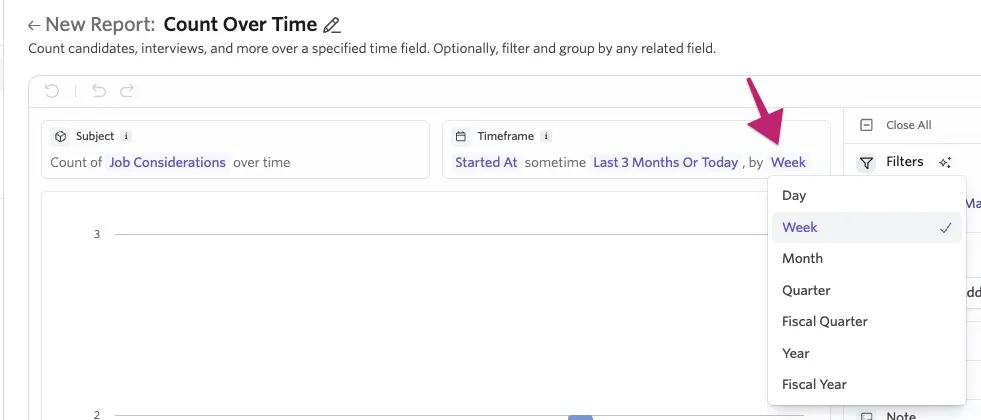
For Count Over Time reports, you are also prompted to select an interval. The interval groups the qualifying data so you can track results across each day, week, month, quarter, fiscal quarter, year, or fiscal year.
Advanced filtering via multiple fields
Advanced filtering allows you to build a nested query, so you can specify multiple fields that should be true for data to qualify. To filter by multiple fields, click Add Field to Match and then search for and select Multiple Fields.
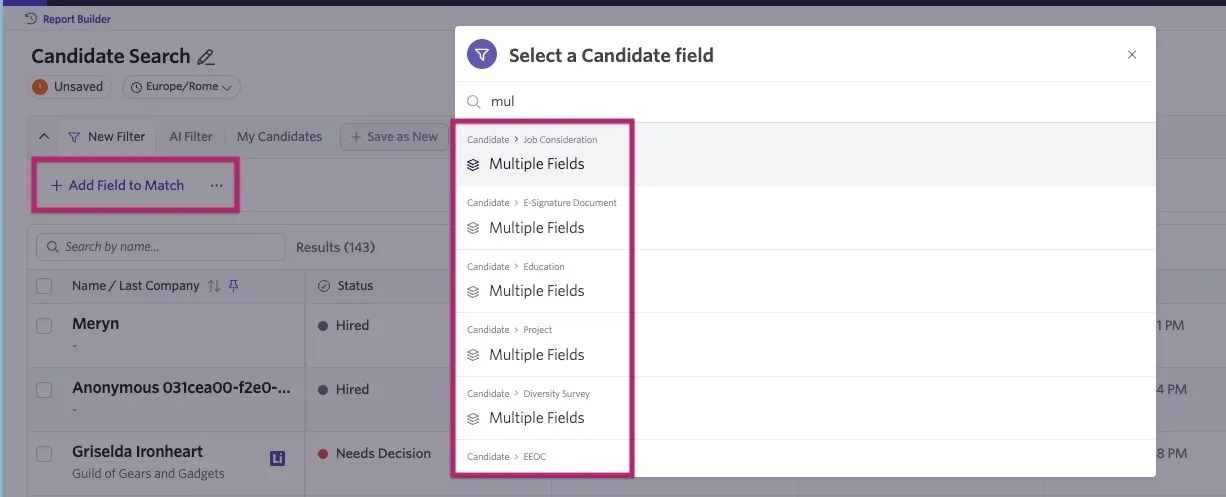
Confirm that the Multiple Fields option you select includes the fields you want to filter by.
Depending on your subject, there may be many Multiple Fields options (for example, if searching by candidate, you may see Multiple Fields options for the candidate's application, interview, etc.).
From here, an "All are true" clarifier appears in the Filter section. Use the Add Field to Match option again to add your fields and specify your criteria.
And, Or, and Not options are also supported:
- And: Sets the criteria to All are true. All criteria specified must be met to appear in the report results.
- Or: Sets the filter to Any are true. If any of the filters configured are met, the data appears in the report's results.
- Not: Sets the filter to The following is not true. Only data that doesn't meet the criteria specified in the filter appears in the report results.
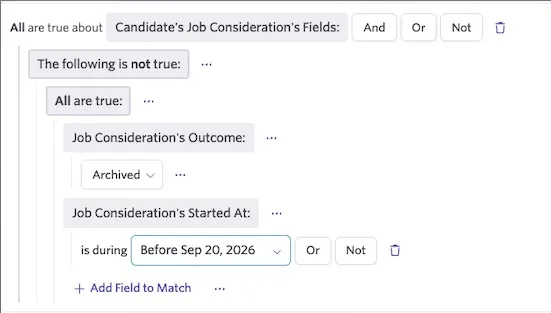
The example above filters for any job considerations that haven't been archived and that weren't created or started before September 20, 2026. As such, only active or hired candidates with applications submitted after this date appear in the results.
Calculated fields
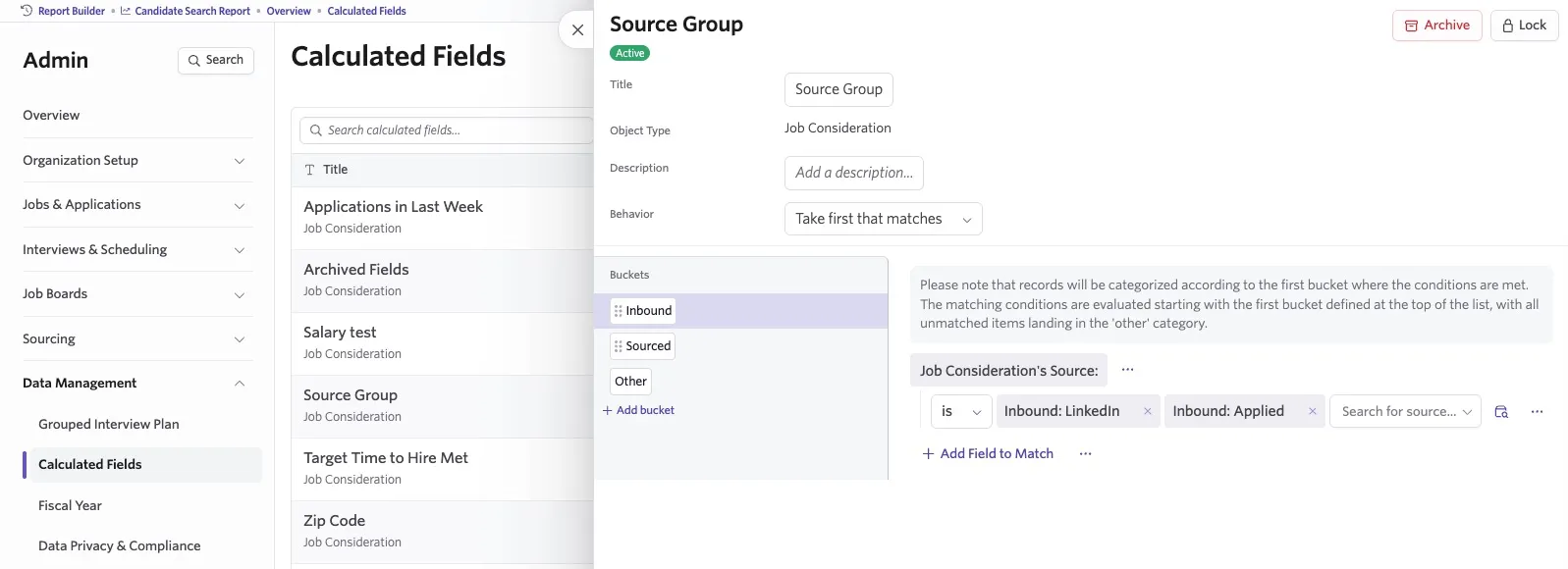
Calculated fields are an advanced feature that allow you to remap applicant tracking system (ATS) data for reporting purposes. For example, you can take all sources from your ATS and group them into a custom set of buckets.
For more information, see Calculated Fields.
Time zones and reporting
When you create a report, Ashby initially uses your user time zone. You can change the time zone for the report to the organization time zone or a custom time zone.
Selecting a time zone for a report
Changing a report's time zone can shift activity between days or weeks. An activity timestamp can fall on a different calendar date depending on the selected time zone.
- Navigate to Reports > Report Builder and create a report, such as a Count Over Time report.
- Locate the time zone selector in the left-hand corner of the report.
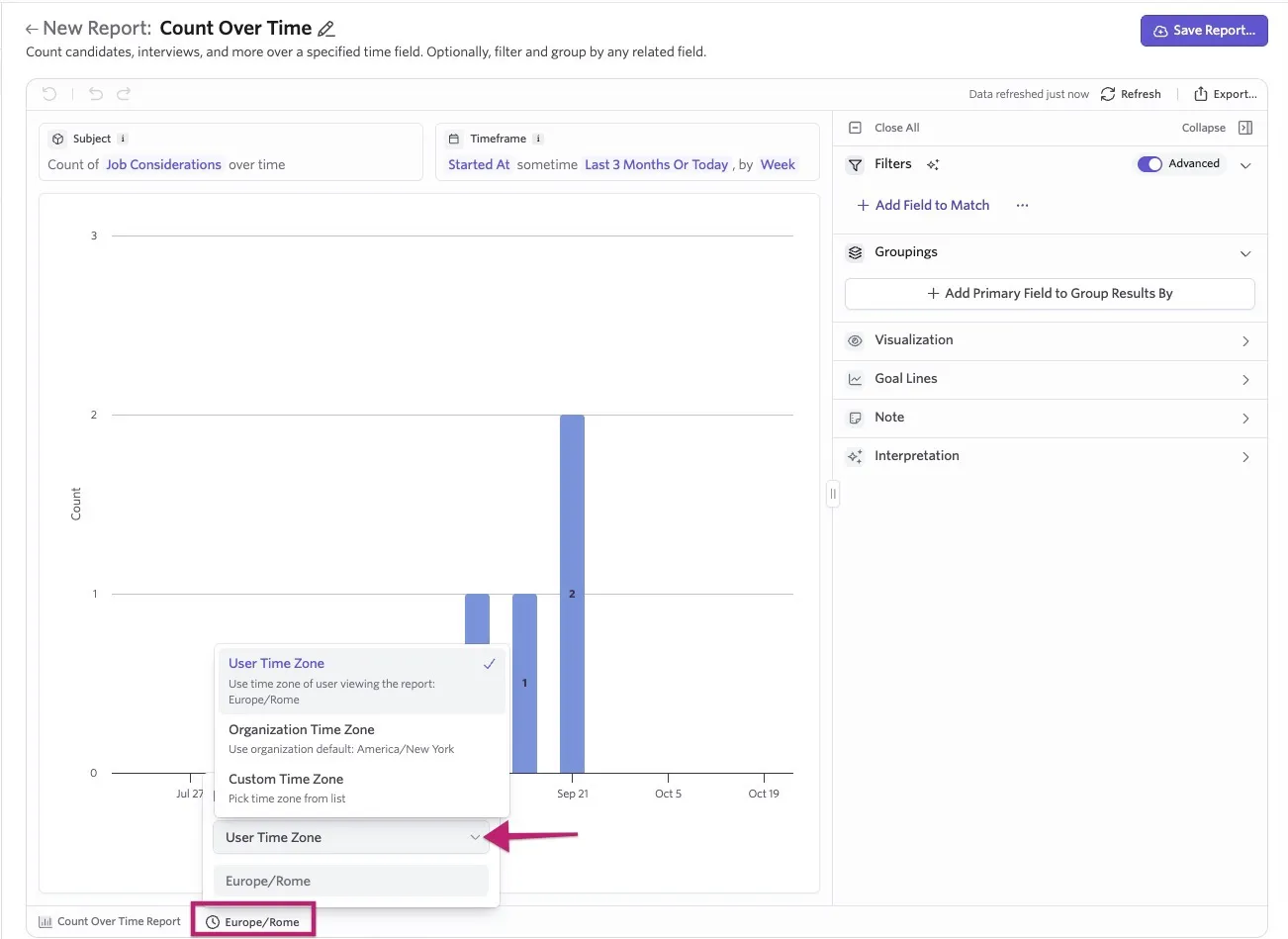
- Select one of these options:
- User Timezone: Uses the viewer's current user time zone.
- Organization Timezone: Uses the organization time zone for all viewers.
- Custom Timezone: Uses the time zone you select for all viewers.
- Save or update the report to keep the selected time zone.
An Organization Admin configures the organization time zone under Admin > Interviews & Scheduling > Meetings & Time Zone. You can also set a default reporting time zone under Admin > Data Management > Reporting Time Zone.
You can set your user time zone in your personal account settings. By default, all user time zones are set to the organization time zone. See How do I change my Ashby timezones? for more information on setting time zones.
Mapping interview stages to stage groups
For reporting purposes, Ashby maps all interview plan stages into a grouped interview plan. During setup, Ashby creates a grouped interview plan for you, but you can edit it at any time in Admin > Data Management > Grouped Interview Plan. To read more about this process, see Utilizing Stage Groups.
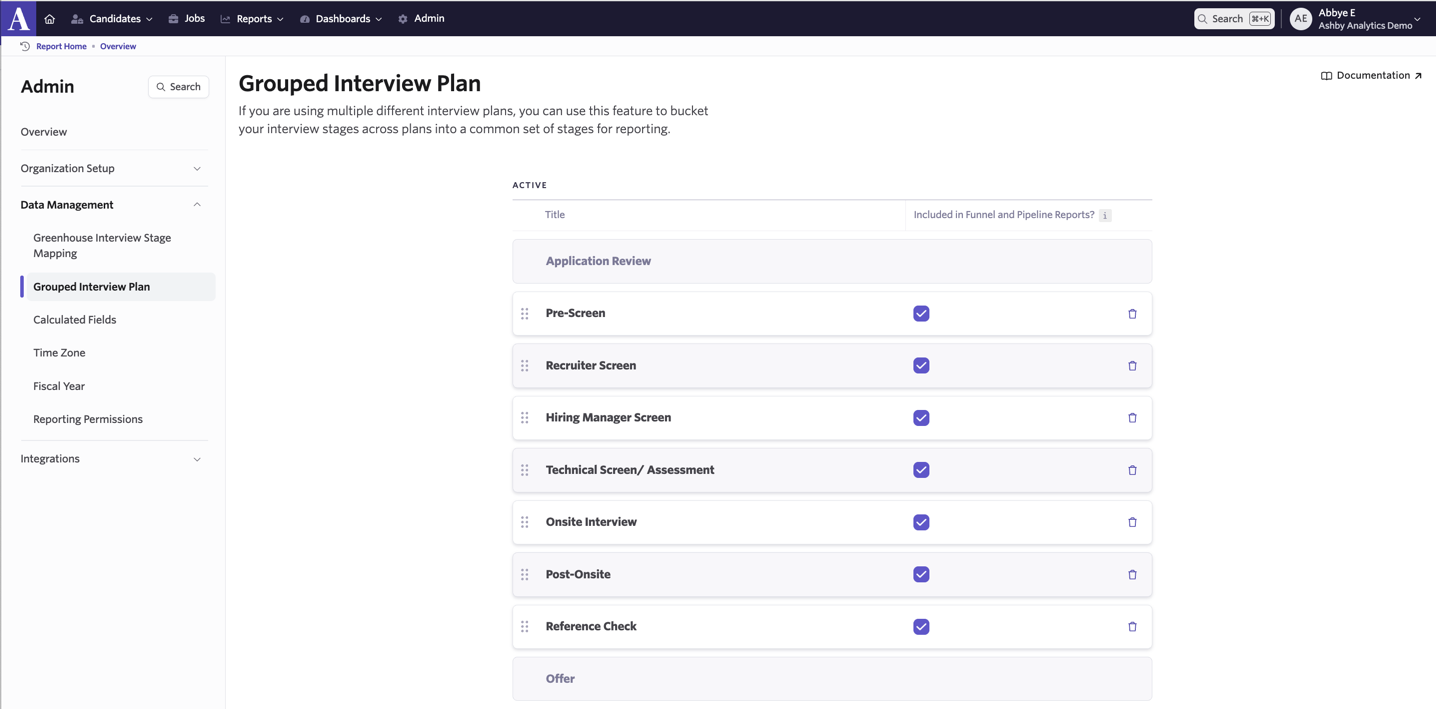
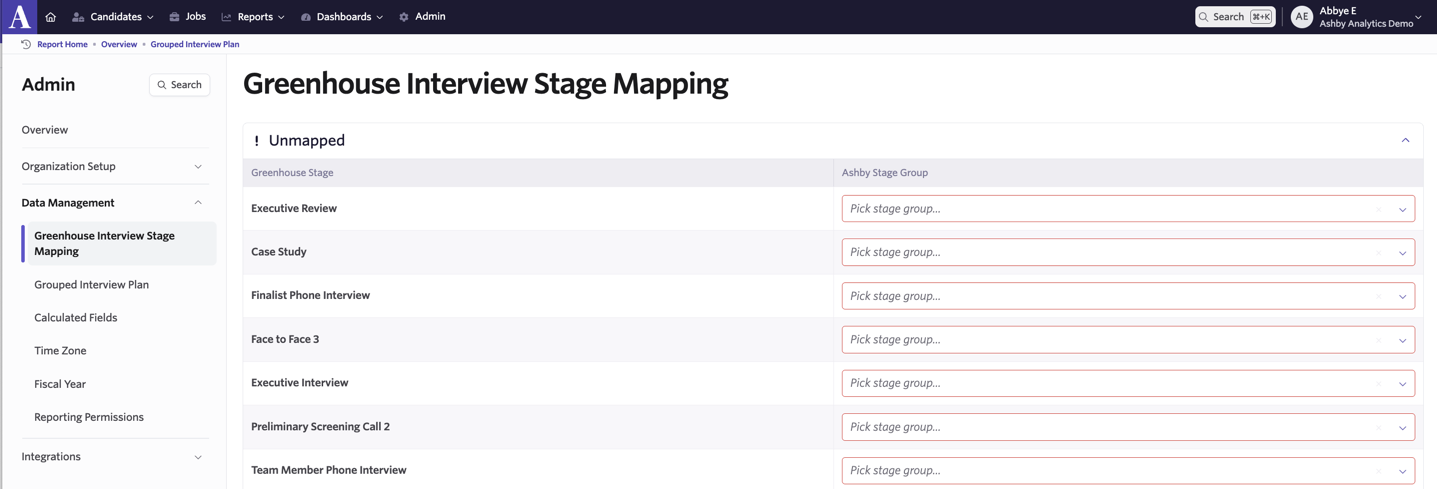
If you are using Ashby Analytics only and are using data from Lever or Greenhouse, you need to map the individual stage names into one of your grouped stages. To do this, navigate to Admin > Data Mapping > Greenhouse Interview Stage Mapping. You can then use the Pick stage group dropdowns to determine the Ashby stage group your interview stages should map to.
Fiscal year support
Custom fiscal year support is available on the Legacy Plus, Plus, and Enterprise plans:
Foundations | Legacy Plus | Plus | Enterprise |
|---|---|---|---|
❌ | ✅ | ✅ | ✅ |
Ashby supports reporting on a shifted fiscal year. To configure it, navigate to Admin > Data Management > Fiscal Year and check Enable fiscal year?. Then select the First day of fiscal year for the date you want your fiscal year to start.
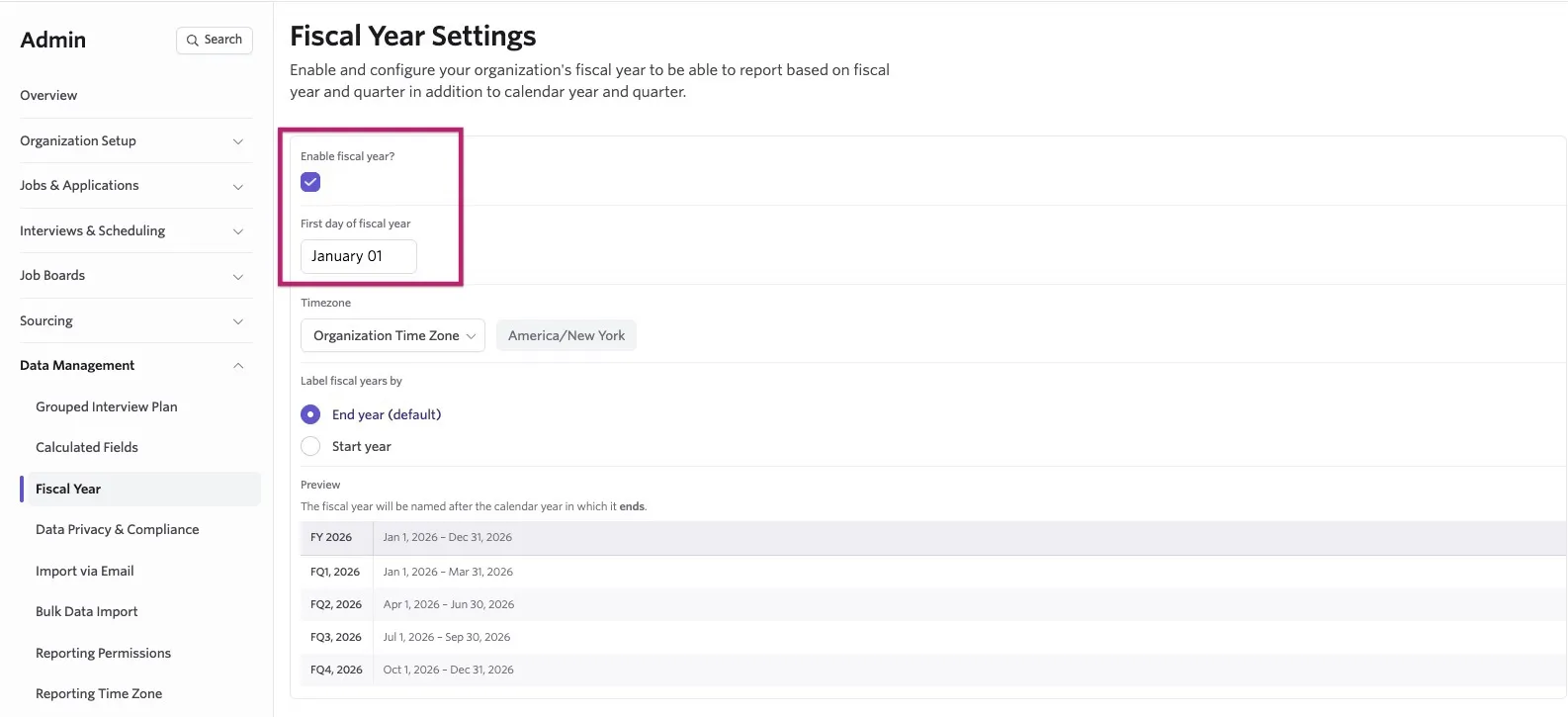
The Fiscal Year Settings page also includes these options:
- Timezone: Fiscal years use your organization's timezone by default. Select a custom timezone if your fiscal periods need to follow a different time zone.
- Fiscal-year label: Select End year (default) to label a fiscal year using the calendar year in which it ends, or select Start year to use the calendar year in which it begins.
- Preview: Review how your fiscal year and quarters appear with the selected settings.
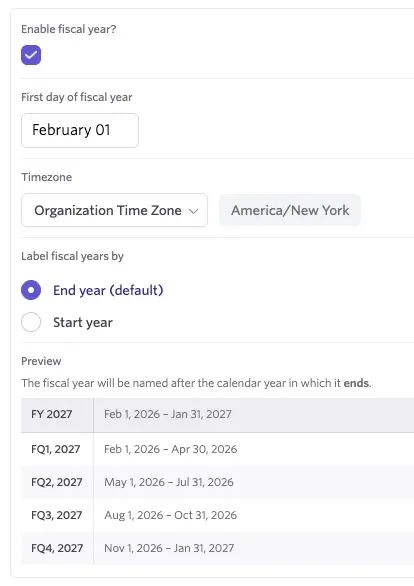
For example, if your fiscal year starts on February 1, the quarter from August 1 through October 31 appears as Fiscal Q3 2027 when you label fiscal years by End year.
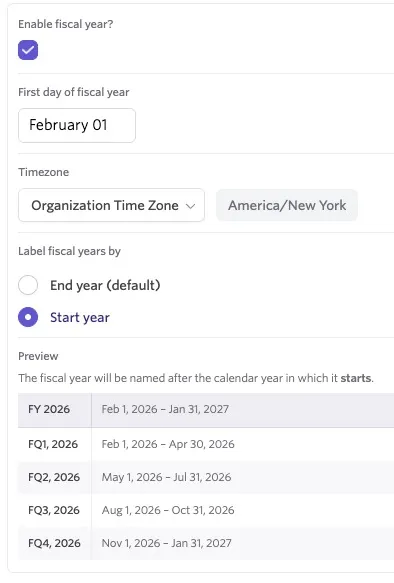
When you label fiscal years by Start year, the same quarter appears as Fiscal Q3 2026.
After you enable fiscal year support, fiscal quarter and fiscal year options appear when you select timeframes or filter date fields in reports. In a Count Over Time report, you can group results by fiscal quarter to see these labels in your report.
Using fiscal-year time ranges in reports
After you configure your fiscal year, use fiscal-year time ranges when you build reports.
- Navigate to Reporting and create a new report, such as a segmentation report based on application start date. See Custom Reports for more information on creating custom reports.
- Open the time range menu. In addition to calendar-based ranges, you can select Fiscal Quarter, Fiscal Year, Last Fiscal Quarter, or Last Fiscal Year.
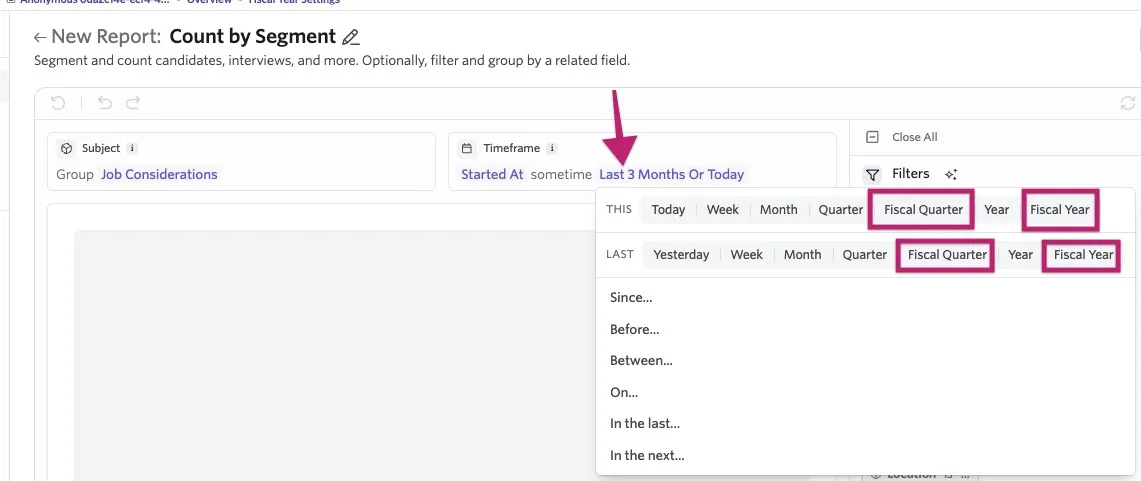
- Select Fiscal Year to report on activity from the current fiscal year to date.
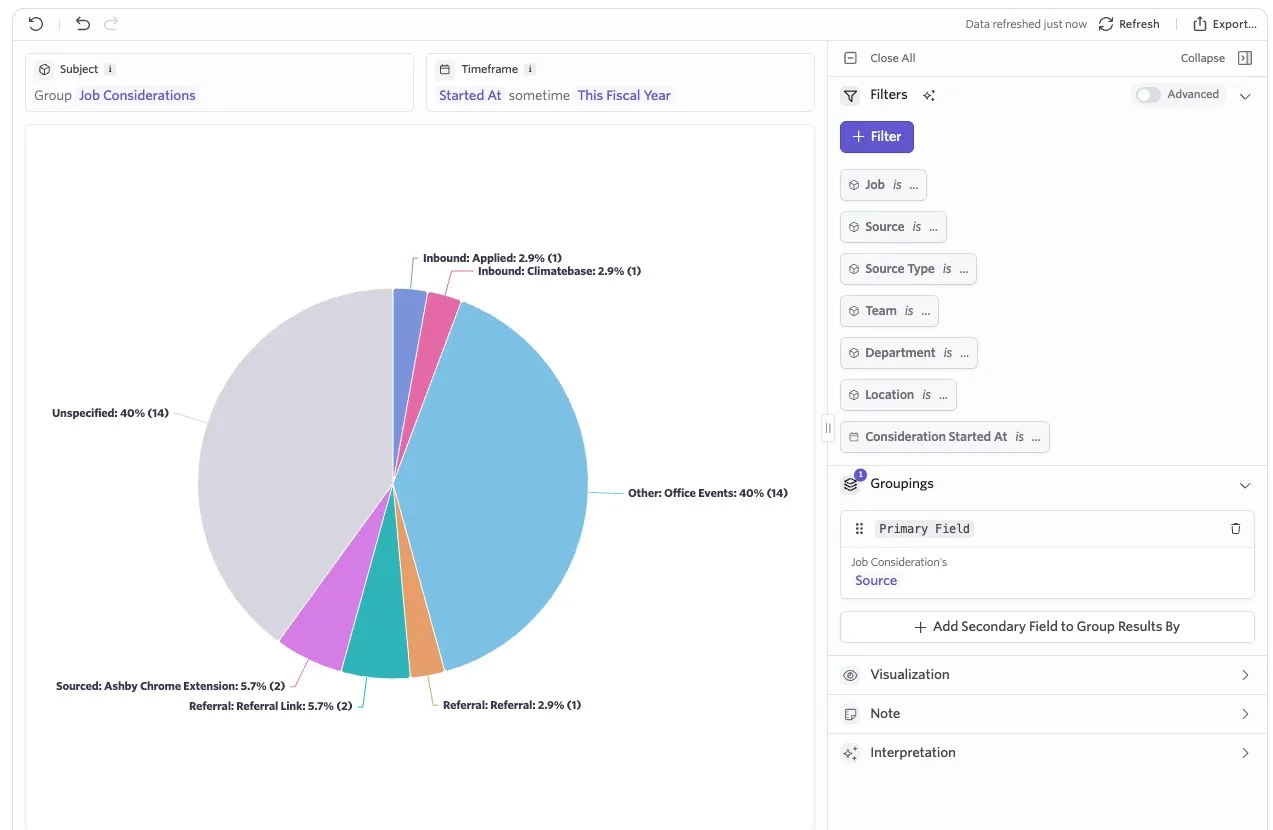
Select Last Fiscal Quarter to report on activity from the previous fiscal quarter based on your fiscal calendar.
FAQs
How are interviews counted in Ashby?
Currently, how interviews are counted depends on the report type and the groupings that are applied.
Count Over Time, Segmentation, or Custom List reports
When reporting on Interviews in a Count Over Time or Segmentation report, you can choose how Ashby counts interviews:
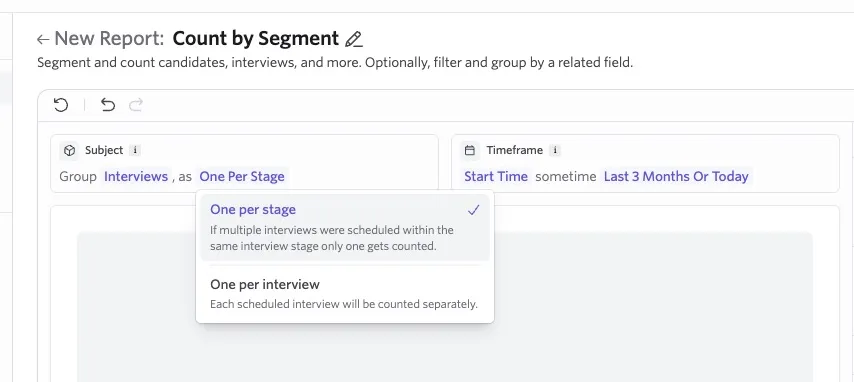
- One per stage: Counts one interview per candidate and stage. For example, if a candidate has four interviews in the onsite stage, they count as one onsite interview.
- One per scheduled interview: Counts each scheduled interview separately. In the same example, the candidate contributes four interviews to the report.
Use One per stage when you want to answer questions such as, “How many candidates had an onsite interview this week?” Use One per scheduled interview when you want to measure the total number of interviews scheduled.
The selected counting method applies to the report’s Interview subject. It is separate from Interviewer Participations, which counts the participants across interviews.
Interviewer Participations
When counting Interviewer Participations, Ashby counts each participant for each interview. For example, a panel with four interviews and two interviewers per interview results in eight interviewer participations.
Interviews per Hire Ratio
The Interviews per Hire Ratio report counts individual interviews and divides the total number of interviews by the number of hires.
How often are reports and dashboards refreshed?
Report results refresh live when a report is opened. As a dashboard is essentially a collection of reports, all reports on the dashboard refresh when the dashboard is first opened.
If the dashboard page itself is refreshed, or any of the reports from that dashboard are viewed directly, they pull from the cached version created when the dashboard was initially opened.
On the dashboard, every report has a top-right option menu with the choice to refresh and re-run the report rather than pull from the cached version.
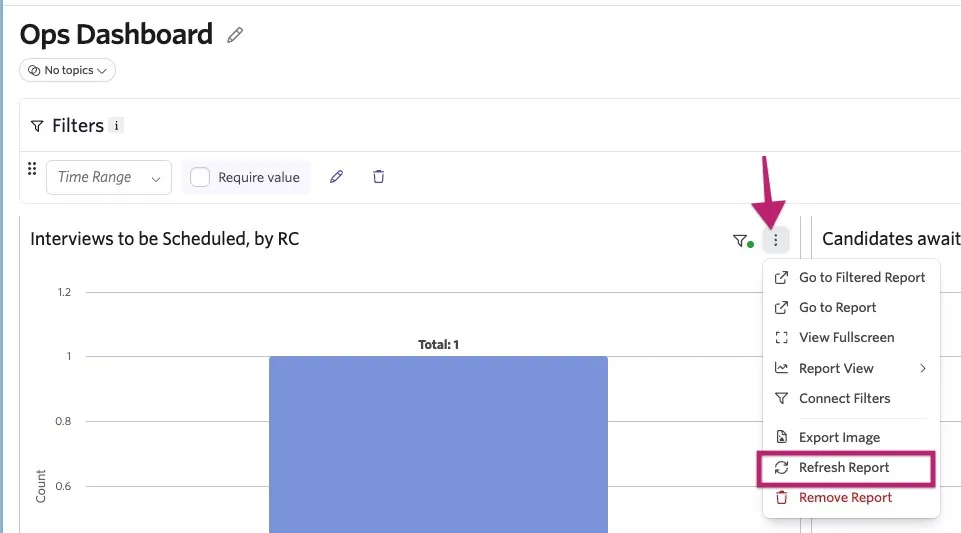
This option is also available when viewing a report directly.

How do chart legends work?
When viewing a chart in Ashby, you see the groups that your results are grouped by listed beneath the chart. These group labels are referred to as chart legends.
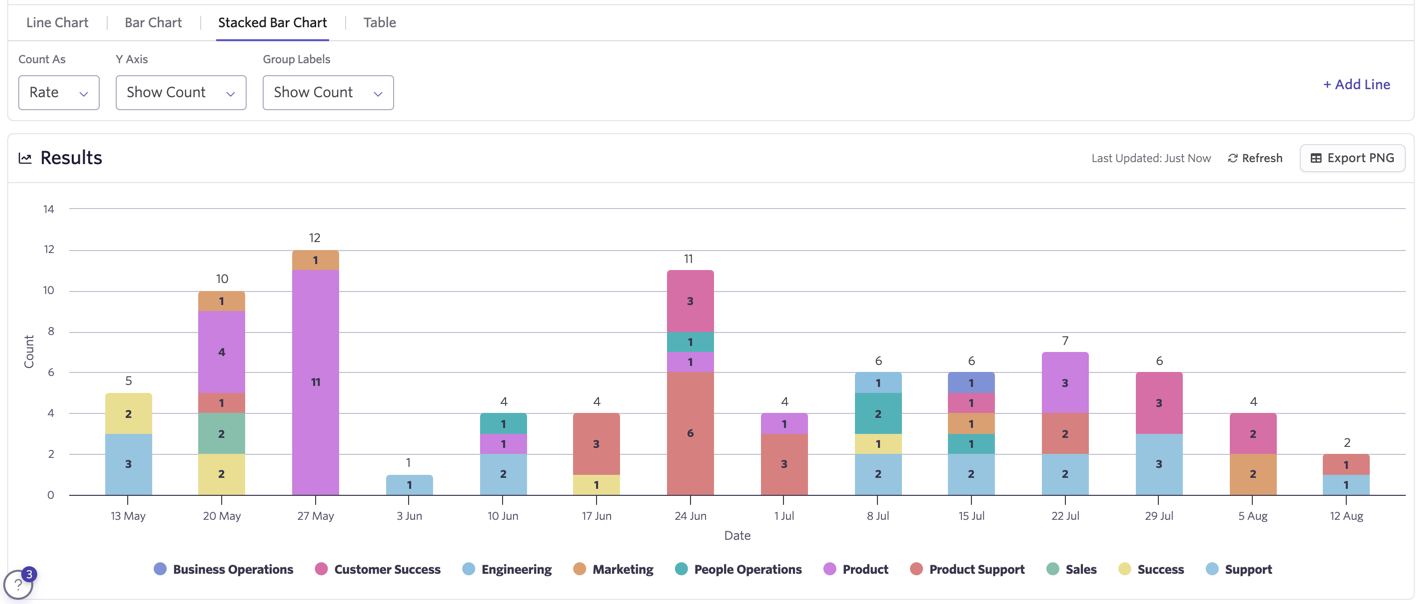
For example, here is a stacked bar chart showing the number of job considerations started per week over the last three months. The results are grouped by department and we can see each department listed as a chart legend below the chart for reference:
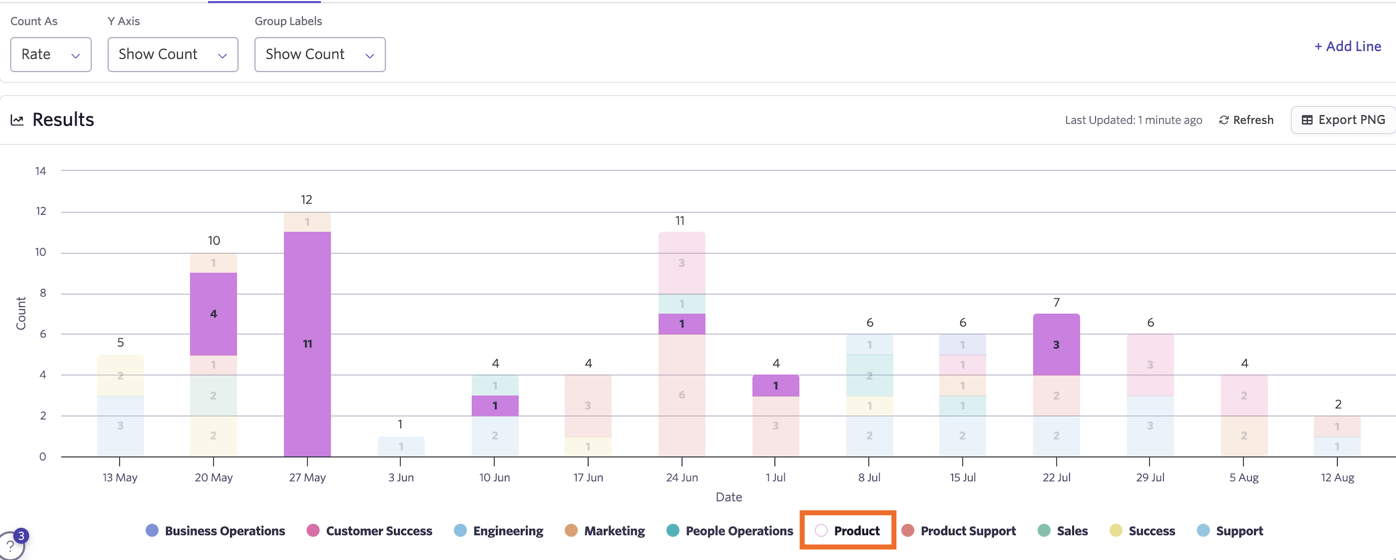
This is not only for clarifying color coding. You can hover over each legend item to view results within that group across the report. Here, for example, we're hovering over the Product legend item so those results are highlighted:
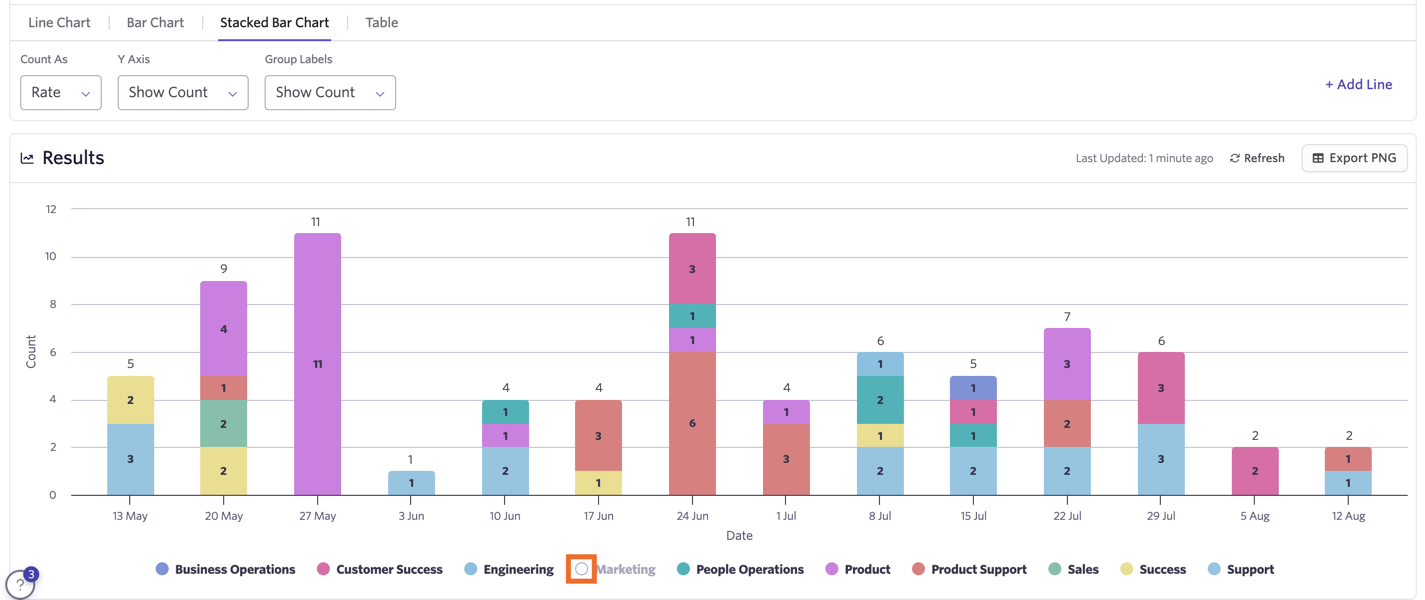
You can also click on a legend item tag or color swatch to remove that group from the report. The legend item won't disappear completely. You can click on the color swatch again to add those results back into the report.
In this example, we've clicked the swatch for the Marketing department legend item to hide results from that department on this report.
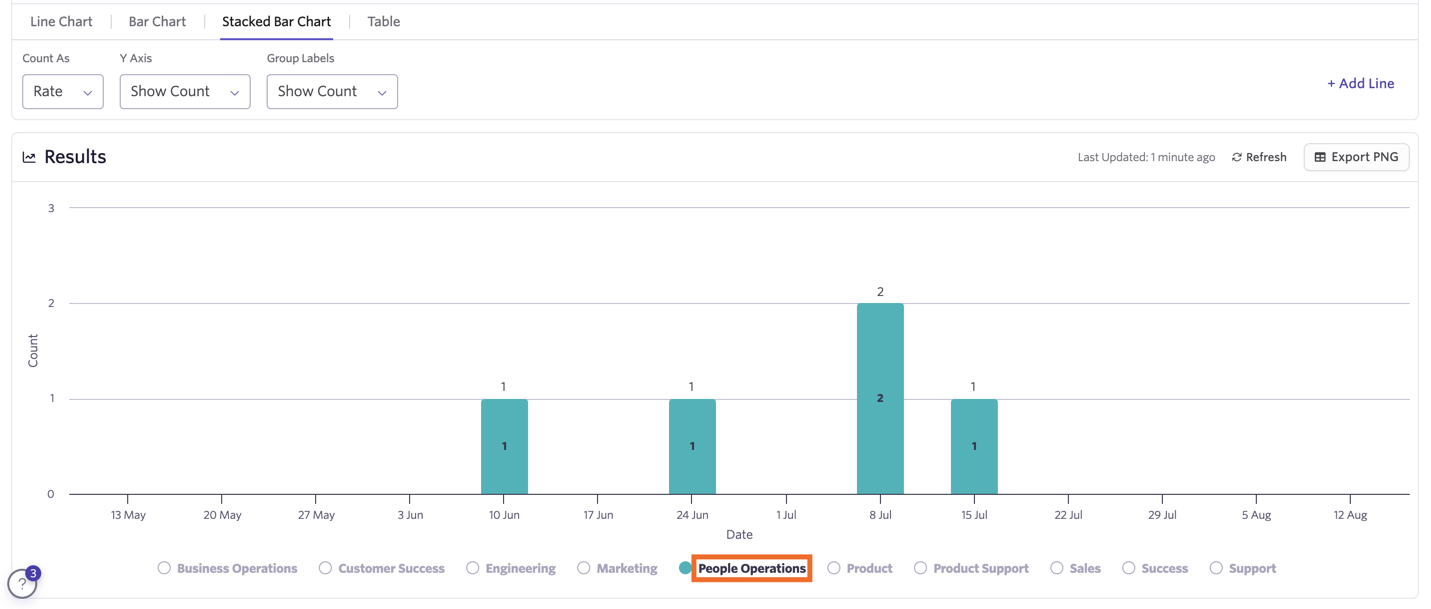
If you click on the legend item name, you can focus the report on that specific legend item without removing all other legend items from the report. Here, we've clicked on People Operations to see only the results for the People Operations department.
What is the difference between the two "Recruiter" fields in Ashby?
You might have noticed that Ashby has two recruiter fields. This is because the recruiter assigned to an individual application can be different than the recruiter assigned to a job (this is true for all other hiring team roles as well). In most cases you want to use the Recruiter field associated directly with the application, as that yields the most accurate results.

What happens when I group by hiring manager on a job that has multiple hiring managers assigned?
Ashby counts activity toward all hiring managers that are assigned to a job. For example, if hiring managers Simon and Alexa are both assigned to a Head of Design job in your ATS, and there are 10 offers associated with that job, we show 10 offers for each Simon and Alexa (assuming they don't have offers belonging to other jobs).
How do I copy or duplicate a report?
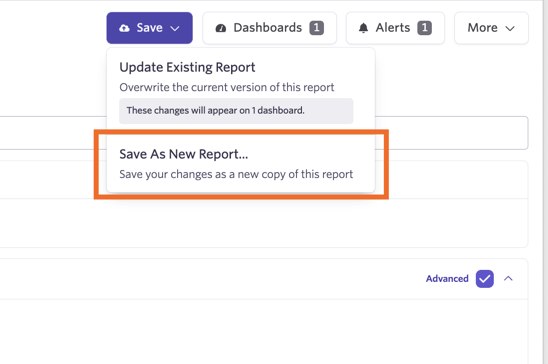
When viewing your report, click the Save button. You then have the option to select Save As New Report… to create a new copy of your report, or, if you've made changes to the existing report, create a new report that reflects those changes without applying them to the current report.