Agencies Users
This guide covers how agency users can use Ashby to submit and track candidates. Review Agencies Setup for instructions on how to set up Agencies and add agency users.
Agencies Overview
The Agencies feature allows you to submit candidates directly to jobs, leave notes on their profiles, and their progress.
Navigation
Once your Agency is set up within Ashby, you'll be able to sign in to Ashby here: https://app.ashbyhq.com/signin. You can sign in using Google or Microsoft Sign In, or the Magic Link option.
If you are logged into Ashby when added as an agency user to a new company, you will need to log out of Ashby, then log back in before you will be able to see the new company's profile in Ashby.
Once logged in, you'll land on your home screen where you can access the key features of Ashby you'll need to add and track candidates.
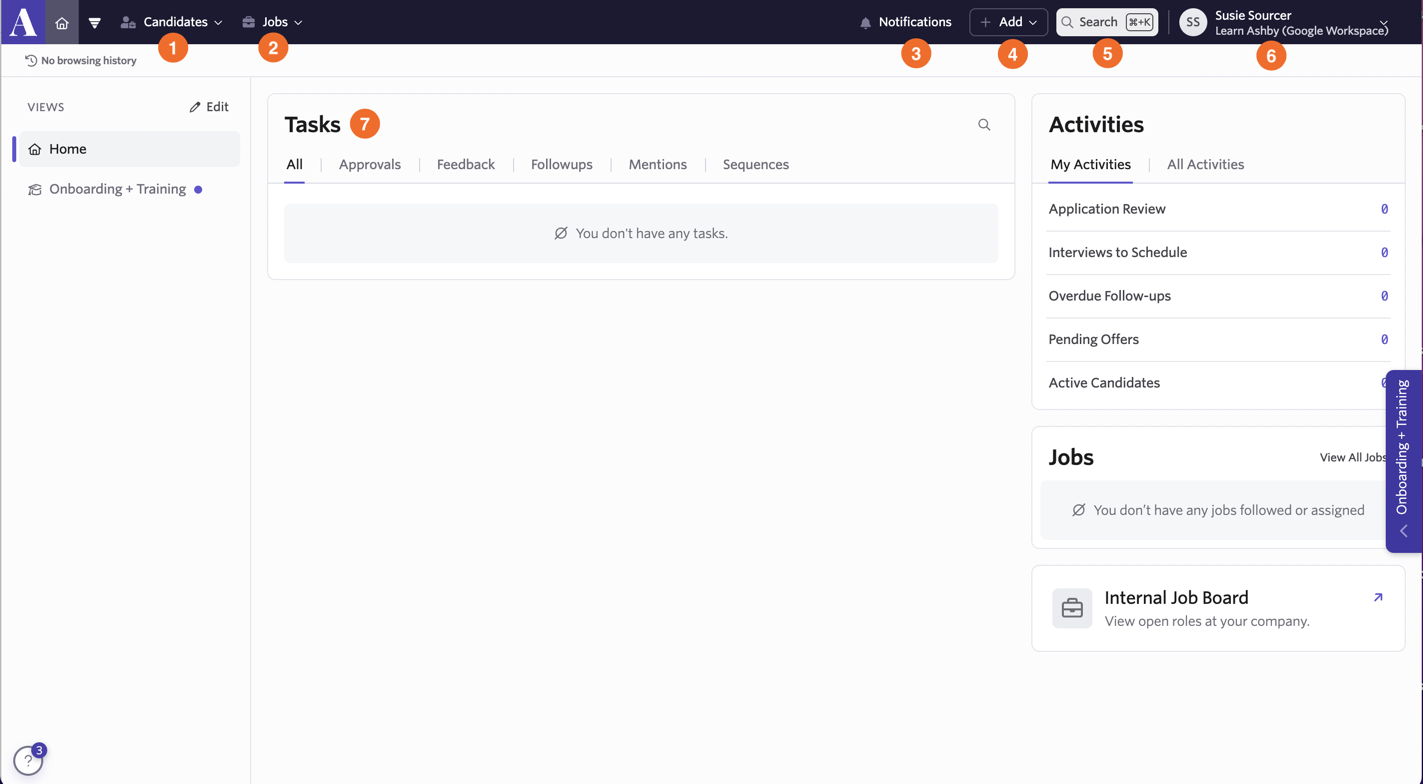
This screenshot highlights seven key areas of the home page:
- Candidates: In the candidates dropdown you'll have access to the Candidate Pipeline and Candidate Search features. The candidate pipeline shows the stages your candidates are in, candidate search allows you to filter for candidates using basic or advanced filters.
- Jobs: In the jobs dropdown you'll have access to the Jobs Dashboard. The Jobs Dashboard gives you a high-level view of the number of candidates in each pipeline stage by the job.
- Notifications: View your notifications within Ashby here.
- Add: The + Add button allows you to manually add a candidate to a job.
- Search: Use Command + K or CRTL + K to search for candidates and jobs you have access to.
- Personal Settings: Update your avatar, timezone, notification settings, and more.
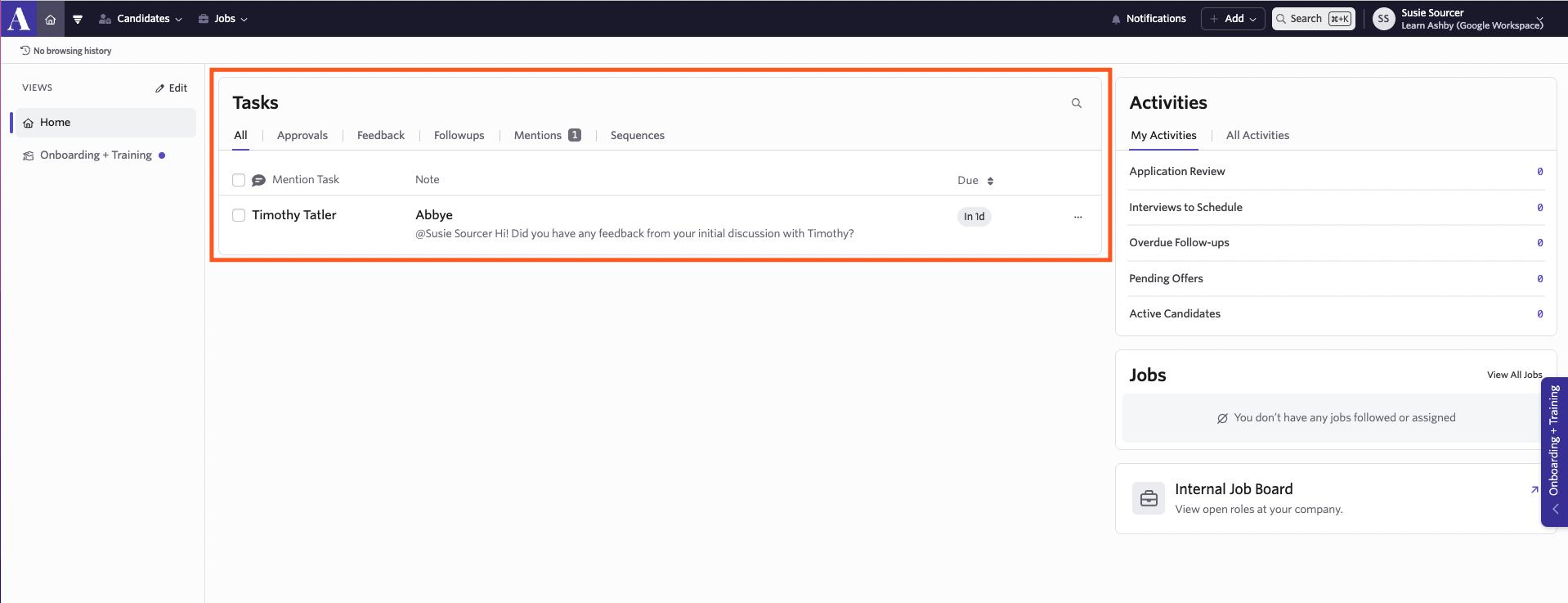
- Tasks: When you're @mentioned in notes on candidate profiles, you'll see tasks where you can reply to the @mentions.
Add Candidates using the + Add button
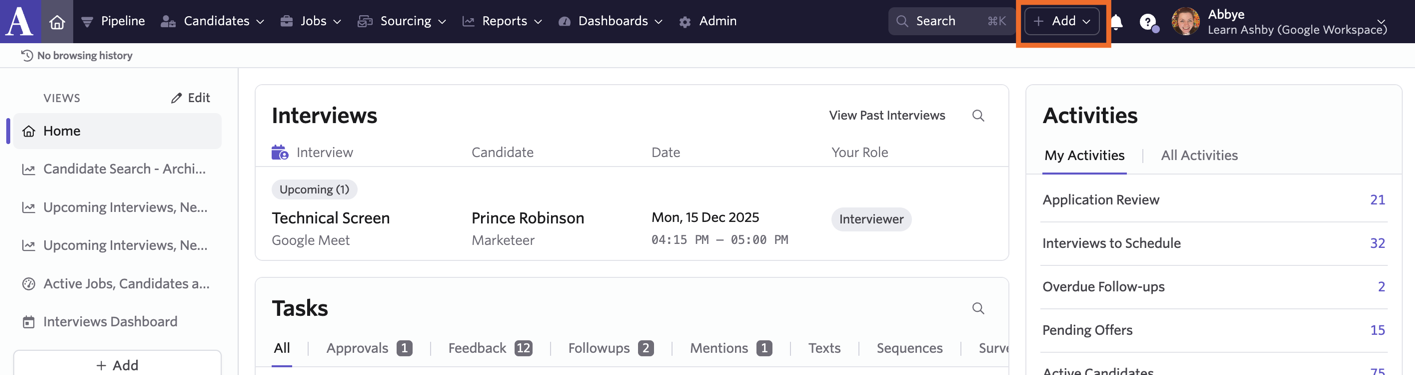
You can add individual candidates by clicking the + Add button and then selecting Candidate at the top right of your screen. Enter the candidate's details (you can also upload a resume here if needed) and link them to a job to create their candidate profile.
Add Candidates using Email Import
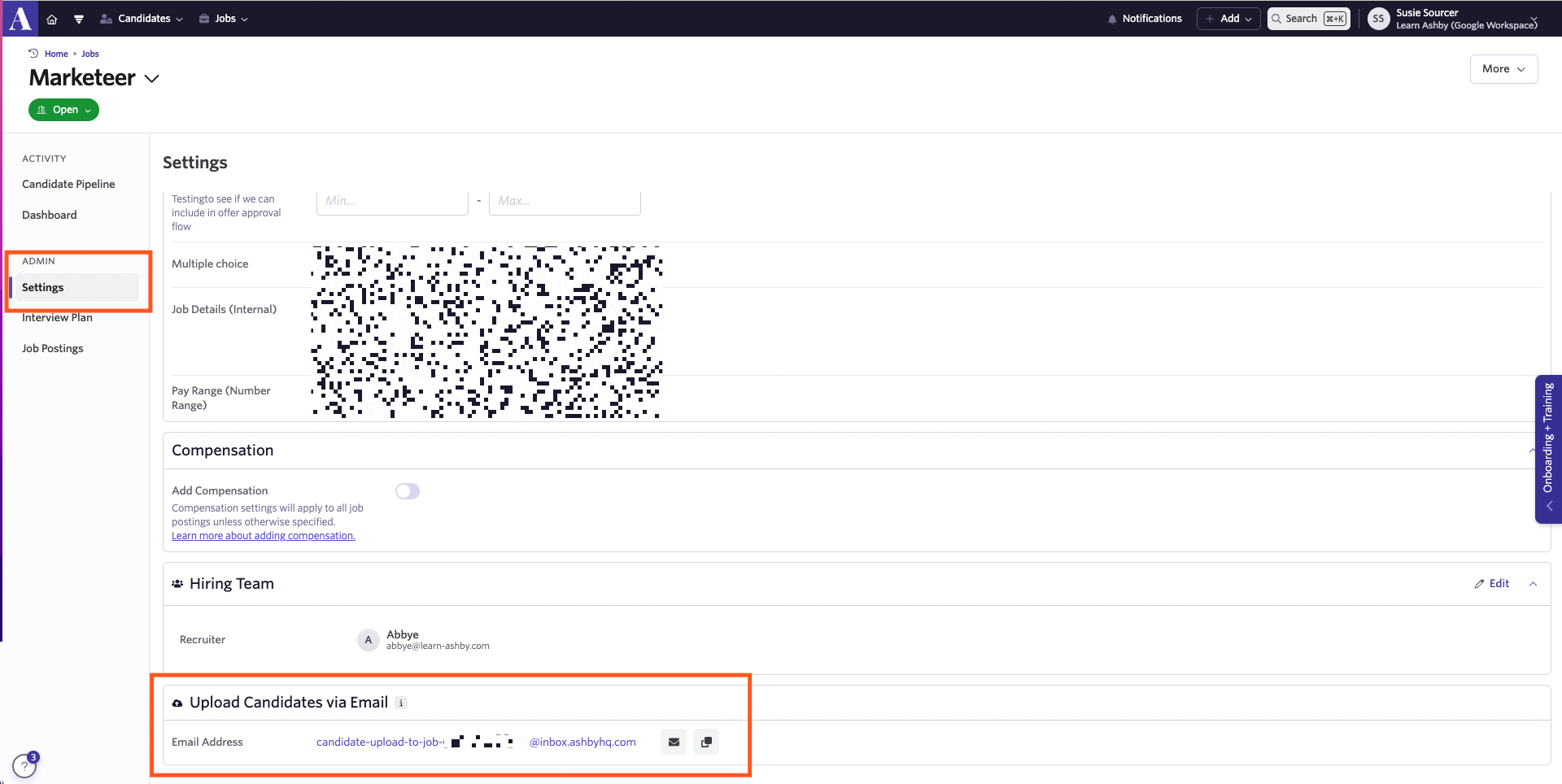
You can add up to 10 candidates at once by sending their resumes to a job-specific email address. Navigate to the Settings Page on a job and scroll to the bottom of the page to find the email address.
Candidate Profile
The Candidate Profile is where you add and view details about the candidate. You can create tasks for yourself, your team, and your partners by @mentioning them and checking the Create Task checkbox.
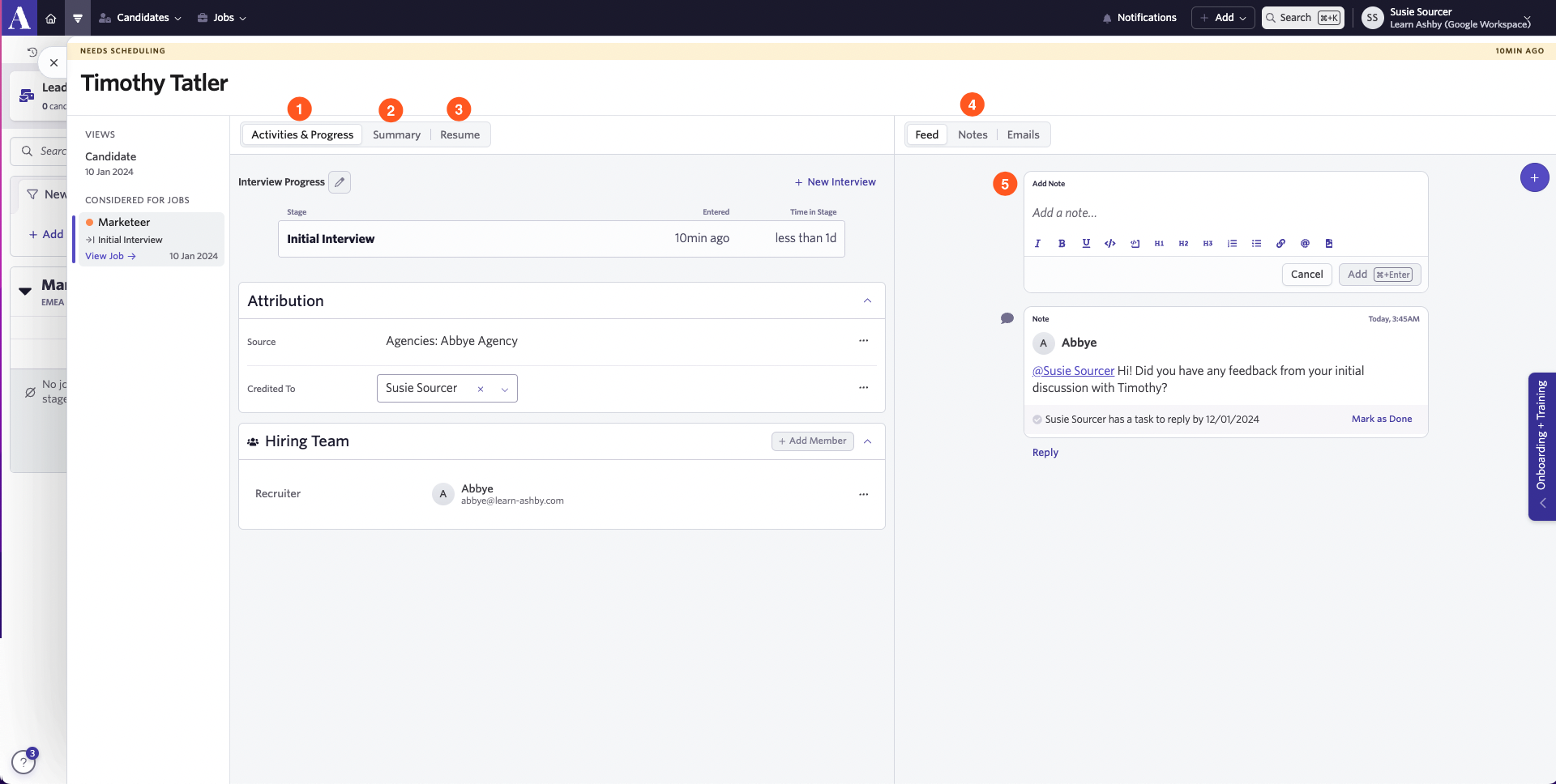
1) Activities and Progress Here you can view the candidates progress through interview stages.
2) Summary Candidate information like their name, email and location can be found here.
3) Resume If the candidate has a resume, you can view the uploaded document here.
4) Feed Here you can view notes, feedback and emails relating to the candidate (if you have access to see these). You can use the Notes and Emails buttons to filter the feed accordingly.
5) Add Note Add notes and create tasks for yourself or other members of your team here.
Candidate Pipeline
The Candidate Pipeline allows you to view your candidates across jobs and stages. You can use the search bar to search for specific candidates and the filters to pull candidates that meet a specific criteria. From there, you can click on the the arrow next to a job to view the pipeline and the candidates in each stage.
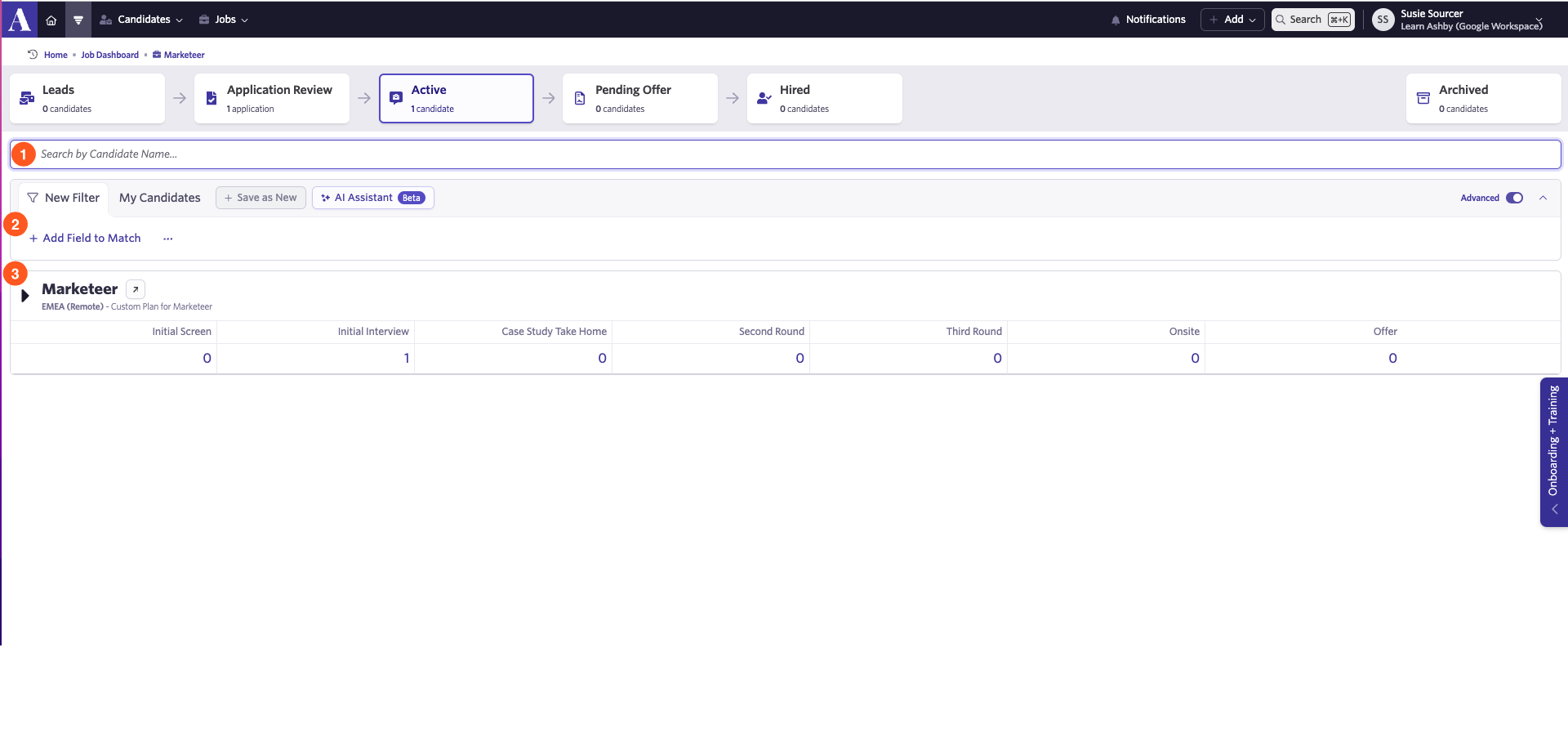
1) Search Search for a candidate by name here.
2) Filters Filter by specific criteria to pull the candidates you’re looking for here.
3) Jobs and pipelines Jobs you have access to will be listed here, click the arrow to the left of the job title to open the pipeline and view the candidates in each stage.
Tasks
When someone @mentions you on a candidate's profile or you have an overdue task to submit feedback on a candidate, a task will be created on your home page. You'll receive notifications via email until the task is resolved.
Personal Settings
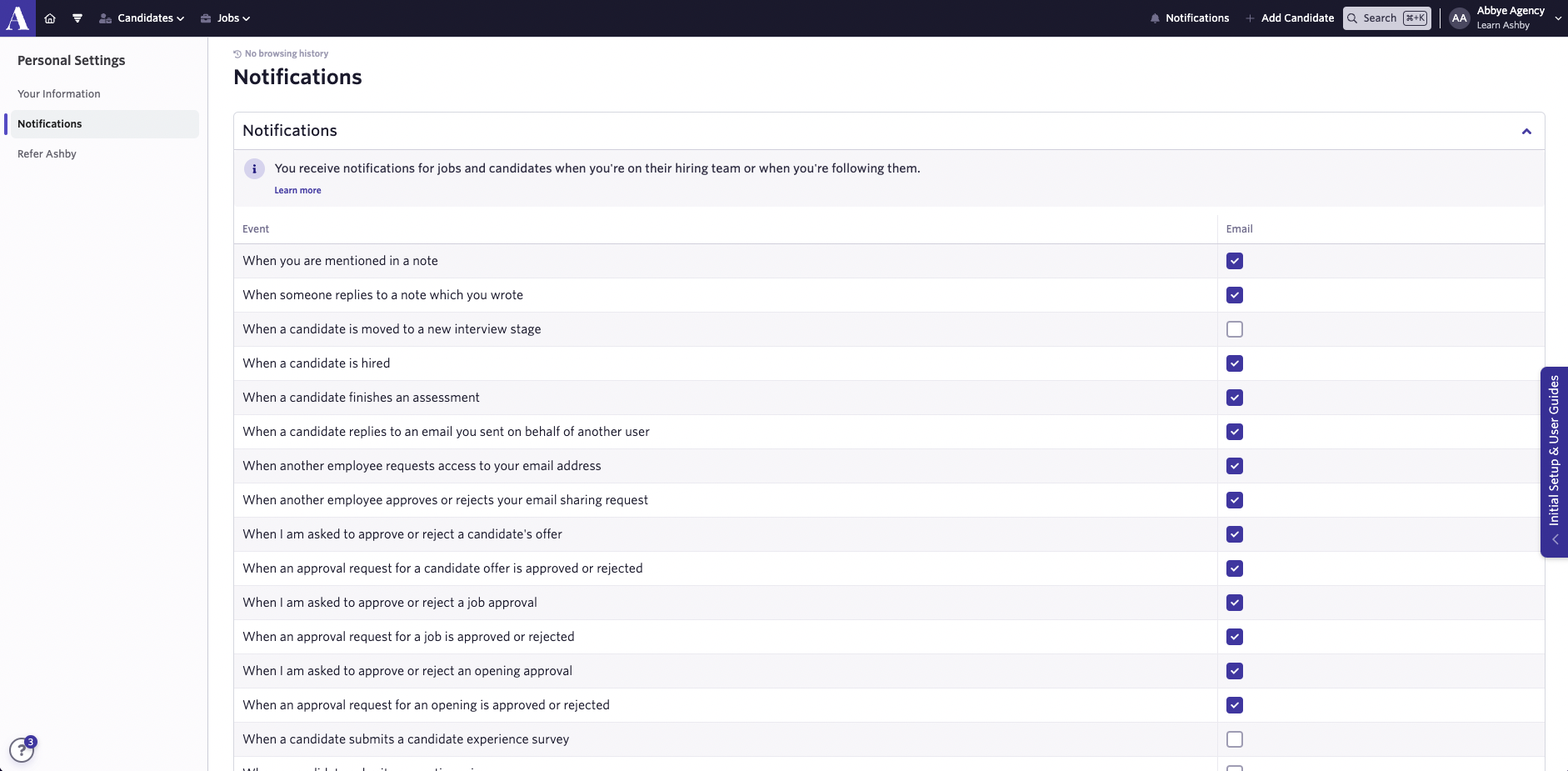
Your Personal Settings are where you manage account settings specific to you, including your name, avatar, and notification settings. Under Notifications, you have the option to enable or disable email notifications for when:
- You are mentioned in a note
- A candidate is hired
- A candidate is moved to a new interview stage
- Someone replies to a note that you wrote
- You have overdue tasks (report sent daily)