Candidate Texting
This guide assumes your team has completed A2P 10DLC registration and walks through texting a candidate via Ashby once this setup is complete. If you’ve yet to set up candidate texting, please complete Candidate Texting Onboarding. Texting will not work if onboarding isn’t completed first. Texting currently requires setup support, please contact your CSM or Support to enable it for your account.
Candidate Texting is available on the Foundations, Legacy Plus, Plus and Enterprise plans.
Foundations | Legacy Plus | Plus | Enterprise |
|---|---|---|---|
✅ | ✅ | ✅ | ✅ |
Please review the table below to view the number of texts included in your plan.
Plan | Foundations* | Plus | Enterprise |
|---|---|---|---|
Included Texts | 1000/month | 2000/seat/year | 3000/seat/year |
Additional Texts | $0.09/text, sold in batches of 1000 | $0.09/text, sold in batches of 1000 | $0.09/text, sold in batches of 1000 |
*Includes both Foundations and Legacy Plus plans.
Candidate Texting Overview
This guide covers all the features currently supported in Candidate Texting, including:
- Two-way SMS messages via a shared company SMS number
- Candidate Texting Templates that support replacement tokens.
- Schedule template automation, including linking a direct booking text and sending a text upon stage entry.
- Built-in compliance management to help prevent any issues with your messages being flagged as spam.
Texting Access
Texting currently requires setup support, please contact your CSM or Support to enable it for your account.
Enable candidate texting
To enable texting:
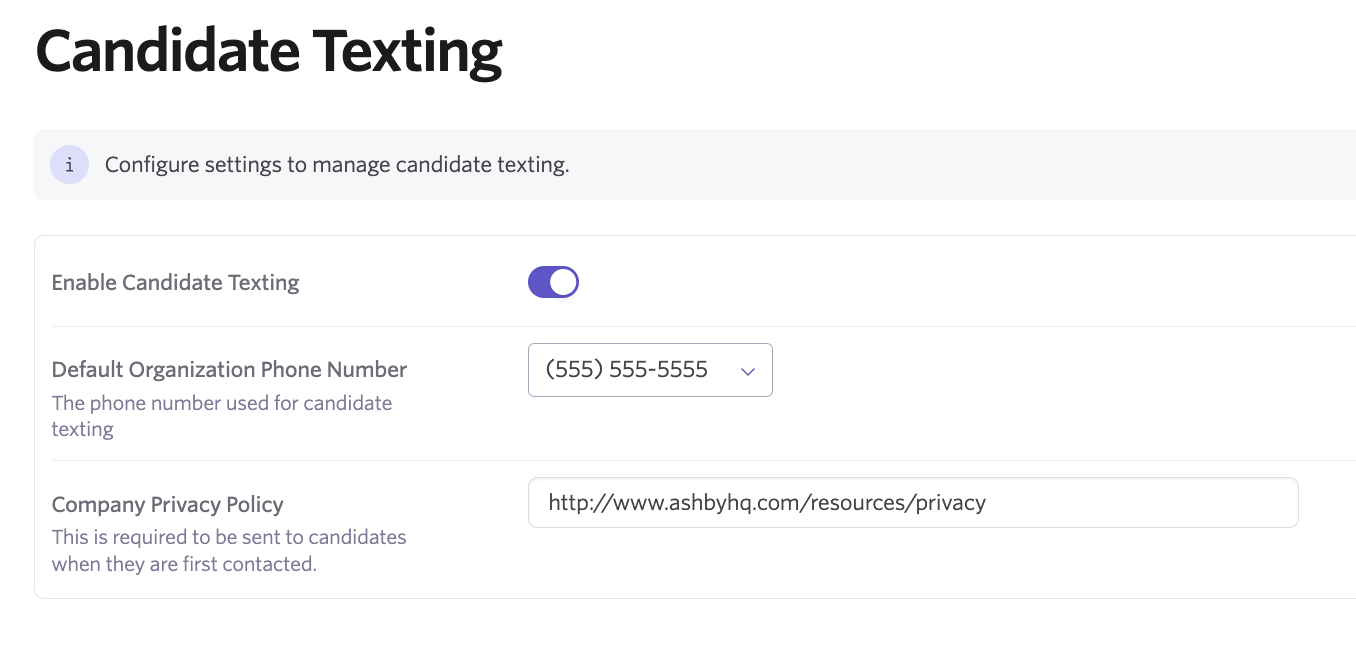
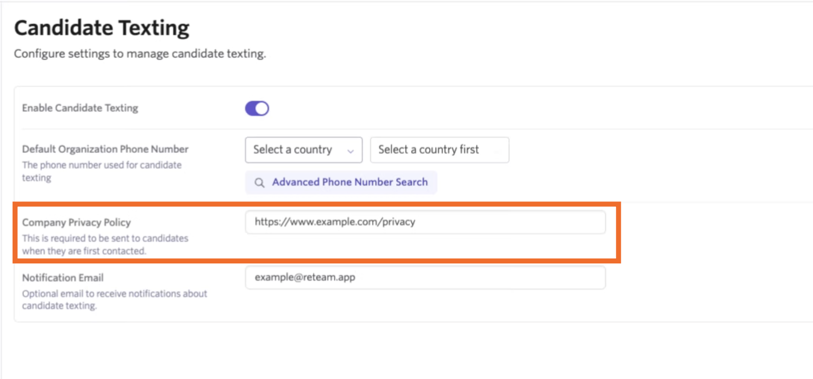
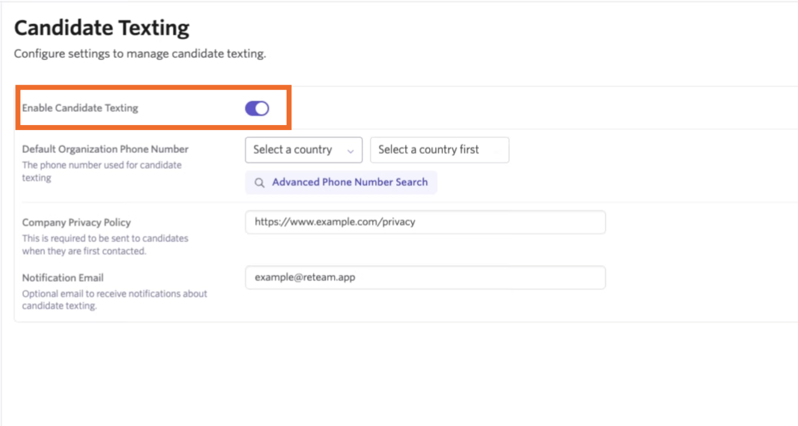
- Navigate to Admin > Organization Setup > Candidate Texting
- Toggle on Enable Candidate Texting
- Input your privacy policy (required)
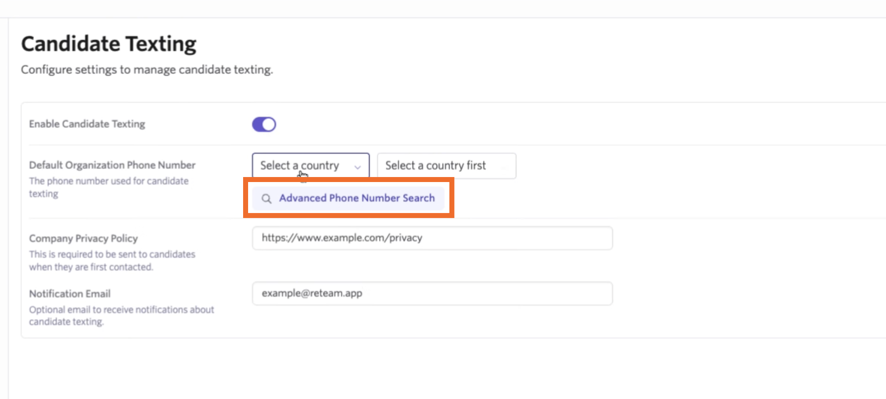
- Select your default organization phone number, either by selecting a country code, then selecting a number from the list provided, or by clicking Advanced Phone Number Search if you have some specifications around the phone number you’d like to use.
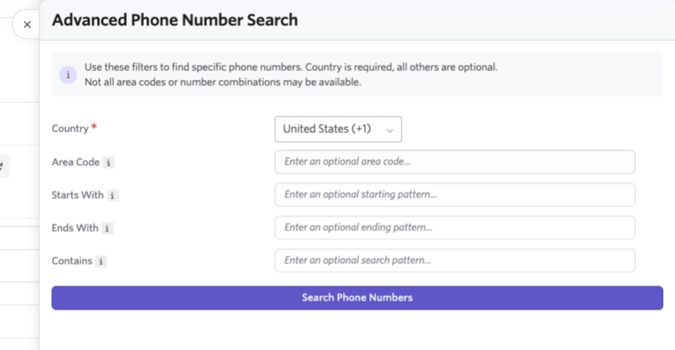
- If you do opt to use the Advanced Phone Number Search option, you will be able to specify a country, an area code and also include preferences like what the phone number should start with, end with or contain.
- Once you’ve added your specifications, click Search Phone Numbers. This will pull up a list of around 30 options. Click Buy beside the option you’d like to go with, or Load More if you’d like to load other options meeting your preferences. Please note that not all area codes or number combinations may be available.
- Once a number is selected, it isn’t possible to access this option again.
- Once you have determined a phone number, add your privacy policy in the Company Privacy Policy field. This is required information.
- Optionally, you can also add in an email address to receive notifications on candidate texting in the Notification Email field.
Manage permissions
Texting is supported for Elevated Access and Organization Admin users.
To grant access to users:
- Navigate to Employees
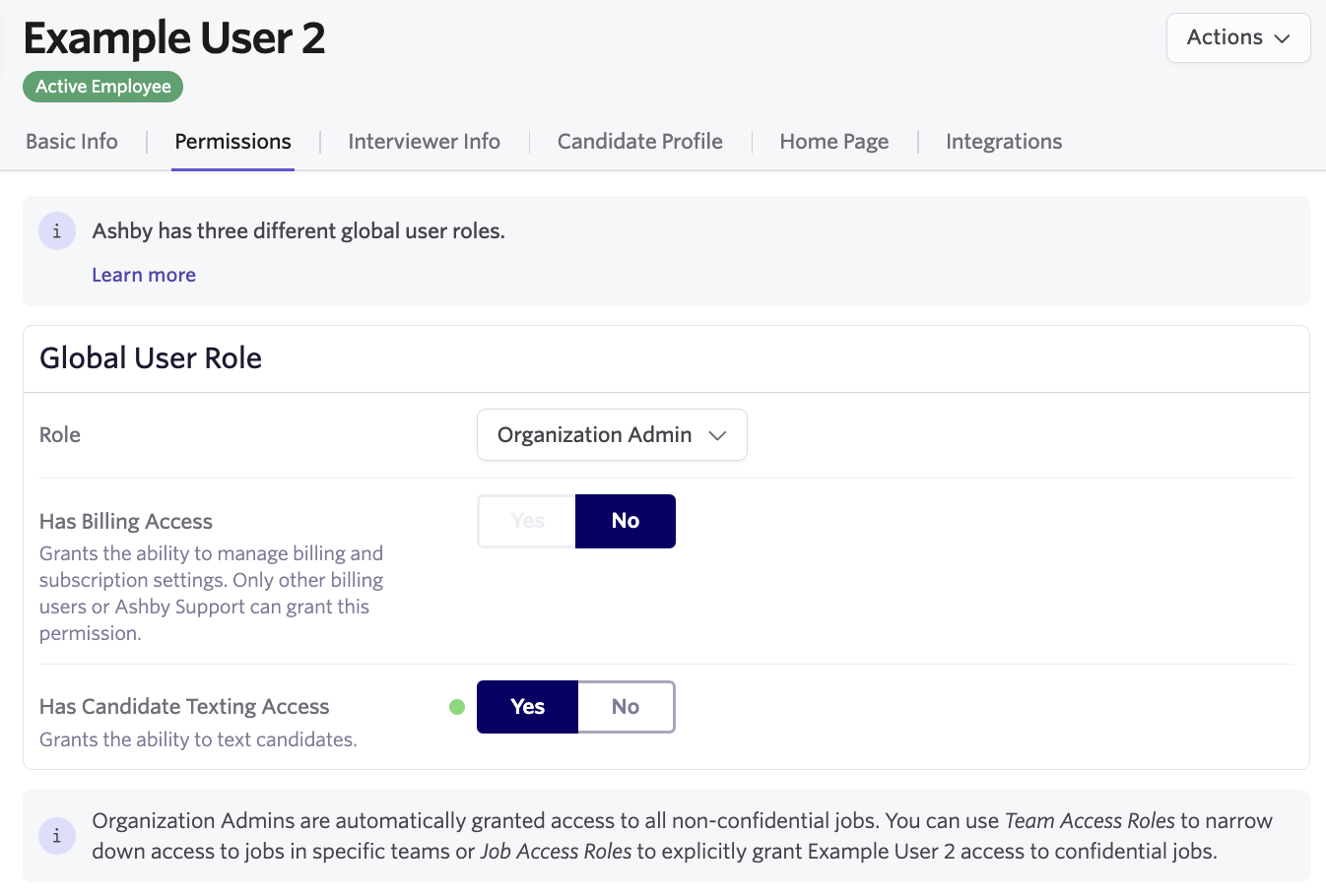
- Choose an employee and visit their Permissions tab
- Set Has Candidate Texting Access to Yes
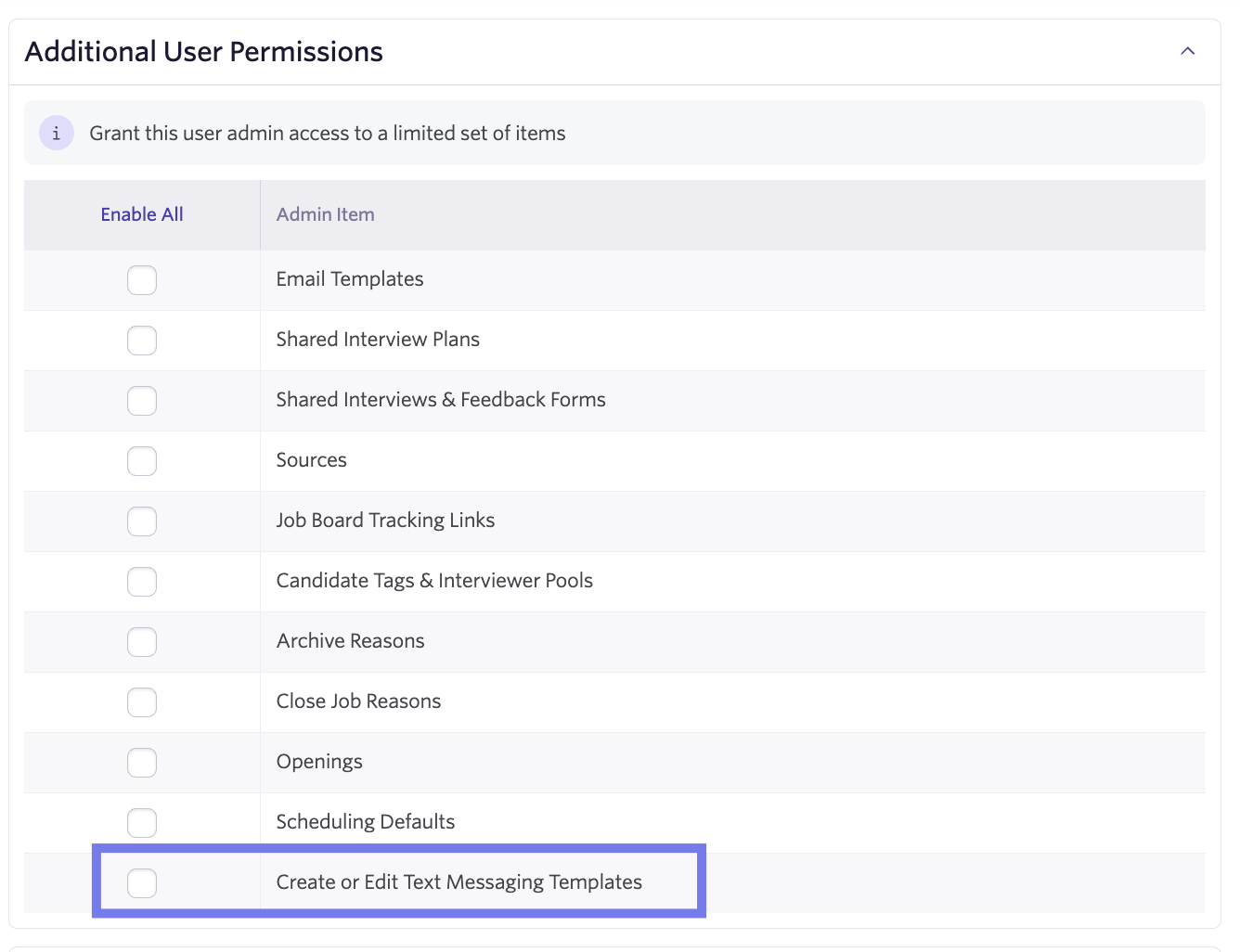
- If the user has Elevated Access permissions, optionally scroll to Additional User Permissions and check Create or Edit Text Messaging Templates
Manage notifications
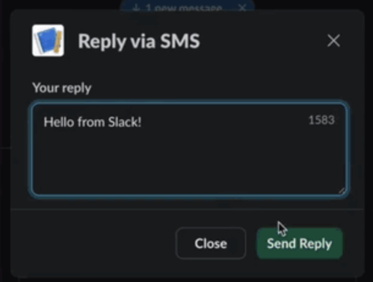
Texting notifications appear on a user’s home page and can be configured to send via email and/or Slack.
There are two types of Notifications:
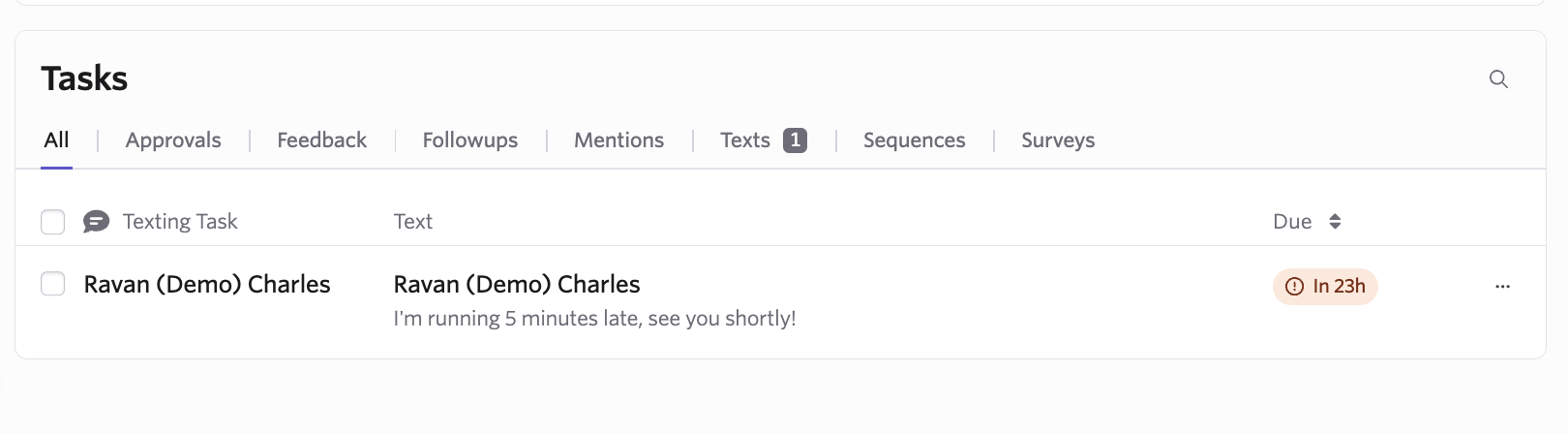
- Home page notifications appear on the Texts tab of the Tasks menu. These tasks can be resolved by replying or clicking the ellipses to resolve.
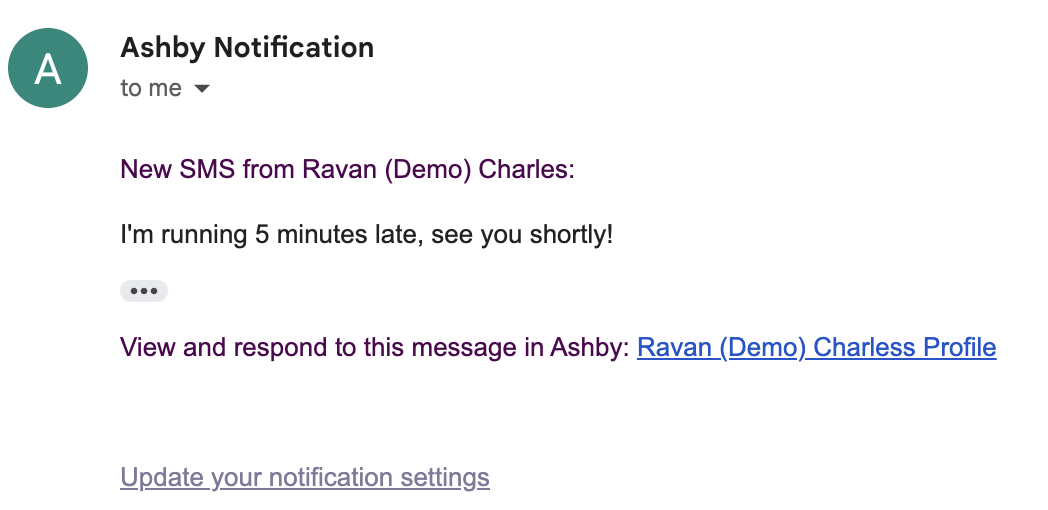
- Subscription-based notifications can be enabled in a user’s personal settings and will be sent to any user who texts a candidate, is a hiring team member, or follows a job.
Create candidate texting templates
Templates help to create a consistent candidate experience and keep things moving fast
Your team can create Organization and Personal Texting Templates:
- To set up Organization templates, navigate to Admin>Candidate Texting Templates.
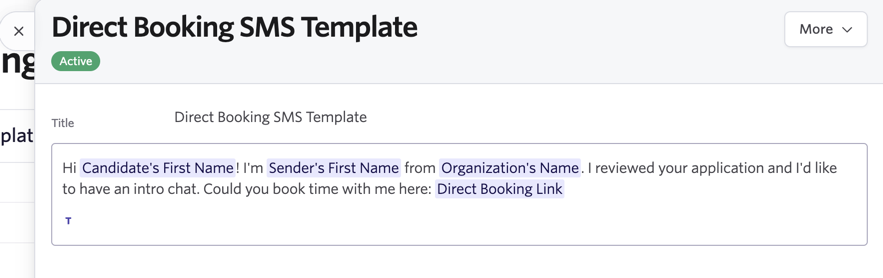
- Click New to create a new template. Add in a Title to refer to internally and the body of your text message.
- Click the T icon to access substitution tokens to pre-fill candidate, job consideration, job and sender information.
- To set up Personal templates, navigate to Personal Settings>Candidate Texting Templates.
- Click New to create a new template. Add in a Title to refer to internally and the body of your text message.
- Click the T icon to access substitution tokens to pre-fill candidate, job consideration, job and sender information.
Gather consent from candidates and leads
As a best practice, you should always gather and log consent before texting a candidate. Ashby supports gathering it via application forms, via text message, and manually logging consent gathered a different way.
Gathering consent via the application form
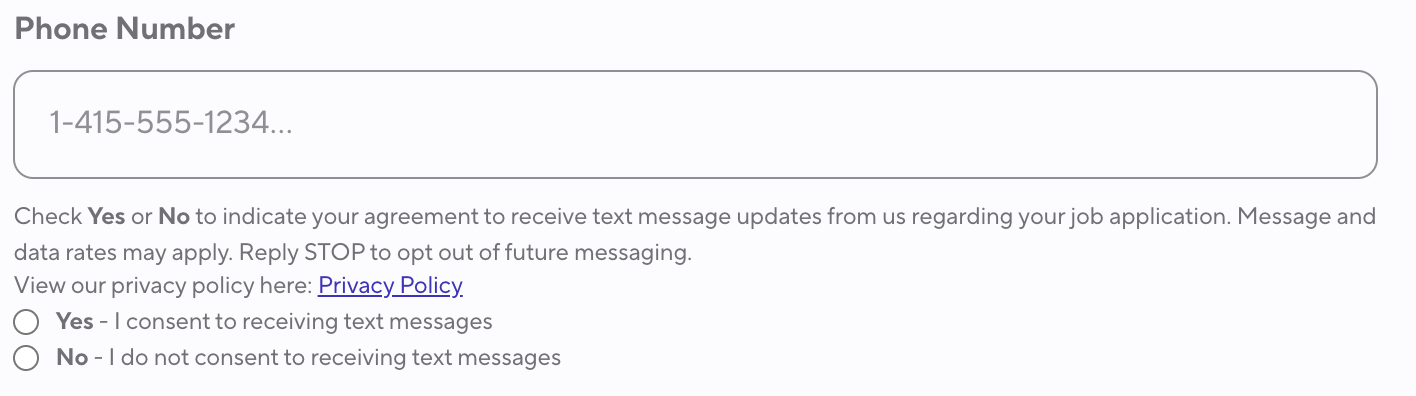
- When texting is enabled, phone number fields will include a consent request for candidates.
- They can opt in or out at that point. If they don’t respond, the first message Ashby sends will be a request for consent via text.
Gathering consent via text message
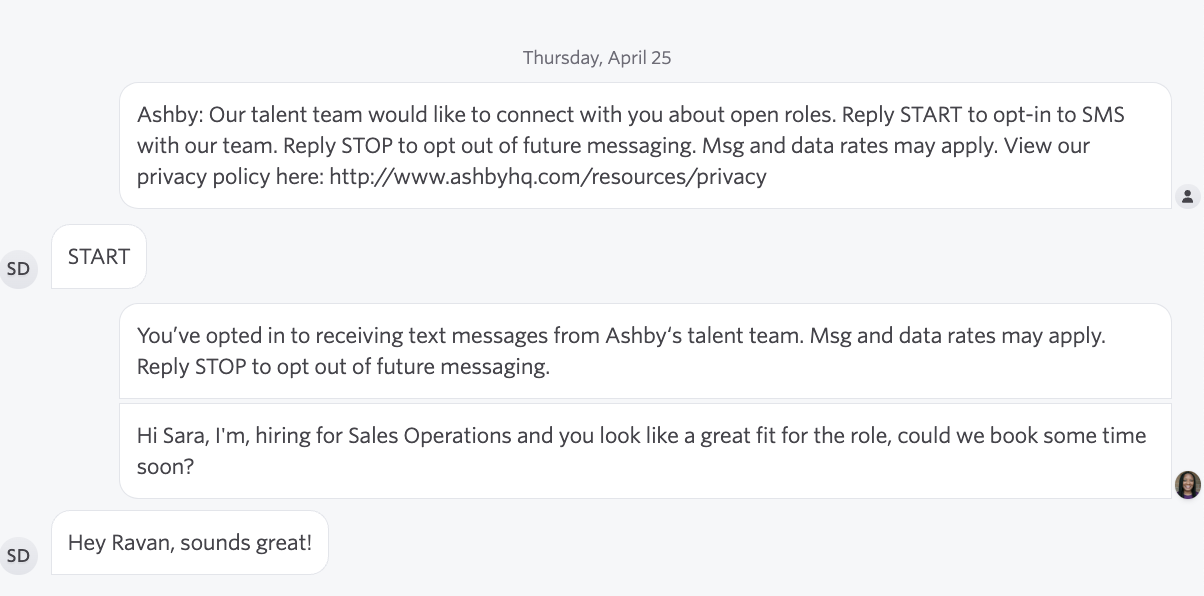
- When a lead/candidate hasn’t provided consent, and you attempt to text, they’ll first receive a message to opt-in to receive further messages.
Editing a person’s consent on their candidate profile
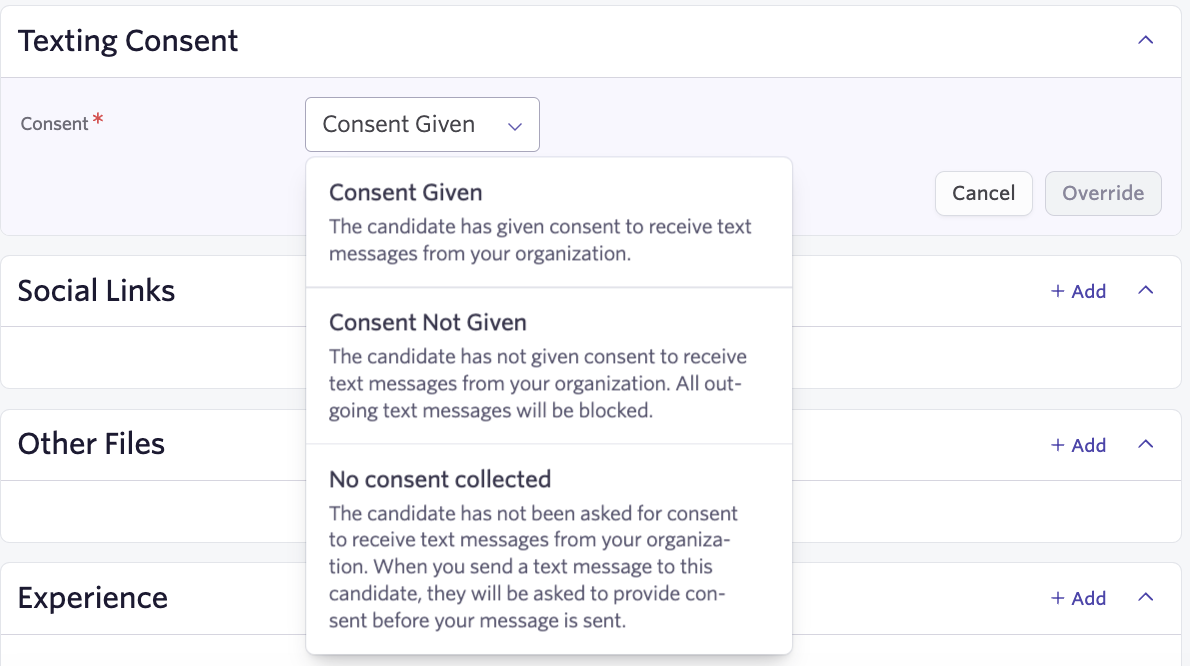
- Consent status can be manually overridden on the Summary tab of the candidate’s profile. You can update the candidate's status if you’ve gathered consent outside of Ashby and want to send a text immediately.
Consent best practices
We’ve built consent best practices into the texting feature, including automatically preventing texting people who have opted out of communication, gathering consent from inbound candidates, and clearly identifying your company to the candidate.
- Ensure your content is relevant to your hiring use case. A part of 10dlc registration is sharing specifically how you will use texting. The default use case is registered and specifically outlines contacting your existing candidates about jobs they’ve applied to and leads about jobs and related hiring events you’d like to share more information with them about. Stick to these use cases to remain compliant.
- Ensure recipients have provided express consent before texting them about roles. Ashby handles this automatically when consent hasn’t been registered for a candidate. If you override the provided consent, ensure you’re able to provide more details upon request
- Honor opt-outs. If a candidate’s consent status is Consent Not Given do not attempt to text them again to get permission.
Send a text to a candidate
We currently support sending one-off messages and setting up automation.
From the candidate's profile
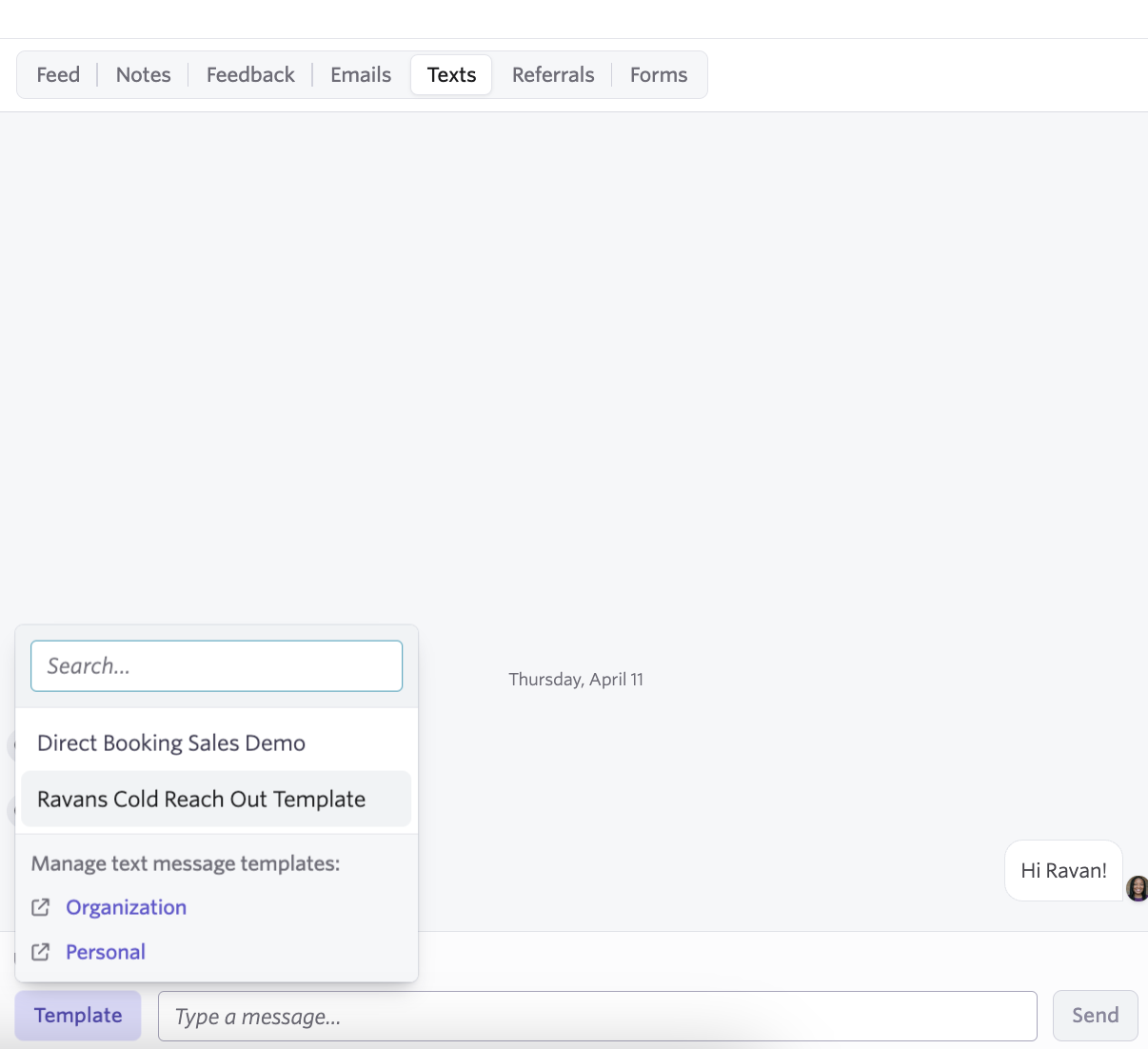
Texts can be sent from the Texts tab within the Feed section of the candidate profile. The user can select the number to send messages to, use templates, and/or manually type their message to their candidate.
Via a scheduling automation
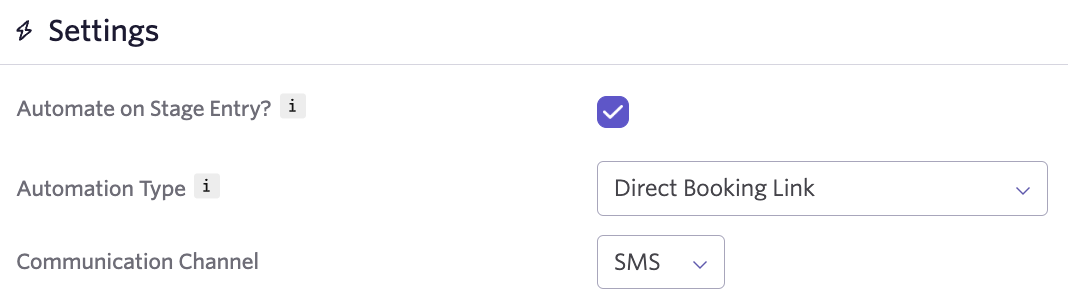
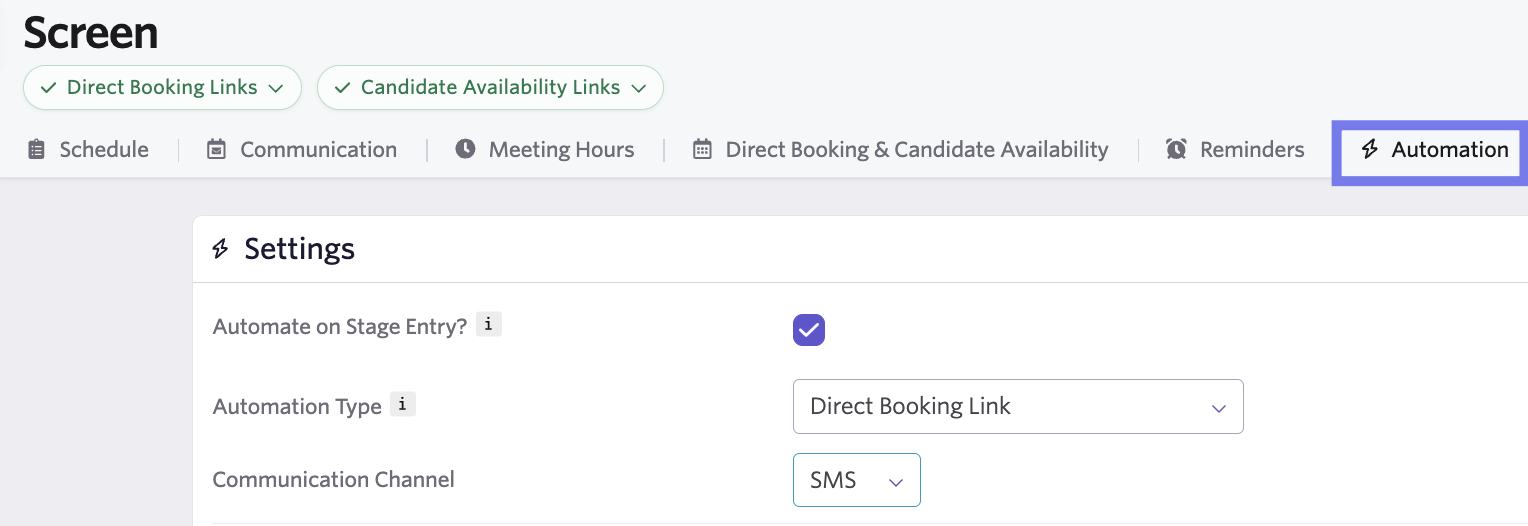
Texts can be sent automatically when a candidate enters a corresponding stage by setting up Automate on Stage Entry? on the Automation tab of a schedule interview activity template.
Set up schedule template automation
Automations help streamline your candidate texting workflows. For more information on automation in general, please check out Automated Activities
We currently support three schedule template automations:
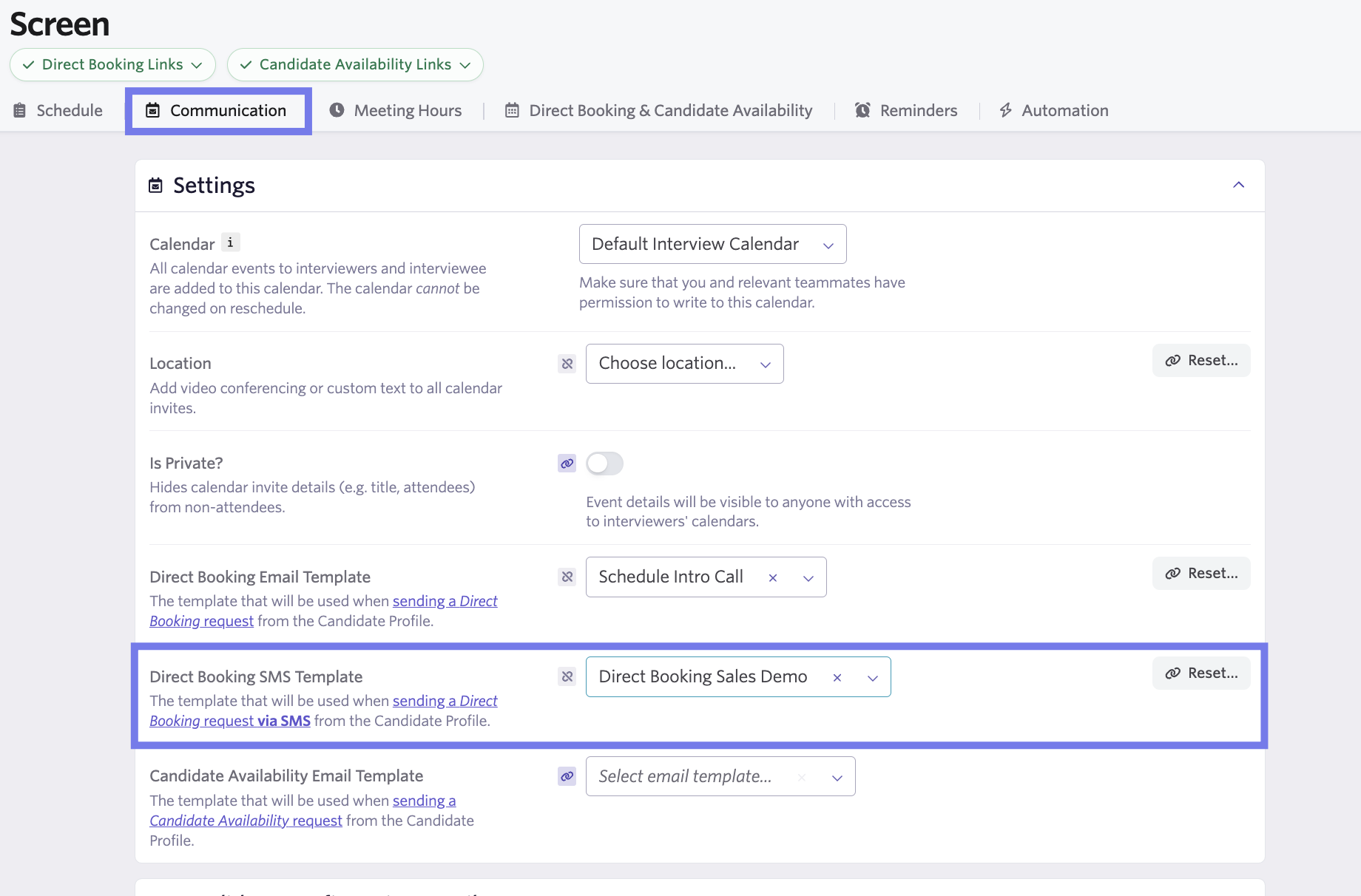
- Linking a direct booking texting template to a schedule template as part of a schedule interview activity
- Sending a text when a candidate enters a stage
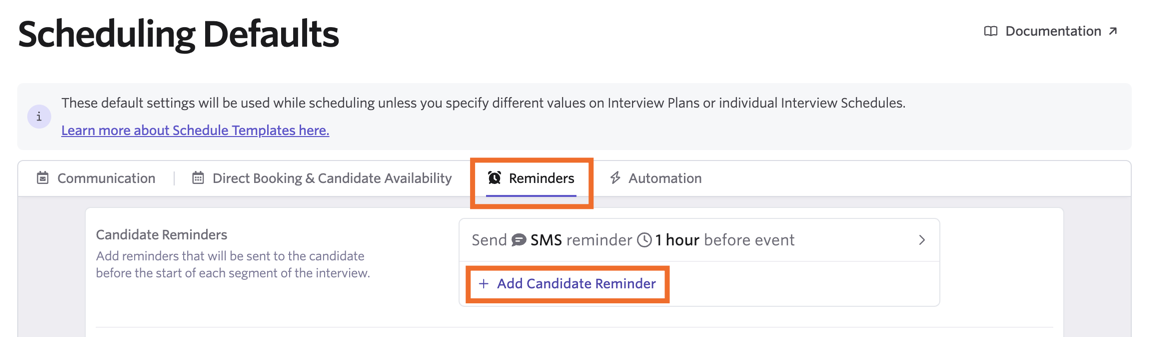
- Sending an interview reminder as a text message.